General Settings and Audit
These are general settings that will be applicable to all the users of QMetry unless the System Admin or the user makes any changes in the settings.
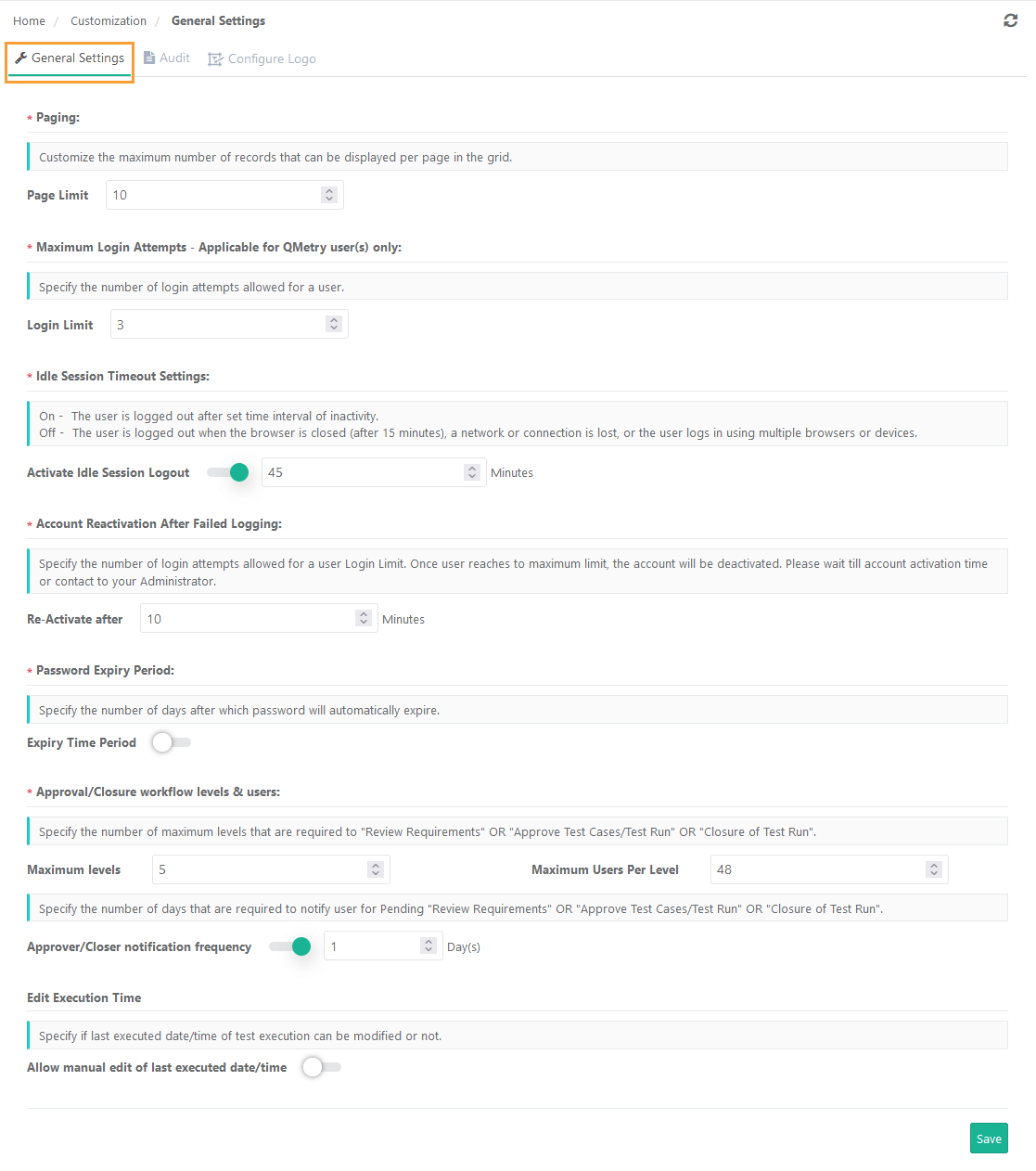 |
Paging: Use Paging to set how many records appear per page in the grid.
Note
The “Records initially loaded” value in Default User Settings cannot be higher than this limit.
Maximum Login Attempts: Specify the number of login attempts allowed for a user in the Login Limit field.
Idle Session Timeout Settings: System Admin can configure Idle Session Timeout Settings and make the idle users log out forcefully after set time interval or by default after 60 minutes. The settings are applicable to QMetry, LDAP, SSO authenticated users.
Use Case
Effective license utilization for customer having concurrent license : When users do not log out or close browser, their session remains active, thereby preventing other waiting users to login even if the seats are available and are unused.
Organizations in highly regulated industries like banking, healthcare and life sciences have regulations that the idle users sessions should logout after set time interval as per their compliance standards.
You can enable the Activate Idle Session Logout toggle on the General Settings tab in General Settings & Audit.
The option is off by default. The system logs out the user only when the browser is closed (after 15 minutes), the network connection is lost, or the user logs in from multiple browsers or devices.
If you turn the option on, the system logs out idle users after the set inactivity time. Enable “Activate Idle Session Logout” and set the idle time in minutes for logging out. The default is 60 minutes, and you can set it between 15 and 240 minutes. The Login Summary Dashboard shows logout details.
Account Reactivation After Failed Logging: Once the user reaches the maximum Login Limit, the account gets deactivated. Set the time in the Re-activate after for a user account to stay locked after exceeding the Login Limit.
Password Expiry Period: Specify the number of days after which the password automatically expires. Enable the Expiry Time Period and the enter the number of days in the Days field.
Password Expiry Notification: Specify the number of days before which the user will get an email notification about the password expiry. This option is enabled only if the Password Expiry Period is set.
Only QMetry authenticated users (Non-LDAP and Non-SAML) receives this email notification.
Note
The ability to customize the settings is available only for users who have purchased the Customization app.
For users who do not have the Customization app, the setting defaults to five days before password expiry.
Make sure the Notification Period is less than the Password Expiry Period mentioned in the settings.
Approval or Closure workflow levels and users: Specify the number of levels and users per level required to “Review Requirements” OR “Approve Test Cases/Test Runs” OR “Closure of Test Run”. (if the eSignature feature is enabled)
Maximum Levels: Specify the maximum number of levels required to review Requirements OR approve Test Cases/Test Runs OR closure of Test Runs.
Note
You can add a maximum 5 approval levels to the approval workflow.
After you set the Maximum Level and add levels, the admin cannot reduce the Maximum Level below the number of existing levels.
For example, if you set the Maximum Levels to 5 and the admin adds 4 levels, the admin cannot reduce the Maximum Levels to 3 because 4 levels already exist.
Maximum Users per Level: Specify the number of users per level required to review Requirements OR approve Test Cases/Test Runs OR closure of Test Runs.
Note
You can add a maximum of 50 users as approvers per level.
Once the Maximum Users per Level is set and approvers/reviewers are added, Admin cannot alter the Maximum Users per Level to make it lesser than the approvers/reviewers which are already added for a level.
For example, initially the Maximum Users per Level is set as 25. Admin has already added 20 approvers/reviewers/closers for a level. Now, the Admin can not make the Maximum Users per Level 15 which is lesser than the approvers/reviewers/closers already added i.e. 20 in this example.
Approver/Closer notification frequency: Specify the number of days that are required to notify user for pending "Review Requirements" OR "Approve Test Cases/Test Run" OR "Closure of Test Run". The reminder emails will be sent to the recipient every specified day here. (if the eSignature feature is enabled)
Edit Execution Time: To allow users to modify test case execution date and time on the Execution Screen, enable Allow manual edit of last executed date/time.
The Executed At field is editable only if this flag is turned On. The Date and Time can be changed at two levels: individual test cases and bulk test cases through Bulk Operation.
Support Email: This feature allows you to specify a custom Email address where you want your users to be redirected for help if they forget their password or want to reset their password. This could be your IT Help Desk email.
Click Save to save the settings.
Audit
Administrators can configure the number of days they require to retain information of Audit Log and Change Log within QMetry. The logs can be downloaded in CSV format for the days configured here.
Use Case: Organizations in regulated industries like life sciences and pharma must retain audit logs, change logs, test result logs, eSignature approval/closure/review logs, and other asset details for a long period to meet compliance requirements.
To apply the data retention policy, enable the Retention Policy settings in Customization > General Settings & Audit > Audit.
Retention Policy: Mention the details below to retain information for operational or regulatory compliance needs.
Note
You can modify the settings only if you have Customization and Audit and Compliance packages on your QMetry instance.
Number of Days
The log retention limit can be set from 30 to 1095 days. By default, the logs are retained for 180 days. Mention the days in the box and click Save to save the configuration.
Note
If you increase the number of days, new data becomes available only from that point forward. Older data remains available for the previously set period, but data for the additional past days is not available.
Download logs in CSV format
Select a date range based on the set number of days. You can select a range from the current date to a past date to fetch the logs.
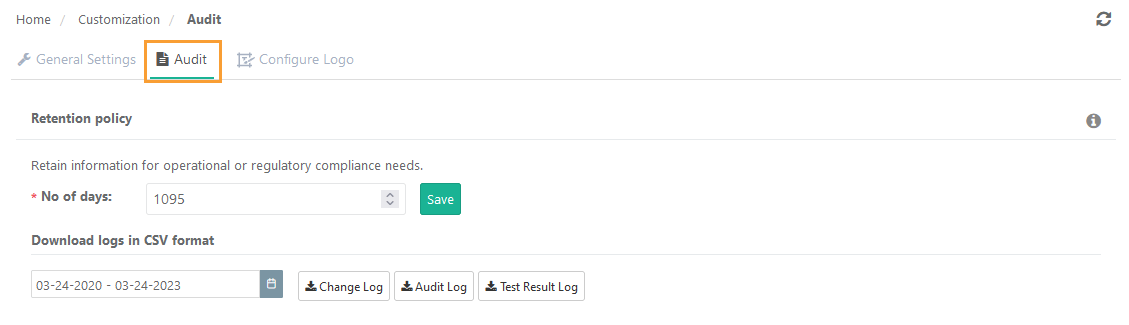
When you enable Retention Policy settings
The Retention Policy option remains enabled by default.
The job runs every day at 12 AM UTC.
When Retention Policy settings are disabled
When you disable the Retention Policy settings, the system keeps the logs permanently and does not delete them.
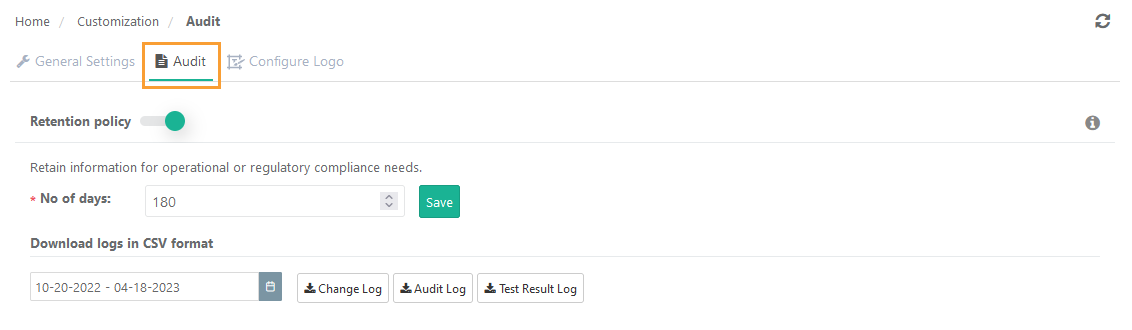
When you click Change Log to download logs, the system adds a notification to the notification window. Track progress in Scheduled Tasks.
Configure Logo
System administrators can add their organization logo to PDF and Word exports for test executions, test cases, system reports, custom dashboards, scheduled reports, and email notifications. If allowed, project administrators can also replace the default logo with a project logo for exports within their project.
Note
You can use this feature only if you purchase the Customization app.
Use Case: Organizations share Word and PDF exports of test assets (test cases, test executions, exploratory testing), system reports, and custom dashboards with clients or approval authorities to show testing progress. They need the ability to add their own or client logos to these exports.
Note
You can upload a new logo or use the default QMetry logo. The system does not preserve previously uploaded logos.
Project settings override instance-level settings.
The system captures logo upload or change events in the audit logs.
Email notifications always show the logo configured at the instance level.
Required Permissions:
You need Customization “Modify” permission to configure instance-level settings.
Admins enable project-level settings from the instance level. Once enabled, you need Project “Modify” permission to configure project-level settings.
Image Specifications:
The image should have the following characteristics:
JPG or PNG format
Horizontal proportions (Recommended 144 x 50 px)
White or transparent background
1 MB maximum size
Configure Logo at Instance level
To configure logo at instance level, perform these steps:
Under Customization, click General Settings and Audit.
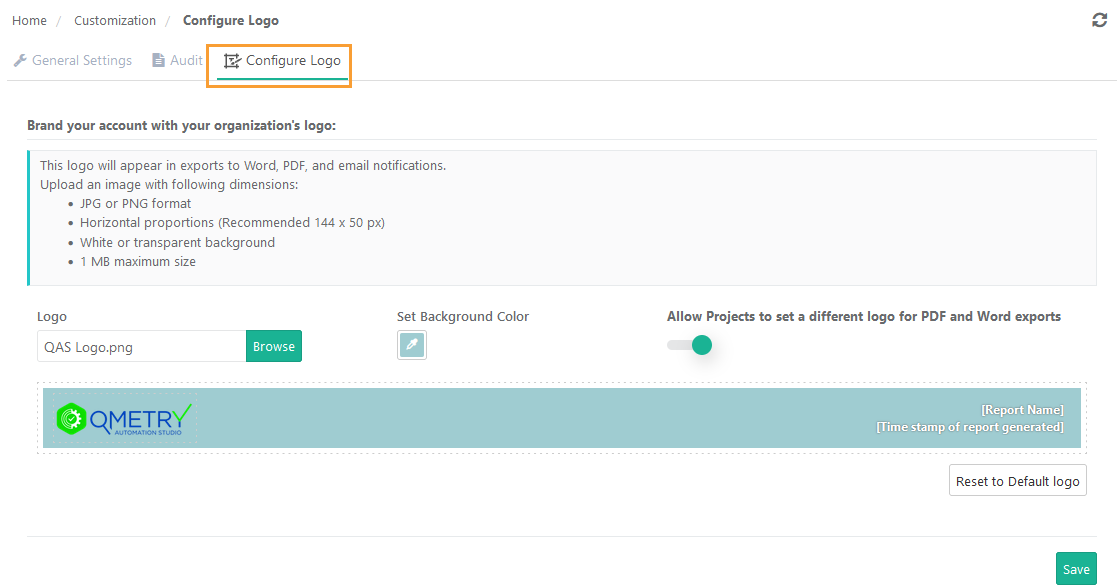
Open the Configure Logo tab.
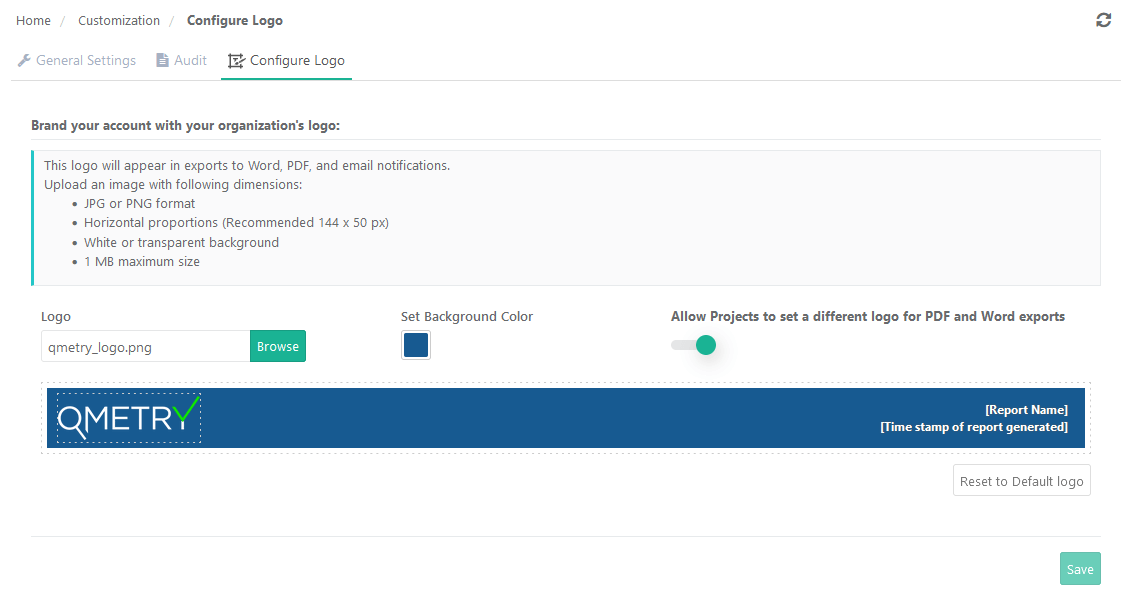
The QMetry logo is default logo.
Browse and upload your preferred logo to replace the default logo. The screen shows a preview of the logo.
Set the background color of the logo by clicking on the Set Background Color.
Allow Projects to set a different logo for PDF and Word exports: Enable the option to allow users to set the logo at Project level.
Reset to Default Logo: Click the button whenever you want to replace the uploaded logo with the default logo.
Click Save to save the settings.
Configure Logo at Project Level
If permitted by the system admin, project admin can override the default logo configured by the system administrator and add their project logo to the PDF and Word exports for the project i.e. test case export, test executions export, Exploratory Testing, System Reports, Custom Dashboards, and scheduled reports.
Note
Email notifications displays the logo configured at the instance level.
To configure logo, perform these steps:
 |
Under Project Management, click Projects.
Open the Configure Logo tab.
Browse and upload your preferred logo, if you want to replace the default logo with the desired one. The preview of logo is displayed on the screen.
Set the background color of the logo by clicking on the Set Background Color.
Reset to Default Logo: Click on the button whenever you want to replace the uploaded logo with the default logo.
Click Save to save the settings.
Super Admin Specific Configurations
Setting API Usage Alerts
Super admin can set email alerts to notify admins when the hourly or daily API usage for the Open API and Automation API exceeds the threshold.
Use case:
Configuring email alerts for hourly and daily API usage enables effective monitoring and optimization of API usage.
Total API Utilization Reports are available under Login Summary Dashboard.
The super admin can configure email alerts for the following scenarios:
Daily API Usage alters can be configured for both Open API or Automation API.
Hourly API Usage alters can be configured for Open API.
To configure email alerts for API usage:
Enable the Setting
Super admin must turn on this setting to trigger email alerts when daily or hourly API usage for the Open API or Automation API exceeds a specified threshold.
Specify the Threshold
Once enabled by the super admin, specifying a threshold is mandatory.
The threshold can be set between 10% and 100%, with a default value of 90% for both daily and hourly API usage.
Add Email Recipients
At least one email address is required to send alerts. By default, the QMetry Super Admin receives these alerts.
The super admin can add up to 10 additional email addresses to receive API usage alerts.
If the “integration” app is not subscribed, then Open API’s are not available.