SSL Certificate Configuration for QMetry Reports URL access
Note
SSL Configuration is not part of QMetry Installation and is not included as under basic QMetry support services. These are just guidelines for customers to achieve the SSL setup
With QMetry v8.6.2, it is possible to sync reports data from QMetry DB to Reports DB from the QMetry UI under Customization > Insight Configuration > Sync Data which requires entering Report Server URL with port 8080.
This Report Server URL can be set up to run on HTTPS by following the below steps.
SSL Configuration Steps
To save the changes press Esc followed by :wq
Login to the Reports Server as a root user.
Copy the certificate file example “mycert.p12“, to the following location.
cp mycert.p12 /var/lib/docker/volumes/spark_report_spark-apps/_data/
Go to the following location to edit the config.properties file
sudo su-
cd /var/lib/docker/volumes/spark_report_spark-apps/_data
vim config.properties
Press i to get into “insert“ mode to edit the file and add the following parameters.
Parameter
Explanation
1
server.ssl.key-store-type=PKCS12
format of certificate can also be JKS. Cert files should be converted to JKS or PKCS12 in that case
2
server.ssl.key-store=mycert.p12
This is certificate file path. We have copied the certificate file to the same location as the QMetryDataSynch.jar under _data folder. For certificate placed at other location, specify file name with path inside docker.
3
server.ssl.key-store-password=mycert123
Enter the password specified while creating the certificate.
4
server.ssl.key-alias=mypassword
Enter the alias specified while creating the certificate.
5
server.ssl.enabled=true
Enable SSL
6
server.port = 8080
This is the default port set for Reports URL access that is bound with the docker container.
Restart QMetry Reports Services
docker stop qmetry-reports qmetry-reports-db
docker start qmetry-reports-db
docker start qmetry-reports
Verify the Report URL connection test is successful from QMetry.
Under Sync Data tab, setup the Report Data Sync from your reports server to QMetry Reporting.
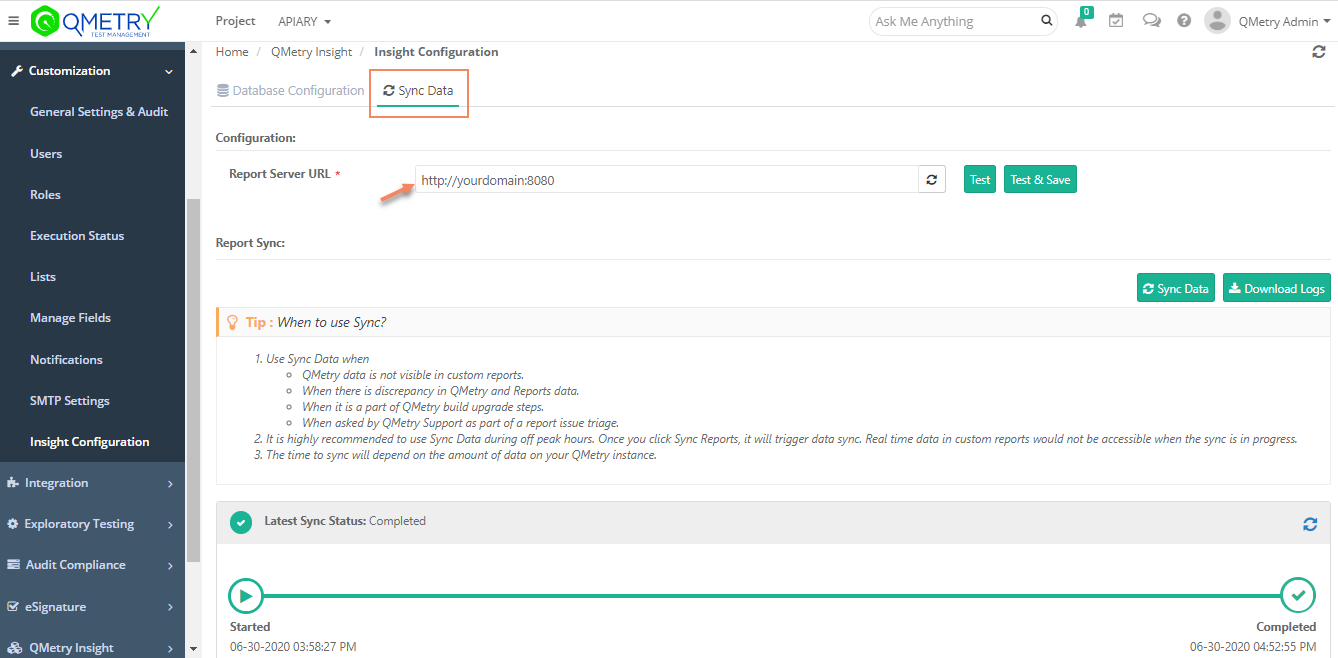
Report Server URL : This should be set to your HTTPS report server domain URL followed by port 8080 as shown above. Ensure port 8080 is open on the reports server.
Click Test to ensure successful connection and then hit Test and Save.
Once the connection is successful, your SSL setup is complete.