Traceability Report
The Traceability Report shows the link between requirements, test cases, and issues. By default, it is based on requirements in the current project. It shows how issues are connected to test cases and requirements, and vice versa.
You can refine the search to view reports for specific requirements, test cases, or issues. Three filters are available to choose the entities for generating the report.
Trace by Requirements
Trace by Test Cases
Trace by Issues
Trace by Test Executions
The report shows the hierarchy of issues for the current Project as well as across Projects displaying linked test assets from other Projects.
Click the Requirement Key, Test Case Key, Issue Key and Test Suite Key to open the detail page in a separate tab.
Trace by Requirements
Click the Trace by Requirements button.

The Select Requirements screen displays requirements for the project. To narrow down the requirement search, you can apply these filters.
The report displays the Requirements module filters.
Visible columns in the Requirements module are enabled in the traceability reports.
Select the requirements to generate the Traceability Report.
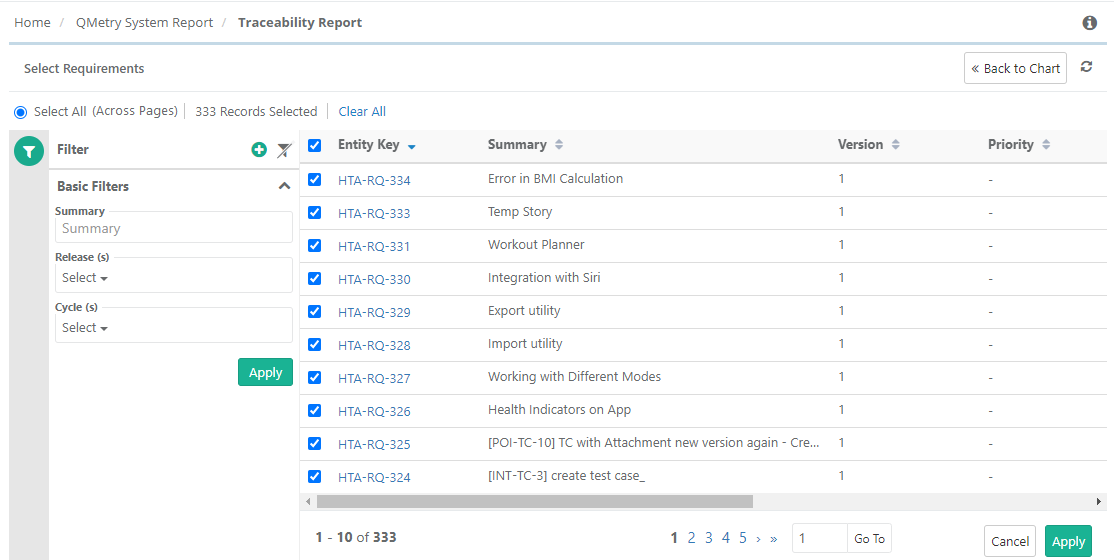
Click Apply.
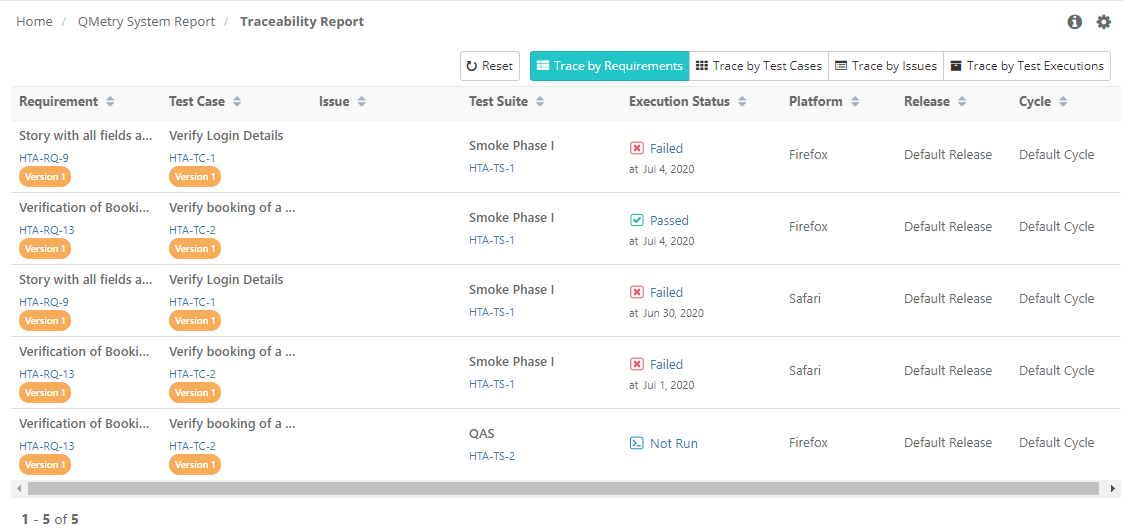
View Traceability Report by Requirement
The report displays the following information for the selected requirements:
Requirement
Test Case
Issue
Test Suite
Execution Status
Platform
Release
Cycle
 |
Trace by Test Cases
Click Trace by Test Case.
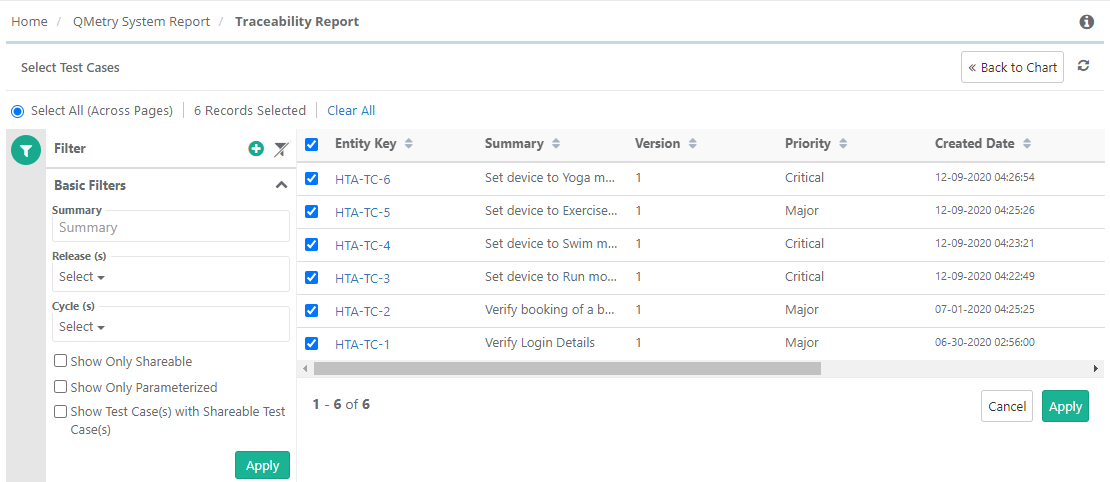
The Select Test Cases screen displays test cases for the project. To narrow down the test case search, you can apply filters.
Select the test cases to generate the Traceability Report.
Click Apply.
View Traceability Report Traced by Test Cases
The report displays the following information for the selected test cases:
 |
Test Case
Requirement
Issue
Test Suite
Execution Status
Platform
Release
Cycle
Trace by Issues
Click Trace by Issues.
The select Issues screen displays issues for the project. To narrow down the issue search, you can apply filters.
Select the issues to generate the Traceability Report.
Click Apply.
View Traceability Report Traced by Issues
The report displays the following information for the selected issues:
Issue
Requirement
Test Case
Test Suite
Execution Status
Platform
Release
Cycle
Trace by Test Executions
Click Trace by Executions.
The Select Test Runs screen displays test runs for the project. To narrow down the test run search, you can apply filters.
Now select the test runs to generate the Traceability Report.
Select All: Choose Select All to select records across pages. You can select a maximum 1000 records at a time.
To select all records, select the check box in the header.
Click Apply.
View Traceability Report Traced by Test Runs
The report displays the following information for the selected test runs:
Test Suite
Requirement
Test Case
Issue
Execution Status
Platform
Release
Cycle
Reset Tracing
You can reset the tracing applied by Requirements, Test Cases, and Issues. Click Reset Tracing to reset the applied filter.
Export Report
You can export the report details to Excel file - in XLSX / CSV format.
Syncing Report Data
Click Refresh at the top to sync the report data. The system updates the requirements, test cases, and issues data and generates a new report and you can view reports with real time data.