QMetry System Reports
Note
QMetry System Reports module is visible only if you have View rights for Report. You can make changes within the module only if you have the Modify rights for Report.
QMetry System Reports are default built-in reports designed according to globally recognized QA best practices. The System Reports offer valuable insights to help teams monitor and evaluate testing performance, efficiency, and outcomes.
Global Filters
The System Dashboard supports Global Filters, allowing you to view and apply common (i.e. shared) filters across all gadgets directly from the top of the dashboard. Instead of configuring filters for each gadget individually, you can set shared filters that apply to all gadgets.
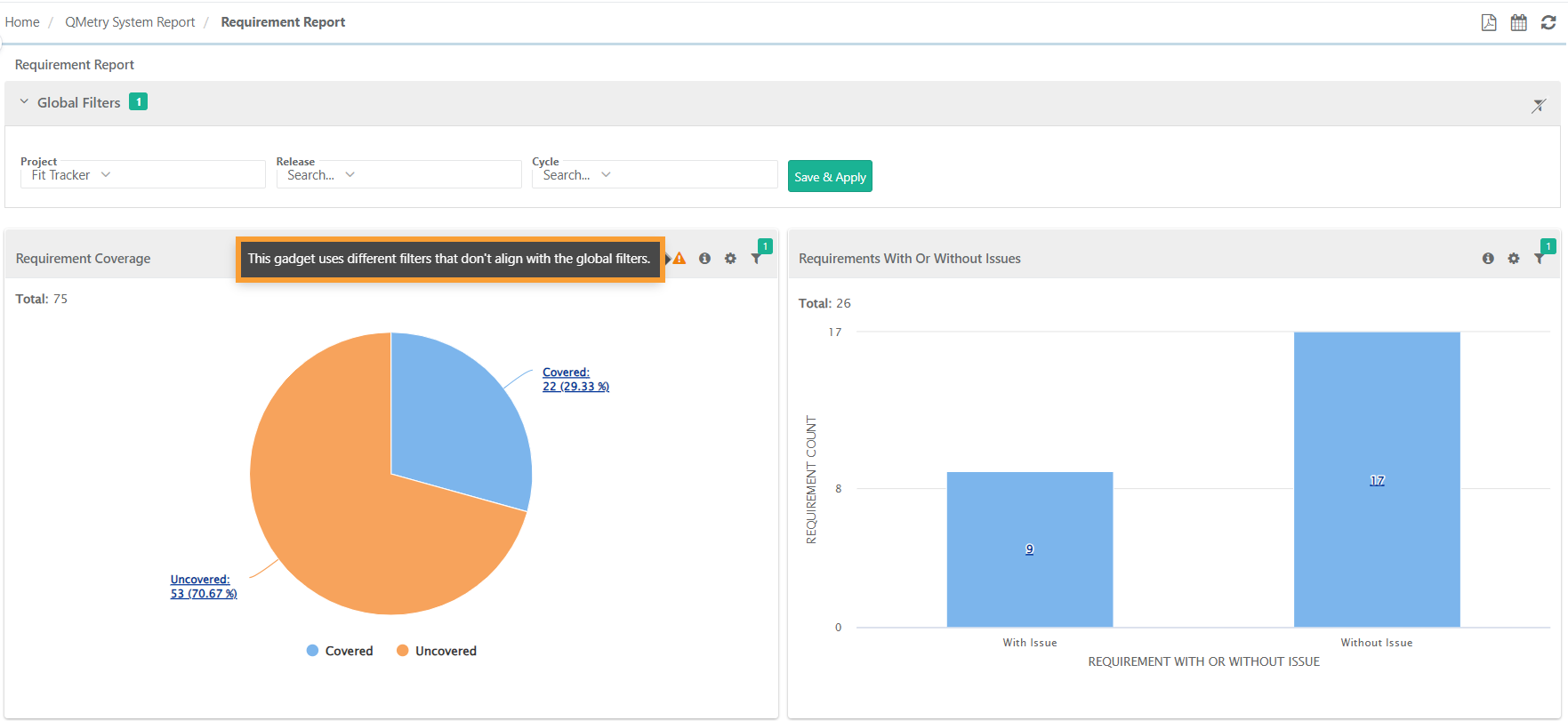
However, you still have the flexibility to configure unique filters for individual gadgets. If the global filters differ from those set on the gadget, the system displays an indication.
Note
Only filters that are common across all gadgets added to a dashboard appears in the Global Filter section.
If a user accesses the dashboard via an embedded URL without co-owner permissions, the user can only view common dashboard filters with the applied settings and do not have the ability to modify the filters.
Here’s how Global Filters Function:
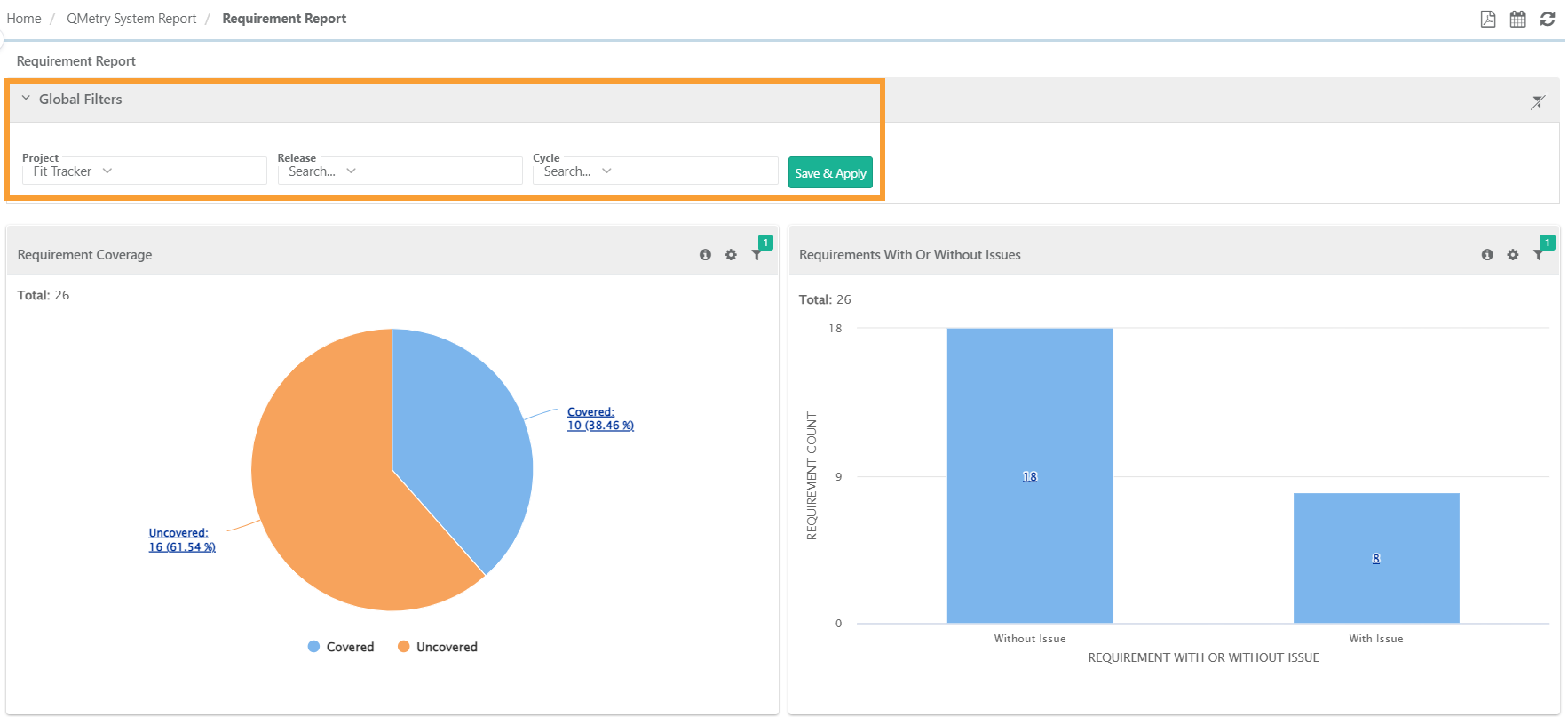 |
When you apply a global filter, it overrides the current filters on all gadgets.
The system does not retain gadget-level filters that are not part of the Global Filter. You must reselect them manually if needed.
You can edit the global and unique filters at the gadget level.
You can save global or unique filters.
You can select only one project at a time if a folder-level filter is available in the global filters section.
 |
Messages for Filter Configuration
If you modify the Common filter field values at the gadget level and they differ from the Global filter field values, a badge appears at the gadget level displaying the message: "This gadget uses different filters that don't align with global filters."
If there are no common filters shared across the gadgets on the dashboard, the message "There is no common filter available across all gadgets" appears on the screen in place of the global filters.
Icons on the QMetry System Reports
Each Gadget has the following options on it:
Icons | Description |
|---|---|
| Indicates when the gadget is using filters that differ from the global filters. |
| Offers a brief overview of the gadget. |
| Allows users to download or export the gadgets. |
Enables users to apply filters to the reports. The filters applied on the reports can be viewed on hover over the filter icon in the gadget. The filter count is also displayed. |


Export System Reports and Gadgets
Export System Reports as PDF
To export the entire report in PDF, click Export as PDF option at the top.
The report includes data (either graphical or tabular) according to the preferences set for the report.
Export Gadgets
| Click the Cog icon and you have multiple options to download and export the individual gadget details. 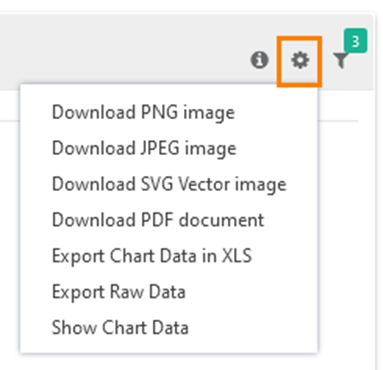 |
Download PNG image | This option is valid for graphical reports like bar chart, pie chart, column chart, etc. |
Download JPEG image | This option is valid for graphical reports like bar chart, pie chart, column chart, etc. |
Download SVG image | This option is valid for graphical reports like bar chart, pie chart, column chart, etc. |
Download PDF document | This option is valid for graphical reports like bar chart, pie chart, column chart, etc. |
Export Chart Data in XLS | The system exports the report data in tabular form. |
Export Raw Data | The report displays the data that generates the graph. |
Show Chart Data | The option displays report data in tabular form in the same gadget panel. The view (Graph/Tabular) you select for the report is preserved for it until you change the view. 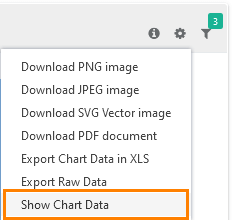 The system displays data in the tabular format. |
Export of Drilled Down Chart | You can view the tabular format of the graphical representation. You can drill down the chart by clicking on the required portion of the chart. It displays the details in table - rows and columns. To download the report in CSV, click the download icon at top right. |

Schedule System Reports
You can schedule system reports as one-time or recurring email notifications by clicking Schedule. The system sends the report as a PDF to recipients based on the defined schedule.
Select one of the following options:
Schedules: The tab shows a list of scheduled reports.
Schedule Report: Template to schedule reports.
Note
The system restricts scheduling the following system reports:
Top Issues Report
Traceability Report
Test Result Log Report
Platform Report
Release Cycle Report
Scheduling System Reports
To schedule system report emails, perform these steps:
Open the Schedule Report tab.
Enter the details and provide the email addresses.
Schedule the emails and click Submit.
The system sends the report as per the set date, time, and frequency.
To send the email instantly, click Run Now.
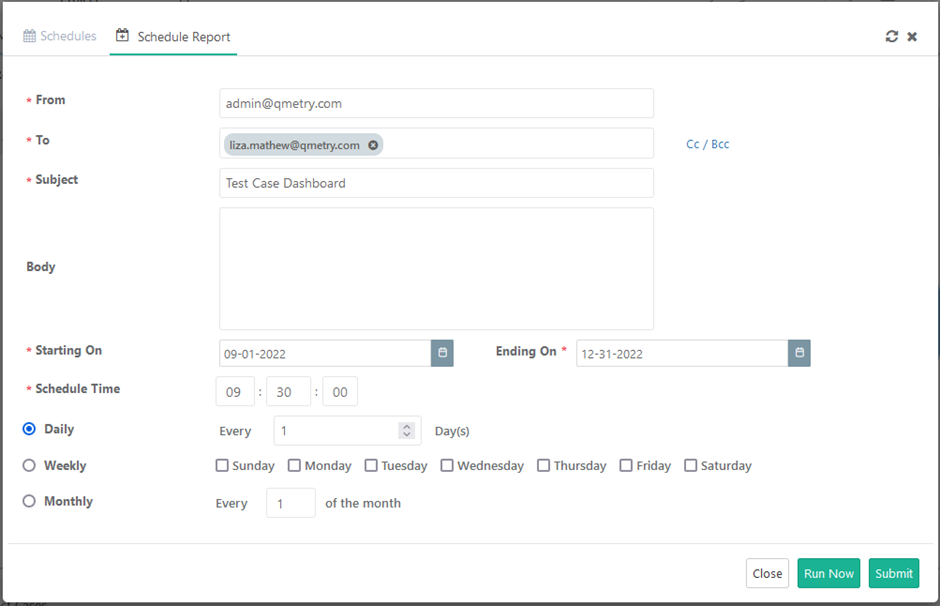 |
Scheduled Reports
Once you schedule the reports, the system displays it on the Schedules tab. You can edit and delete the schedules.
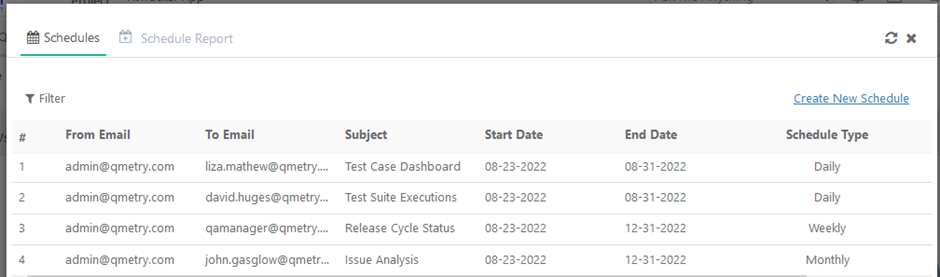 |
Refresh Reports
QMetry System Reports do not auto-refresh when you leave them open for a long time. Click Refresh to update the data and view the latest reports.
Manage Jira Fields Visibility in System Gadgets
Note
When integrating Jira projects into QMetry through the Projects integration screen, users with project modification rights can hide specific fields for security reasons.
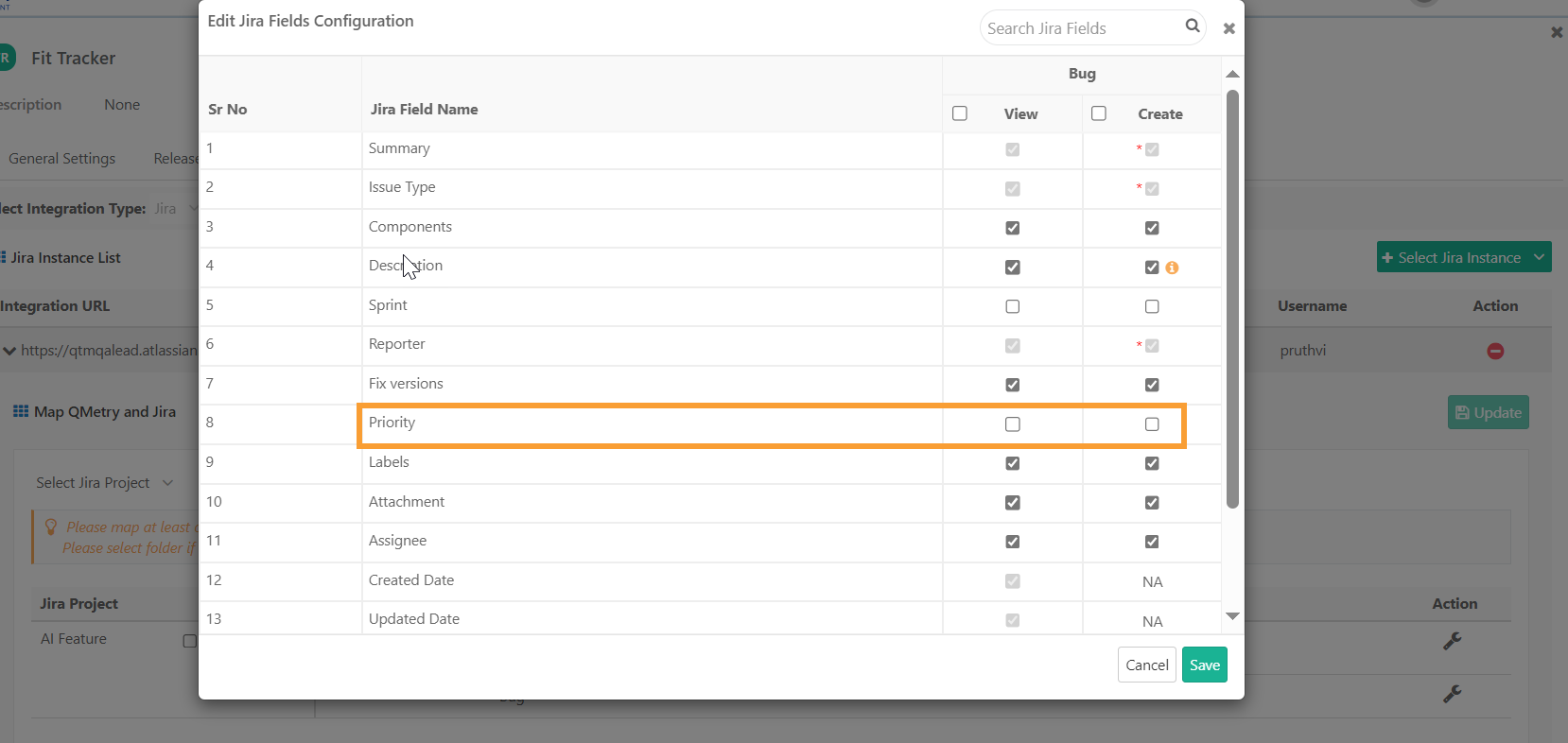 |
If you mark a Jira field as hidden, the system does not display any report gadgets that use that field. This ensures data confidentiality. The system also notifies you about the field’s visibility settings.
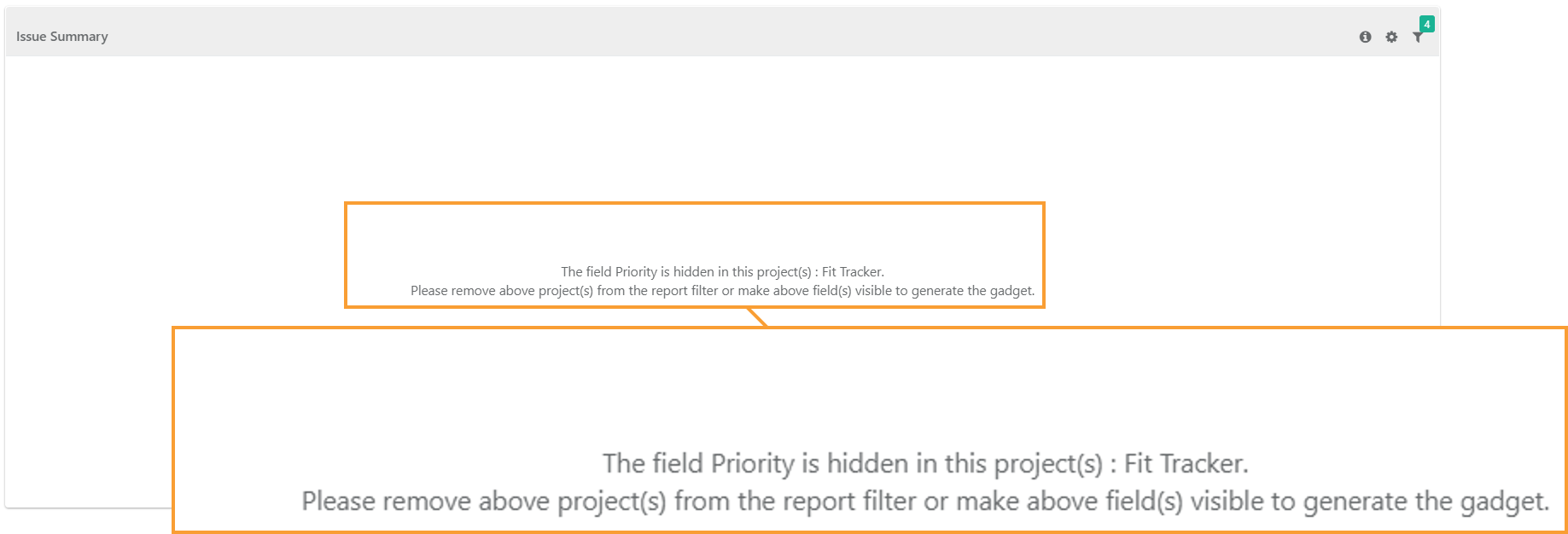 |
The system reports affected by a Jira field’s visibility status include:
My Dashboard: Issues Count, Uncovered Requirements
Requirements Report: Requirement Coverage, Requirements with or without Issues, Planned Requirements, Requirement Summary
Issue Analysis Report: Issue Summary, Issue Count by Status & Priority, Issue Velocity Compared to Requirements, Resolved Issue Verification, Issue Velocity compared to Test Cases executed report
Top Issues Report: Top Issues Report
Execution Summary Report: Issue Summary
Manage Jira Fields Visibility in Tabular System Reports
In tabular system reports, the system does not display the report if you use a hidden external field in the gadget filter.
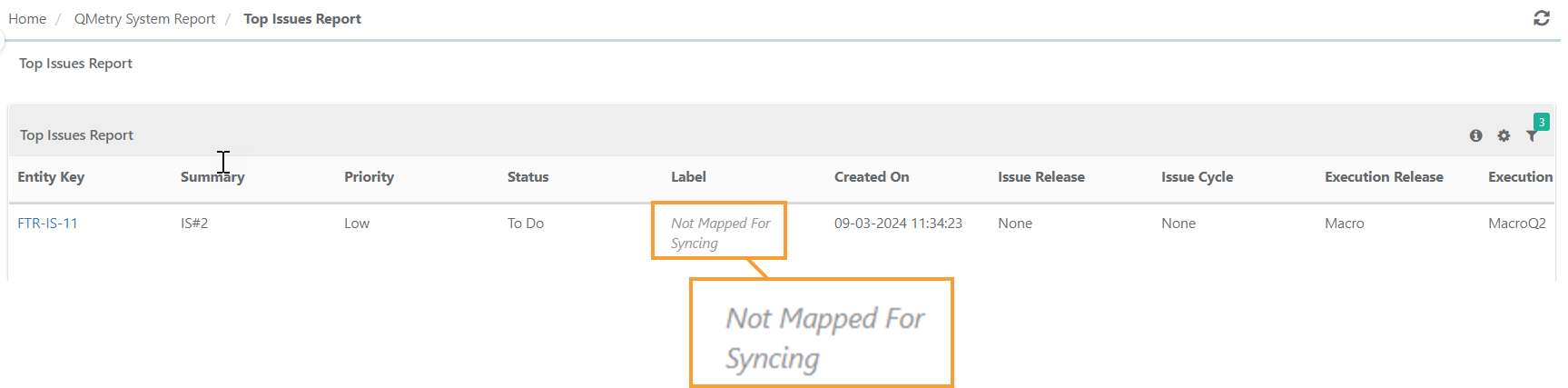
If the hidden field is not used in the filter but appears as a column, you can still view the report. However, the column shows not mapped for syncing.
For example, if the admin hides the field 'label' in the Projects - Integration screen.
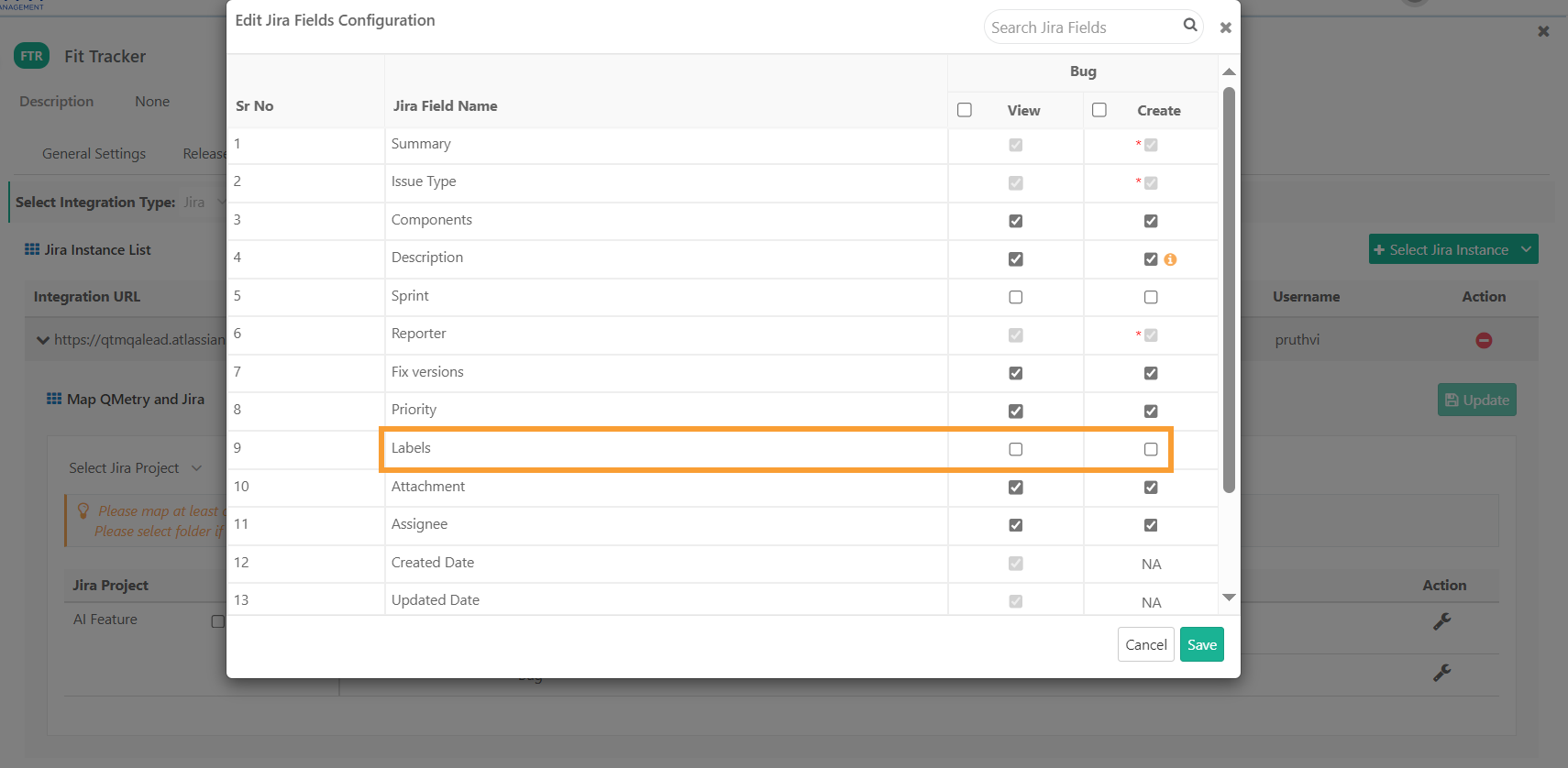 |
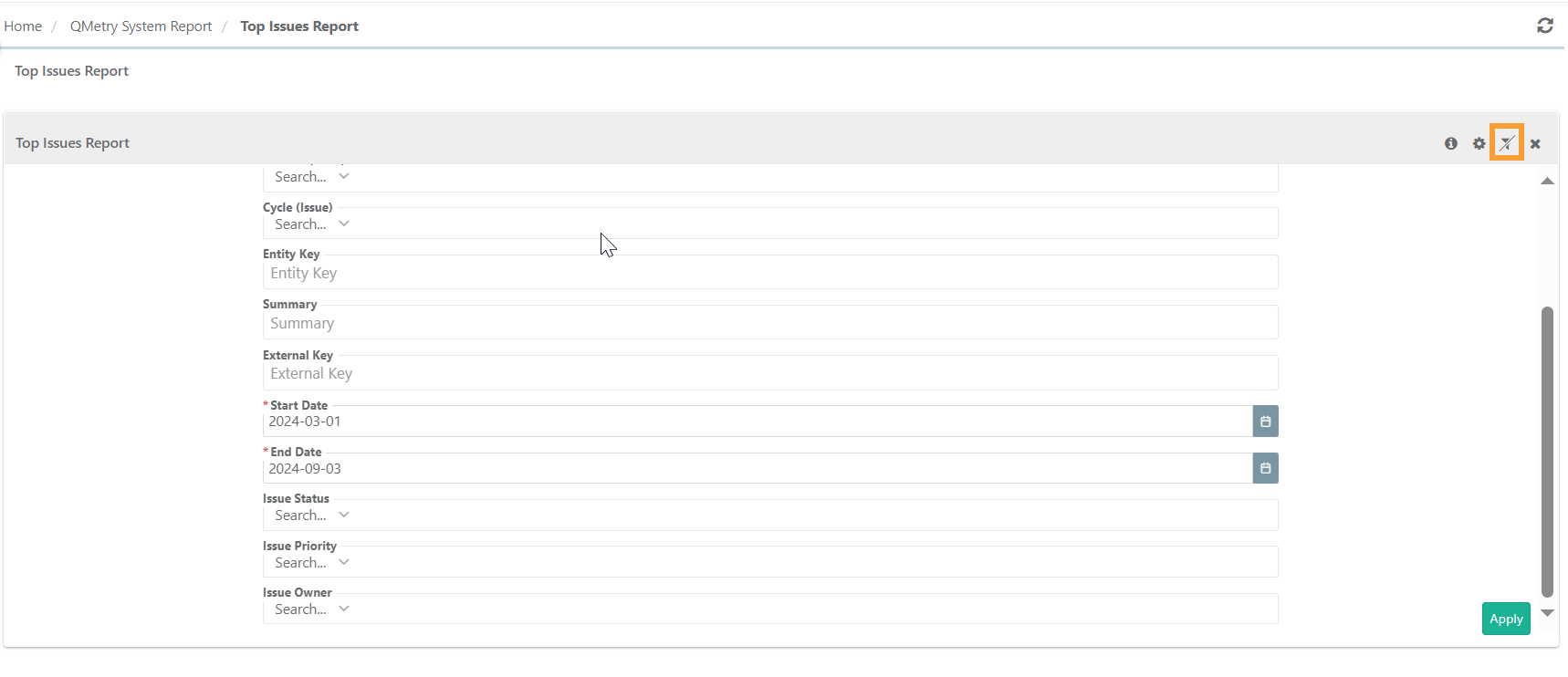
The field 'label' is not available as a filter option for the Top Issues Report.
 |
The column value shows "not mapped for syncing." This happens because the field 'label' is hidden.
 |