QMetry Upgrade Guide for RHEL8, RHEL9 and Podman (from below QMetry v8.16.0.1 to the latest version)
Note
Update the Automation API to the latest version when upgrading QMetry to the latest release.
To update the Automation API, refer to Install Automation API Feature (RHEL8 and Podman ).
This guide walks you through the process of upgrading QMetry Test Management to version to the latest release from a version below 8.16.0.1. Perform these steps on your QMetry application server hosted on RHEL 8 or RHEL 9.
System Requirements and Pre-requisites
Before upgrading, ensure the following:
MySQL version for both QMetry Reports and QMetry Application is 8.4.8
Internet connection is enabled on the server.
Upgrading QMetry for RHEL 8 and RHEL 9 using Podman
To upgrade QMetry to the latest release, perform the following steps:
Step 1: Important: Backing up the Existing QMetry Database
To backup your existingdatabase, perform the following steps:
Create a backup of the "qmetry" database. By default, the backup is saved in the /opt directory.
Run the following command to update the username, password, and backup file location.
podman exec qmetryapp_db sh -c 'exec mysqldump -uroot -p<password> --triggers --routines --hex-blob --single-transaction --lock-tables --no-create-db qmetry' > /opt/qmetry_backup_<date>.sql
Example:
podman exec qmetryapp_db sh -c 'exec mysqldump -uroot -pqmetry-- triggers--routines-- hex-blob--single-transaction--lock-tables--no-create-db qmetry' > /opt/qmetry_backup_2021-01-01.sql
Verify that the database is backed up and is available.
Step 2: Downloading the Upgrade Files
Download the required files by following these steps:
Get the latest version of QMetry Upgrade Installer from the Support Portal.
Download the
QMetry_RHEL_Installer.zipfile to the QMetry Application Server on the host machine.
Step 3: Running Upgrade Script
To run the upgrade script, perform the following steps:
List the running containers with the following command:
podman ps
If podman is not running, use the following command to start it:
podman start qmetryapp_db
podman start qmetry_app_1
Note
Replace the container names with the correct application names as specified in the previous command.
Go to the directory where the UpgradeQMetryApp.zip file is downloaded and unzip the file on the host machine:
unzip QMetry_RHEL_Installer.zip
Go to the QMetry directory:
cd QMetry_RHEL_Installer
Run the following command to grant execution permissions to the upgrade script:
chmod +x upgrade.sh
Run the following command to execute the upgrade script:
./upgrade.sh
Confirm to upgrade
Note
The process may take some time to complete. Kindly be patient and allow it to finish properly.
Options
Type
Default Value
Comments/ Example
Do you want to proceed with the QMetry upgrade (Y/N)?
Y,y,N,n
Y
Enter “Y” to begin the online upgrade.
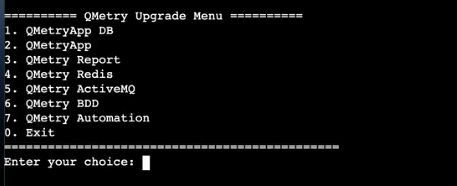
QMetry Upgrade Menu
Type 2 to upgrade QMetry Application.
Step 4: Verifying QMetry Container Status
List the running containers using the following command:
podman ps