QMetry and Reports Installation on Windows - 2 Tier (with Docker)
In this guide, we'll run you through installing QMetry Test Management app and QMetry Reports on your environment.
2 Tiers | Installations |
|---|---|
Server 1 | QMetry App and QMetry DB |
Server 2 | QMetry Reports |
Pre-requisites
Before you begin installation, complete every check in the below checklist:
Prerequisite Checklist
Verify each of the following items:
Prerequisite | What to confirm |
|---|---|
Internet access | Internet access should be enabled on both servers to install using docker. |
Installation files | Get the QMetryApp.zip, QMetryReport.zip, and Docker credentials from QMetry Support. |
For more details, refer to the Pre-requisites for QMetry Application and Report Server Installation document.
In addition to this, ensure the following:
Post-installation QMetry Application and QMetry Report both should be configured either on https or http.
Refer QMetry Deployment Document for the hardware requirements.
If you are planning Jira integration with QMetry and Jira is running on https, make sure your QMetry is also running over https protocol. QMetry and Jira should run on the same protocol.
Post installation, QMetry application and QMetry Report both should be configured either on https or http.
The following Ports should be open:
Installation
Ports that need to be enabled and should be available for use
QMetry Application
80/443 & 3306
QMetry Report
80/443, 8080, 3306 & 33061
Download and install the Docker Desktop on Windows from the below link. Refer to this article for more information. Download Link.
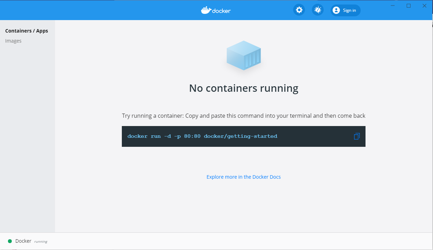
Make sure the docker is in a running state within the Docker Desktop tool.
While performing installation of QMetry, it will also ask for storage location of QMetry application’s file related data. Hence, make sure that the directory has required disk space available as per usage requirement of QMetry application.
Install QMetry Application
To install QMetry Application, perform the following steps:
Step 1: Copy the installation files
Copy the QMetryApp.zip installation file received from QMetry Support to your server. Navigate to the directory where this file is saved. Open a command prompt on that path with administrator privileges. Administrator rights are required to install the application.
Step 2: Run the following command
Run the following command including the dot (‘.’) at the end of the command.
powershell Expand-Archive 'QMetryApp.zip' -DestinationPath
Step 3: Run the installer
Run the following commands to start the installer.
cd QMetryApp
qmetry.bat
Step 4: Online Install Prompt
Options | Allowed Values | Default Value | Recommended Value |
|---|---|---|---|
Do you want to make an online installation (Y/N)? | Y, y, N, n | Y | Y |
Step 5: Docker Verification
Enter docker repository credentials shared as a part of the installation package.
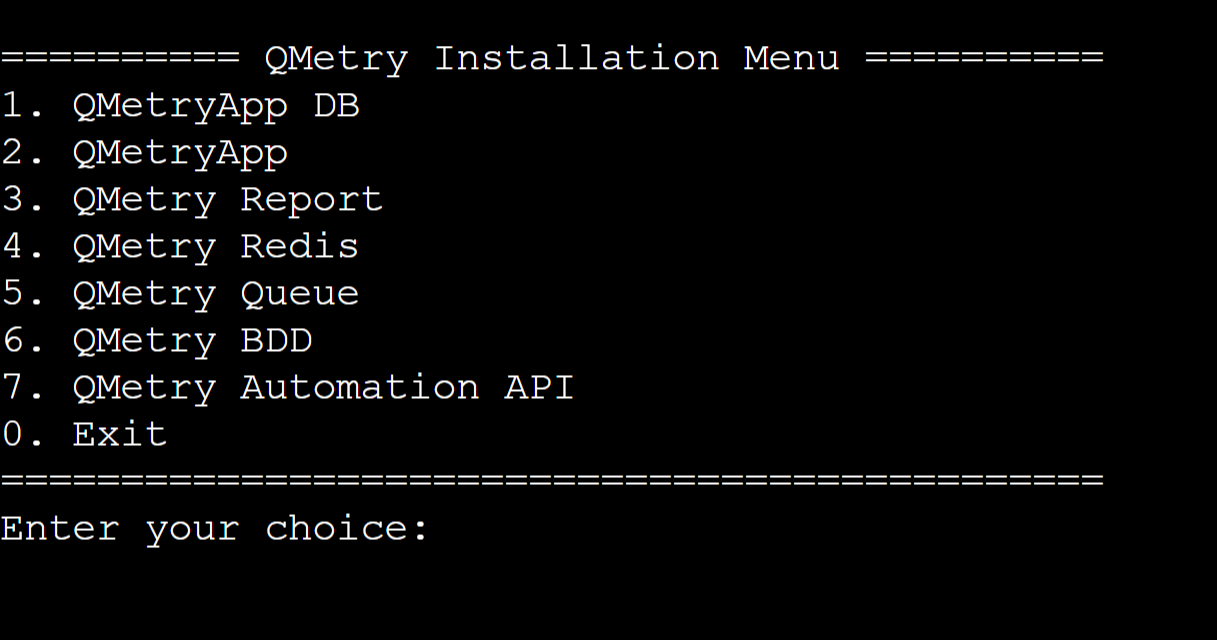
Step 6: QMetry Installation Menu
Type 2 to install the QMetry application.
Step 7: Specify the application data directory
Enter a directory path on the host machine to store QMetry data such as attachments, licenses, imports, and exports. You can specify any valid path, and the installer creates the directory automatically if it does not exist.
Options | Example |
|---|---|
Please enter QMetry application directory | C:\qmetryapp |
Note
Recommended: Back up the application data directory on a regular schedule. Periodic backups help prevent data loss if a disaster occurs.
Step 8: Enter the configuration parameters
After the script finishes running, enter the following parameters when prompted.
Options | Details | Default Value | Example |
|---|---|---|---|
Enter QMetry database schema | QMetryApplication Database schema name. | qmetry | qmetry |
Enter QMetry database user (root) | Enter QMetry Application Database user name. | root | root |
Enter QMetry database password for root user | Enter QMetryApplication Database Password for the root user. | - | QMetry@123 |
Enter Email for QMetryadmin user | Enter QMetryuser email address for Admin. | - | |
Enter password for QMetryadmin user | Enter QMetryuser password for Admin. | - | Admin@123 |
Enter Min. Heap Memory for the web server in GB | Enter Heap Memory in GB | 2 | 2 |
Enter Max. Heap Memory for the web server in GB | Enter Heap Memory in GB | 4 | 4 |
Enter QMetryDatabase Connection Pool Size | Enter Pool Size in number format | 100 | 100 |
The installation may take a while. The script will check for the availability of .NET Framework 3.5. In the absence of which it will prompt you to download the same.
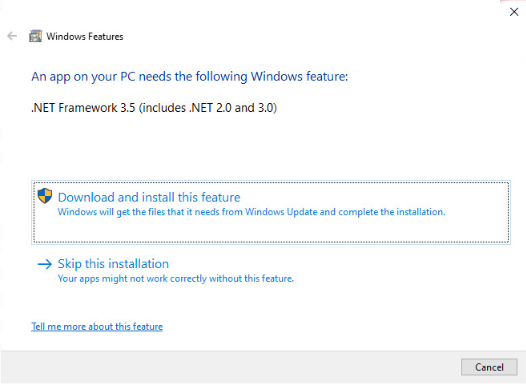
It will ask for confirmation to install the qmetry-app.exe. Click Yes to proceed.
Run the following command to confirm that the containers are running.
docker ps
The docker containers installed will be shown along with their container IDs and names.
 |
Step 9: Get QMetry License and Install it
Choose the option that matches your license type.
For users evaluating QMetry
Use the evaluation license, valid for 30 days, that you received with the installation.
For users requiring a commercial license
You must generate a license using the server MAC address and domain name.
Get MAC address
getmac
You may get more than one mac address. Share any one of them with QMetry Support.
Send the domain name and MAC address to QMetry Support at qtmprofessional@qmetrysupport.atlassian.net to request your license.
Once you receive license.key from QMetry Support, you can follow the Steps to Apply License file .
Step 10: Access the Application
Access QMetry application using the following address.
http://<your IP Address OR Domain Name>
Log in with the Default QMetry credentials.
Username: admin
Password: <user specified password in Step # 7 >
The MySQL 8.4.8 database is installed on port 3306 with the following details.
Username: root
Password: <user specified password in Step # 7 >
Schema: <user specified Schema in Step # 7 >
Note
This installation deploys QMetry over Apache Tomcat 11.0.5, MySQL 8.4.8 and Open JDK 17.0.2 in a docker container.
Step 11: Update the administrator profile
After you complete the previous steps, log in to the QMetry application and update the administrator profile.
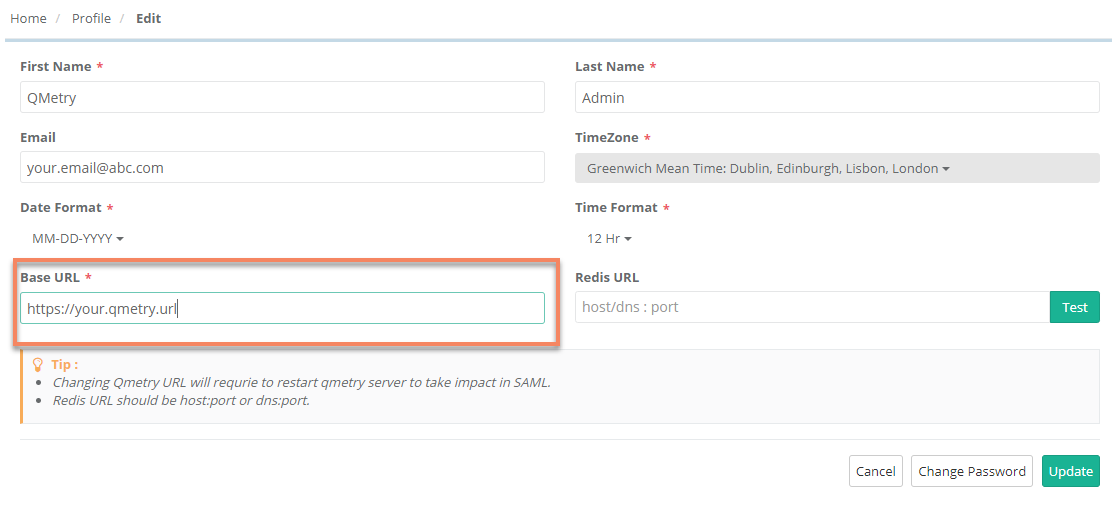
Go to "Admin" Profile and Edit the Profile.
Update the administrator email address in the Email field.
In the Base URL field, enter your QMetry URL.
Select Update.
 |
Step 12: Configure additional Tomcat settings
QMetry installs with a default configuration for minimum and maximum heap memory. You can adjust these settings to match your hardware configuration. For more information, refer to Additional Configuration for more details.
Install QMetry Reports
Note
Reports installation require Redis Server and ActiveMQ Server. Refer to the Redis and Automation installation sections for setup steps.
To install QMetry Reports on the second server, perform the following steps:
Step 1: Access QMetryReport.zip file
Navigate to the directory where the QMetryReport.zip file is saved and go to a command prompt on that path.
Step 2: Run the following command
Run the following command including the dot (‘.’) at the end of the command.
powershell Expand-Archive 'QMetryReport.zip' -DestinationPath .
cd QMetryReport
Step 3: Run the reports installer
qmetry.bat
Step 4: Online Install Prompt
Options | Allowed Values | Default Value | Recommended Value |
|---|---|---|---|
Do you want to make an online installation (Y/N)? | Y, y, N, n | Y | Y |
Step 5: Docker verification
Enter the docker credentials that were shared as part of the installation package.
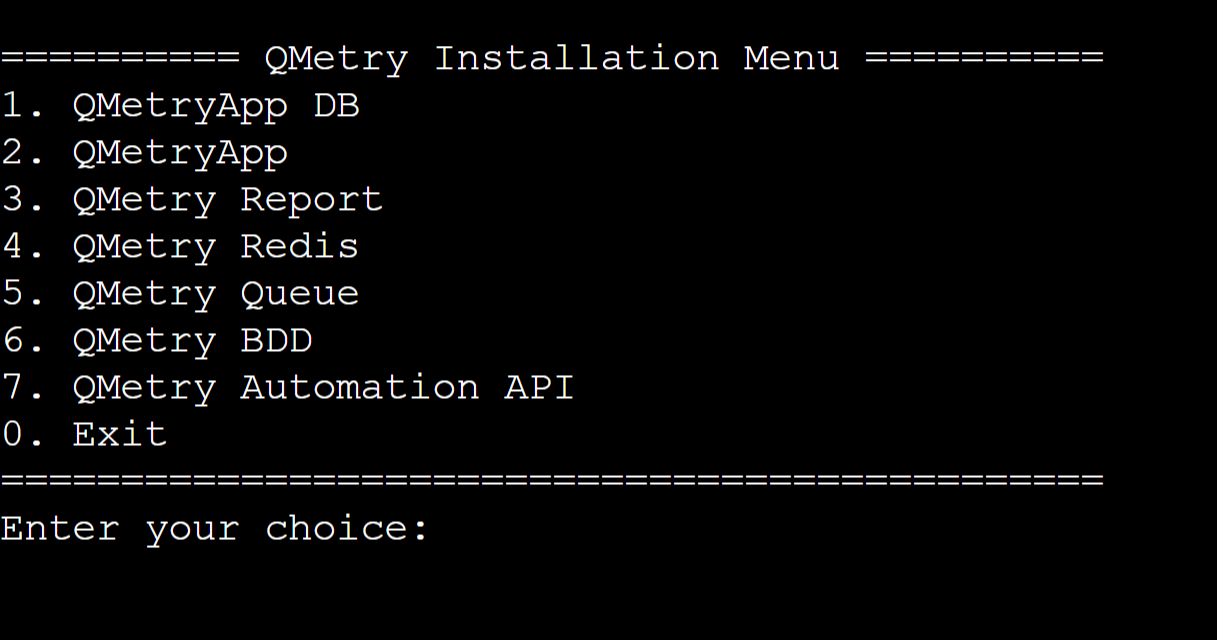
Step 6: QMetry Installation Menu
Type 3 to install QMetry Reports.
Step 7: Enter the report configuration parameters
Options | Details | Default Value | Example |
|---|---|---|---|
Enter Report Database Password (root user) | Enter password for QMetry Reports Database. | - | QMetryreports@!Nf0# |
Enter Report Database Schema | Enter Database schema name for QMetryReports Database. | qtmanalytics | qtmanalytics |
Enter Number of CPU's to allocate | Allocate 3/4th of the available CPUs. For example, if CPU has 8 cores, enter 6 the number of CPUs can be checked from Task Manager > Performance tab > Number of cores. This would be the number of CPUs. | 4 | 6 |
Enter Memory to allocate in GB(s) | Entered memory would be used by the sync job while running full sync of data. Enter 3/4th of total memory available on the server. For example, if the memory on the server is 24 GB, enter 18 | 4 | 18 |
Step 8: Enter the following parameters
Options | Details | Example |
|---|---|---|
Enter Mysql Database Host IP / DNS Name (Qmetry) | Enter Database Host Public IP/DNS of QMetry application. | 10.10.11.100 |
Enter Mysql Database Port (Qmetry) | Enter Database Port of QMetry application. If it is unchanged, use "3306" as Database port. | 3306 |
Enter Mysql Database Schema (Qmetry) | Enter Database schema name of QMetryapplication. | qmetry |
Enter Mysql Database Username (Qmetry) | Enter Database username of QMetryapplication. If it is unchanged, use "root" as username. | root |
Enter Mysql Database Password (Qmetry) | Enter Database password of QMetryapplication. | QMetry@123 |
Enter Mysql Database Host IP / DNS Name (Reports) | In case of reports DB not being hosted on this report server, enter the Public IP/DNS of QMetry Report DB server. | 10.10.11.101 |
Enter Mysql Database Port (Reports) | Enter Database Port of QMetry Report Database. If it is unchanged, enter "33061" as Database Port. | 33061 |
Enter Mysql Database Schema (Reports) | Enter Database schema name of QMetry Reports Database. | qtmanalytics |
Enter Mysql Database Username (Reports) | Enter Database username of QMetry Reports Database. If it is unchanged, use "root" as username. | root |
Enter Mysql Database Password (Reports) | Enter Database password of QMetry Reports Database. | QMetryreports@!Nf0# |
Enter Port To Start SyncJob (Reports) | Reports Sync Job runs from this port - 8080 | 8080 |
Do you want to Run Force Sync Now? (y/n) | Enter y to sync all the QMetry data to Reports Database with the current script. → Always enter y at the time of fresh reports install | y |
Enter Memory to allocate in GB(s) to Spark | Entered memory would be used by the sync job while running full sync of data. Enter 3/4th of total memory available on the server. For example, if the memory on the server is 24 GB, enter 18 | 18 |
Note
When you need to force sync to re-sync any missing data, just repeat step 3, and skip all parameter details (by hitting enter) and just enter y when prompted for force sync.
Wait for the script to finish executing. Exit the installer by entering 0.
Step 9: Verify the docker
docker ps
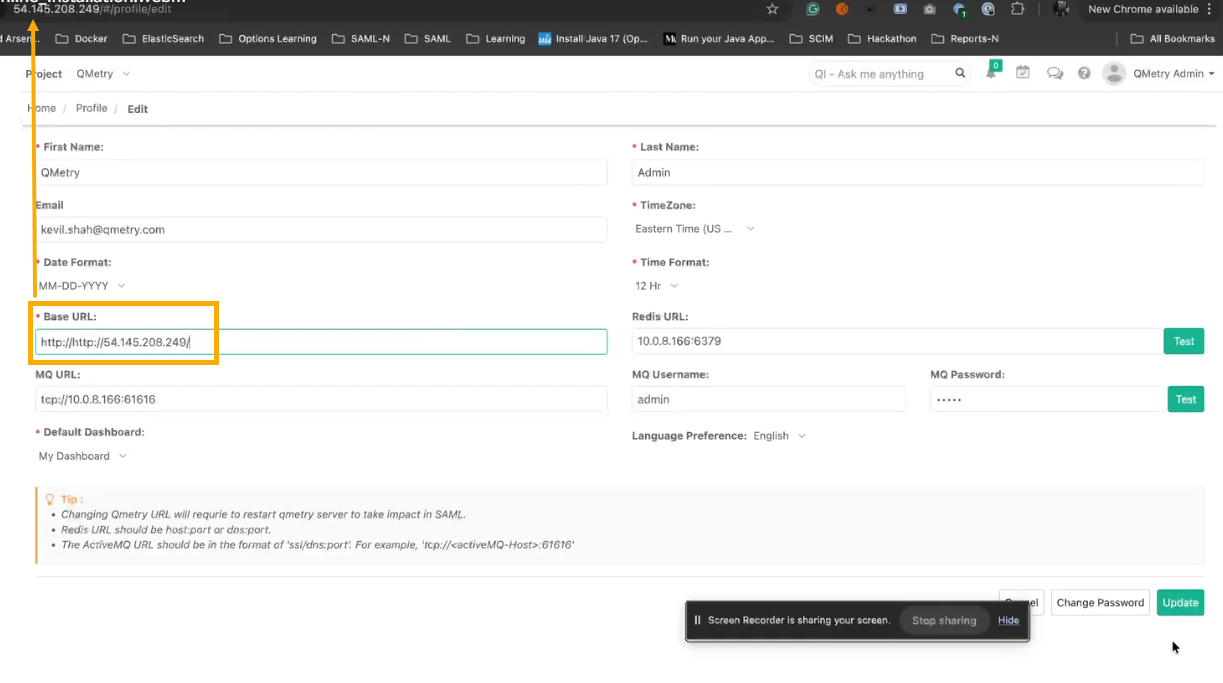
Step 10: Update the Base URL
Log into QMetry and go to your Profile section, edit the Base URL with QMetry app URL.
Step 11: Configure the database connection
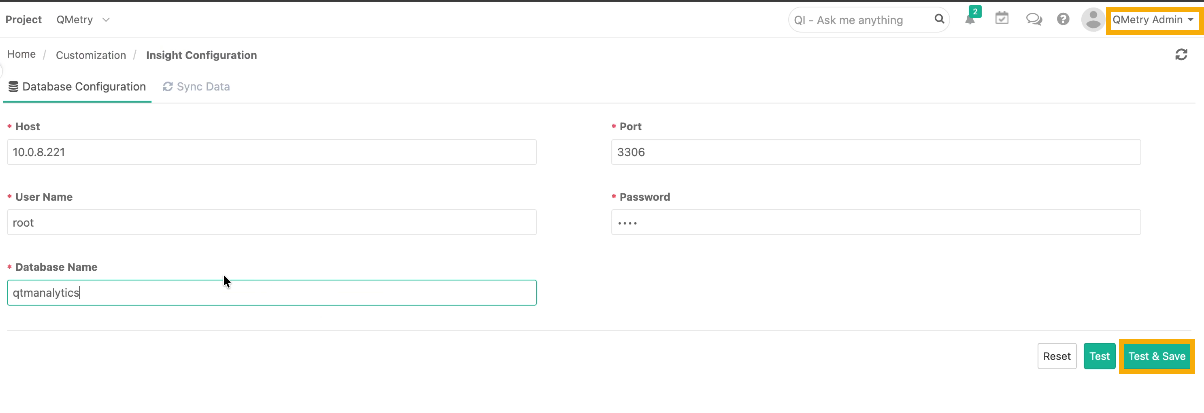
Configure the report database connection under Insight Configuration in the QMetry application. To configure the connection, perform the following steps:
Login to QMetry with administrator credentials and go to Customizations.
Select Insight Configuration and open Database Configuration tab.
Under Database Configuration tab, enter the following details:
Host: Enter Report Database Host URL from the report configuration table.
Port: 3306
Username: <Enter Report database username>
Password : <Enter Report database password>
Database Name: <Report DB schema specified during installation>
Select Test to confirm a successful connection, and then select Test & Save.
Step 12: Set up the report data sync
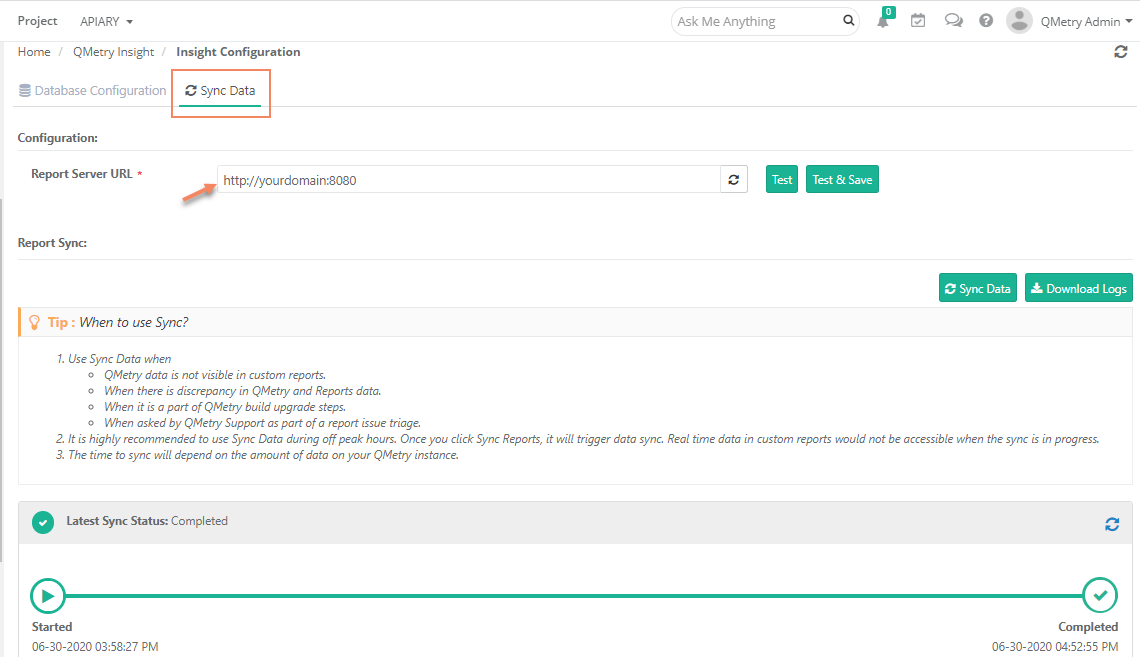
On the Sync Data tab, set up the Report Data Sync from your reports server to QMetry Reporting.
Report Server URL: Enter your report server domain URL followed by port 8080. Confirm that port 8080 is open on the report server.
Select Test to confirm a successful connection and then select Test & Save.
Note
Run Sync Data the first time after you install QMetry reports installation. The time that the sync takes depends on the amount of data in QMetry. You can monitor sync progress and status in the interface. QMetry custom reports are not accessible while the sync runs. Run the sync only during off-peak hours.
Users can start using QMetry Reports when the sync is completed. QMetry remains available during this time.
Install QMetry Redis
QMetry is providing the capability of installing the Redis server. Overall performance and scalability can be improved using Redis caching. To install the Redis Server, refer to Installing QMetry Redis for Windows.
Install Automation API Features
Installing the Automation API with your on-premise QMetry installations will enable several automation API related features including faster automation result file imports into QMetry. If you plan to use Automation APIs to import test results into QMetry, refer to Installation for Automation API.
Get support
If you are facing any issues during the installation process, kindly generate a support ticket on Support Portal for assistance.