QMetry Agent Configuration
Compatibility: QMetry Agent is a Java executable file that needs Open JDK 17.
Automation Agent Key
Use this key to configure the QMetry Automation Agent.
To generate an Automation Key, go to Integration, select Automation Agent, and then click Generate new Key.
 |
Steps to Configure QMetry Automation Agent
Go to Integration, and then select Automation Agent.
Expand the Download & Run Agent section, if not expanded already.

Download
QMetryAgent.zipby clicking the Automation Agent.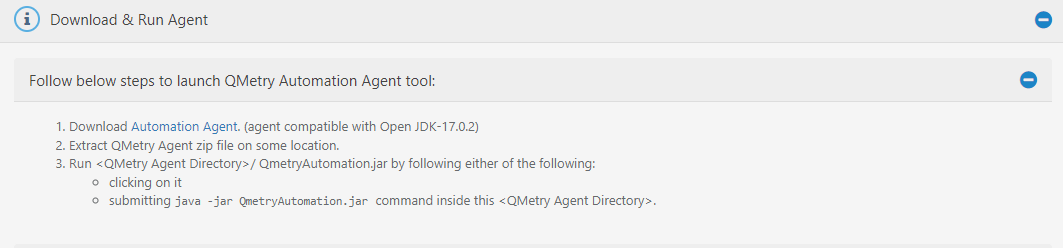
Extract
QMetryAgent.zipto your computer drive.Open the QMetryAgent folder.
Run
<Qmetry Agent Directory>/QmetryAutomationAgent.jarby clicking on it.The QMetry Automation Agent wizard opens.
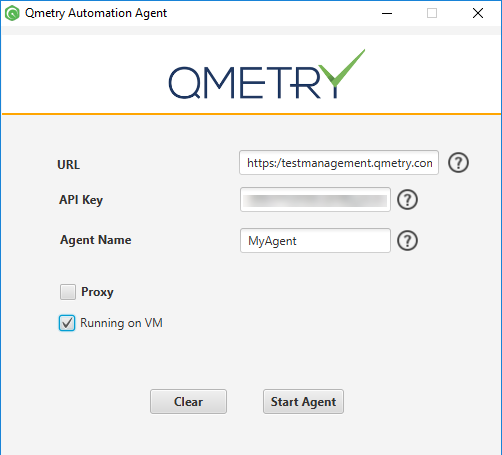
The QMetry Automation Agent has the following fields:
Field | Description |
|---|---|
URL | The URL of your QMetry Test Management application instance. |
API Key | Enter Automation Agent Key. To generate the Automation Key, go to Integration > Automation Agent and click the Generate Key. |
Agent Name | Enter the name of your preference as Agent Alias to identify the specific agent. |
Running on VM | Users who want to run the agent on a virtual machine can do so by setting this configuration. The manual settings are not required. |
Interval Time: By default, the interval time between two scheduled jobs will be 180 seconds. You can change the time by modifying the Interval parameter in the QMetryAgent.properties. The minimum value should be 60 seconds.
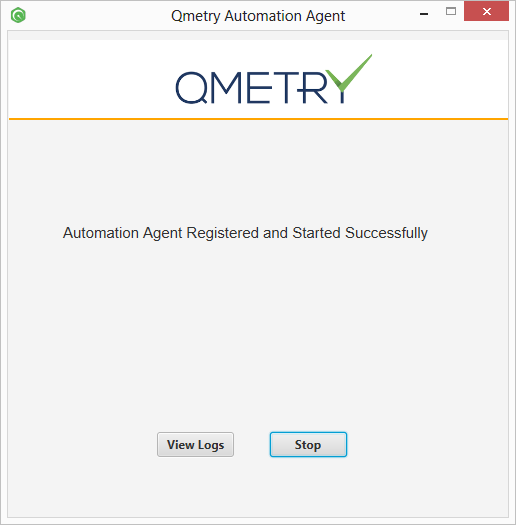
Click the Start Agent button.
Users can also view logs by clicking on the View Logs button.
 |
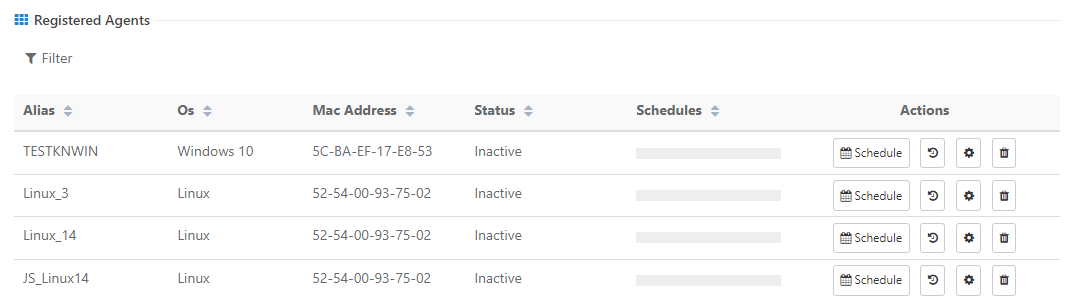
Once the Agent is configured, it will be added to the list of Registered Agents with the Status Active.
 |
Configure QMetry Automation Agent using Command Line
Follow the steps mentioned below to configure QMetry Automation Agent for Windows and Linux/MacOS.
Go to Integration > Automation Agent.
Expand the Download & Run Agent section, if not expanded already.

You will find Agent download and installation instructions on the screen. Download
QMetryAgent.zipby clicking on the Automation Agent download link.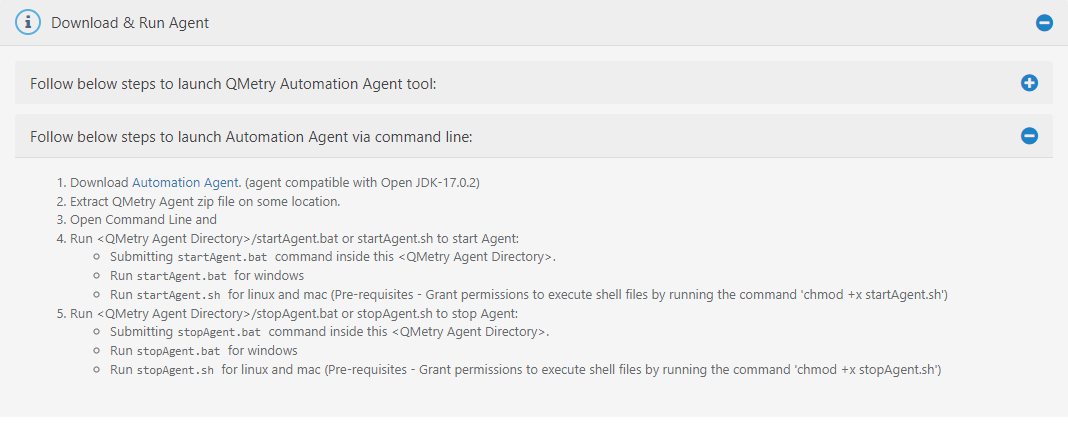
Note
The downloaded zip file will be in the format
QMetryAgent_A.B.C.zip, where A.B.C will be the version of QMetry Agent.Copy the
QMetryAgent_A.B.C.zipfile to your server. Then, navigate to the directory where this file is kept and extract the zip file to the computer drive.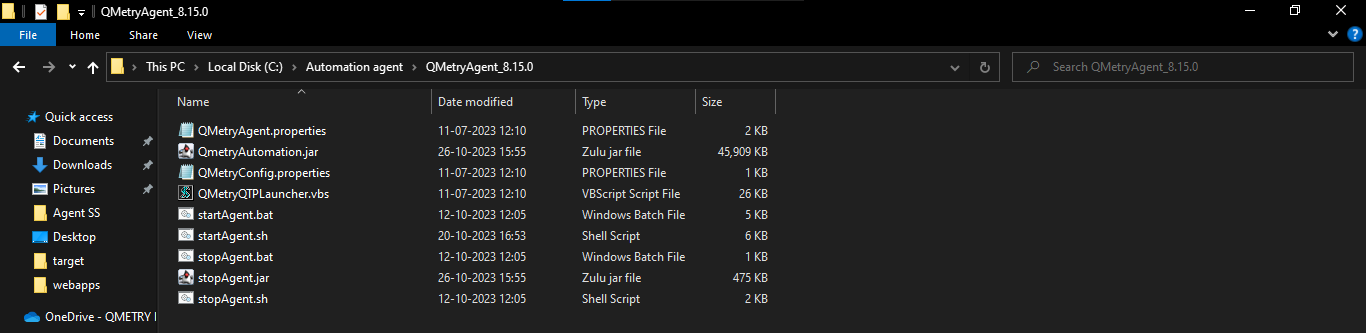
Execute the following command to run the agent.
startAgent.bat
The QMetry Automation Agent command line wizard will open. Users need to fill required information.
Fields | Description |
|---|---|
URL | The URL of your QMetry Test Management application instance. |
Key | Enter Automation Agent Key. To generate an Automation Key, go to Integration > Automation Agent and click Generate Key as described under Automation Agent Key above. |
Alias | Enter the name of your preference as Agent Alias to identify the specific agent. |
Enable Proxy | Users who want to run the agent on a proxy can do so by setting this configuration. |
Enable VM | Users who want to run agent on virtual machine, can do so by setting this configuration. The manual settings are not required. |
 |
This will enable the agent to start automatically when the system reboots.
To stop the running agent: Run stopAgent.bat by clicking on it.
→ Interval Time: By default, the interval time between two scheduled jobs will be 180 seconds. You can change the time by modifying the "Interval" parameter in the QMetryAgent.properties. The minimum value should be 60 seconds.
Go to Integration > Automation Agent.
Expand the Download & Run Agent section, if not expanded already.

You will find Agent download and installation instructions on the screen. Download QMetryAgent.zip by clicking on the Automation Agent download link.
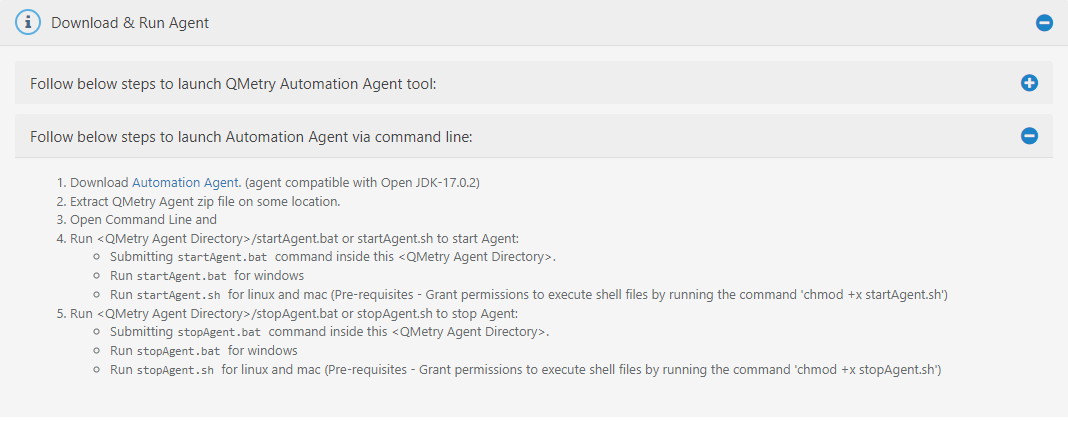
Note
The downloaded zip file will be in the format
QMetryAgent_A.B.C.zipwhere A.B.C will be the version of QMetryAgent.QMetryAgent_A.B.C.zipunzip QMetryAgent_A.B.C.zip
Note
Replace A.B.C with the actual version of QMetryAgent.
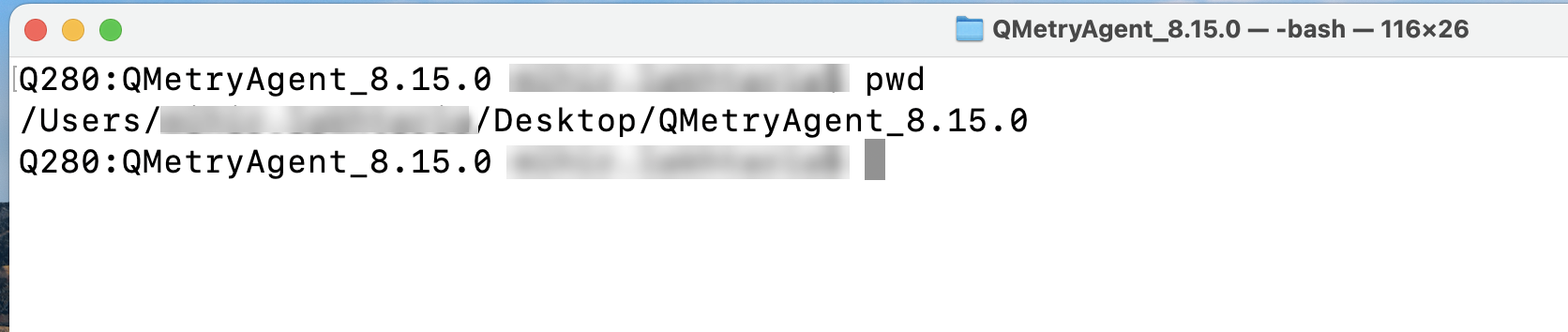
Execute the following commands.
chmod +x startAgent.sh
chmod +x stopAgent.sh
Note
Replace A.B.C with the actual version of QMetry Agent.

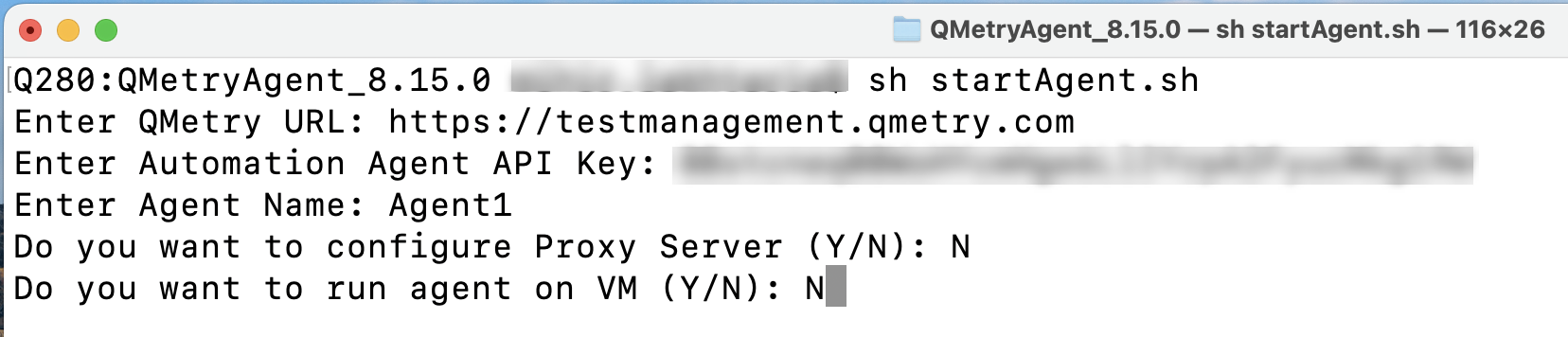
Run the agent by executing the following command.
sh startAgent.sh
The QMetry Automation Agent command line wizard will open. Users need to fill required information.
Field | Description |
|---|---|
URL | The URL of your QMetry Test Management application instance. |
Key | Enter Automation Agent Key. To generate Automation Key, go to Integration > Automation Agent and click on the Generate Key as described under Automation Agent Key above. |
Alias | Enter the name of your preference as Agent Alias to identify the specific agent. |
Enable Proxy | Users who want to run the agent on a proxy can do so by setting this configuration. |
Enable VM | Users, who want to run the agent on the virtual machine, can do so by setting this configuration. The manual settings are not required. |
 |
Note
This will enable the agent to start automatically when the system reboots.
To stop the running agent:
sh stopAgent.sh
→ Interval Time: By default, the interval time between two scheduled jobs will be 180 seconds. You can change the time by modifying the Interval parameter in the QMetryAgent.properties. The minimum value should be 60 seconds.
Once the Agent is configured, it will be added to the list of Registered Agents with the Status Active.

The screen lists all agents added in QMetry with the details of OS, Machine Address, Status (Not Registered, Active, Inactive, Not Applicable), ScheduledIn Progress
Filter Options
You can filter the Registered Agents on the following criteria:
Alias
OS
Status
After configuring the Agent in Integration > Automation Agent, download and run the Agent. Schedule tasks for the Agent to perform automation testing.
The columns on the screen are described below:
Alias: This is Agent Alias mentioned by the user while adding Agent.
OS: Operating System on the hosting machine on which the command will be executed.
MAC Address: The machine address of the hosting machine on which the command will be executed.
Status: The Agent status could be
Active,Inactive.Active: QMetry Agent is executed to request a schedule from the QMetry application. When you start the agent, it attainsActivestatus and remainsActivetill it keeps requesting for schedule from QMetry application at the frequency defined.Inactive: As stated above, QMetry Agent and its connection with QMetry application are checked at a defined interval. If QMetry Agent is not communicating with QMetry application for more than the defined time and it stops requesting for schedule, then the QMetry Agent status is updated asInactive.
Schedules: The column shows the number of pending schedules and in-progress schedules. For example, 4 Scheduled / 2 In-progress.
In Progress: This column shows when a scheduled run is currently in execution.
Updated At: This is the system date and time when the Agent is added to QMetry.
The Actions column includes the Schedule, History, Manage Schedule, and Delete buttons.
Schedule Agent: Click on the Schedule button to schedule QMetry Agent run.