Managing Labels
The Labels field is a system-defined field in modules like Requirement and Test Case. It is most often used for a major classification of a product or service. Some organizations use “Module,” "Component," and "Product" in place of Label.
Creating Labels
Go to Projects and open Label.
Click +.
Enter Alias and Name of Label, and click Save.
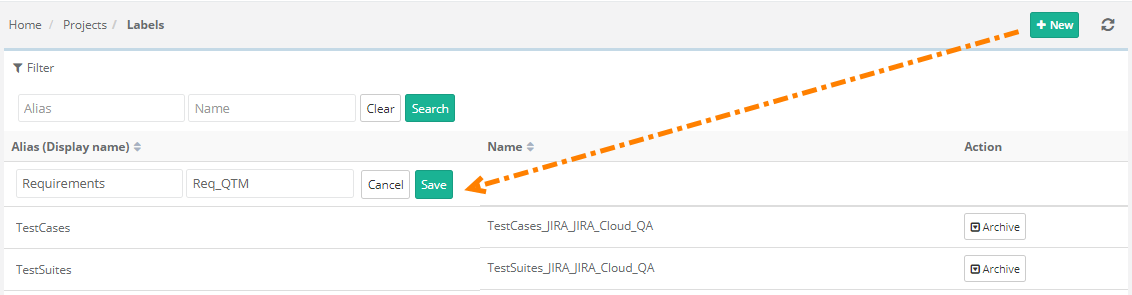
Go to the respective modules and open the detail page. Check the Label drop-down with the values you entered above.
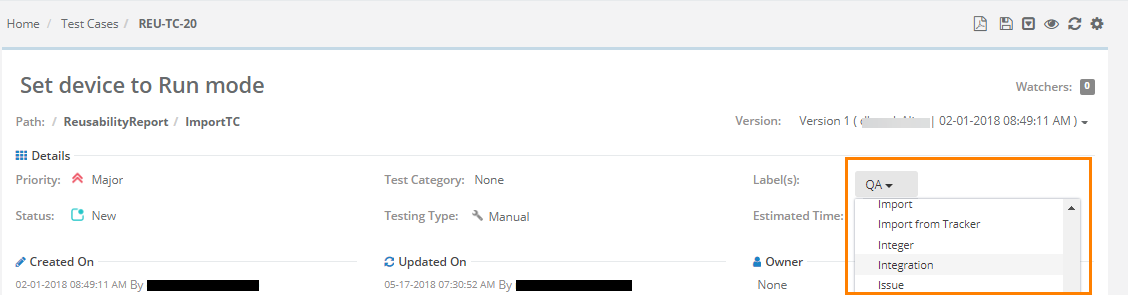
Sharing Labels
Share labels to use the same values for other projects.
Use Case: The project admin wants to reuse label values from one project across multiple projects, so they don’t have to add and manage the same labels separately in each project.
Required Permissions: For creating or modifying the Label values you need the following permissions:
Source/Destination | Permissions |
|---|---|
Source Project The source project for labels. | Project “View” permission. |
Destination Project The target project for labels. | Project “View” permission. |
Import Label Values
Perform the following steps to import label values from other projects:
Go to Projects and select Labels.
Click Import.
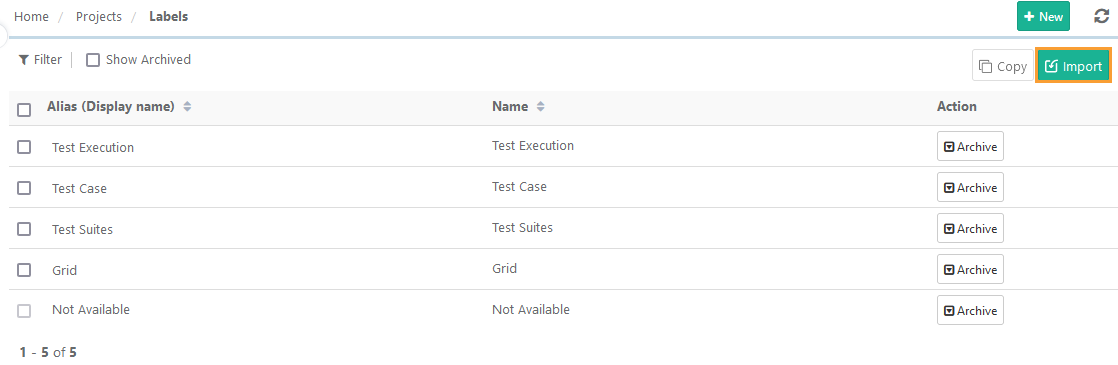
Open the drop-down to select a Project to import the Label values.
Select the labels to import from the existing project.
Note
You can select up to 100 labels at a time.
Click .
View the progress in Scheduled Task section.
Copy Label Values to Other Projects
To copy label values, perform the following steps:
Go to Projects and open Label.
Select the Label values to copy to other projects.
Note
You can select up to 100 labels at a time.
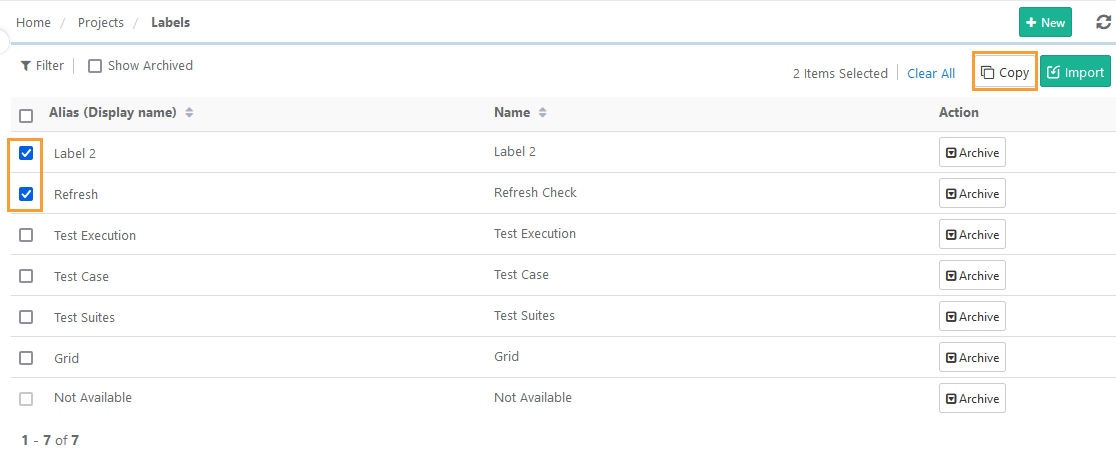
Select the target projects from the drop-down list.
Note
You can select up to 5 projects at a time.
Click .
View progress in the Scheduled Task section.