QMetry Reports Offline Upgrade Document for Linux
In this guide, we will run you through upgrading QMetry Test Management Reports in your environment. These steps are to be followed on your QMetry Reports server hosted on the Linux machine.
Download Docker Image and Upgrade Files for QMetry Reports Upgrade
Step 1. Docker Login
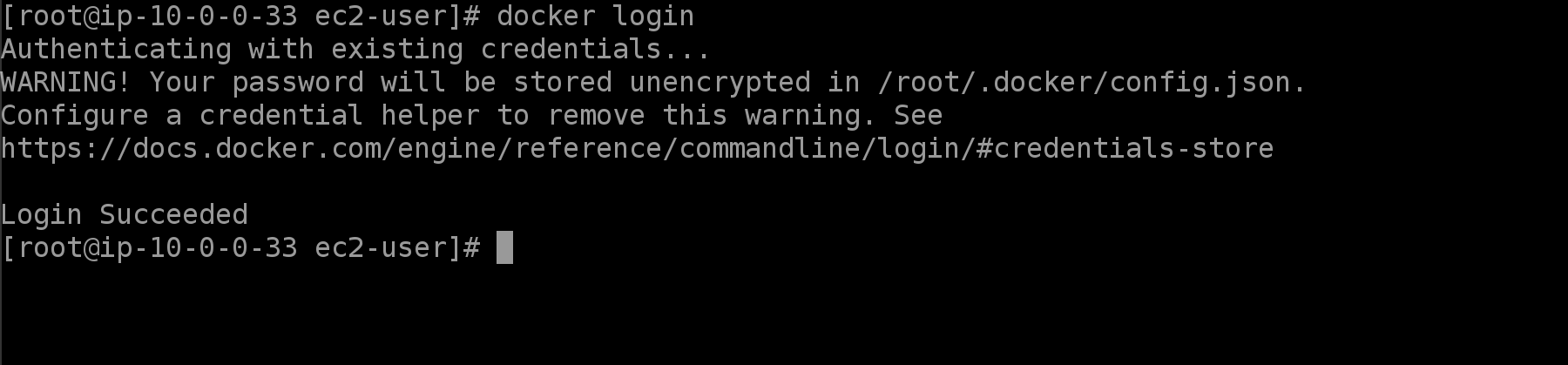
docker login
Enter docker's credentials. Please contact QMetry Support, if you do not have the credentials.
 |
Step 2. Pull QMetry Reports docker image
Pull QMetry Reports docker image from the docker repository.
docker pull qmetry/qmetry:reports_latest
The download process is started. Wait till the time it gets finished.
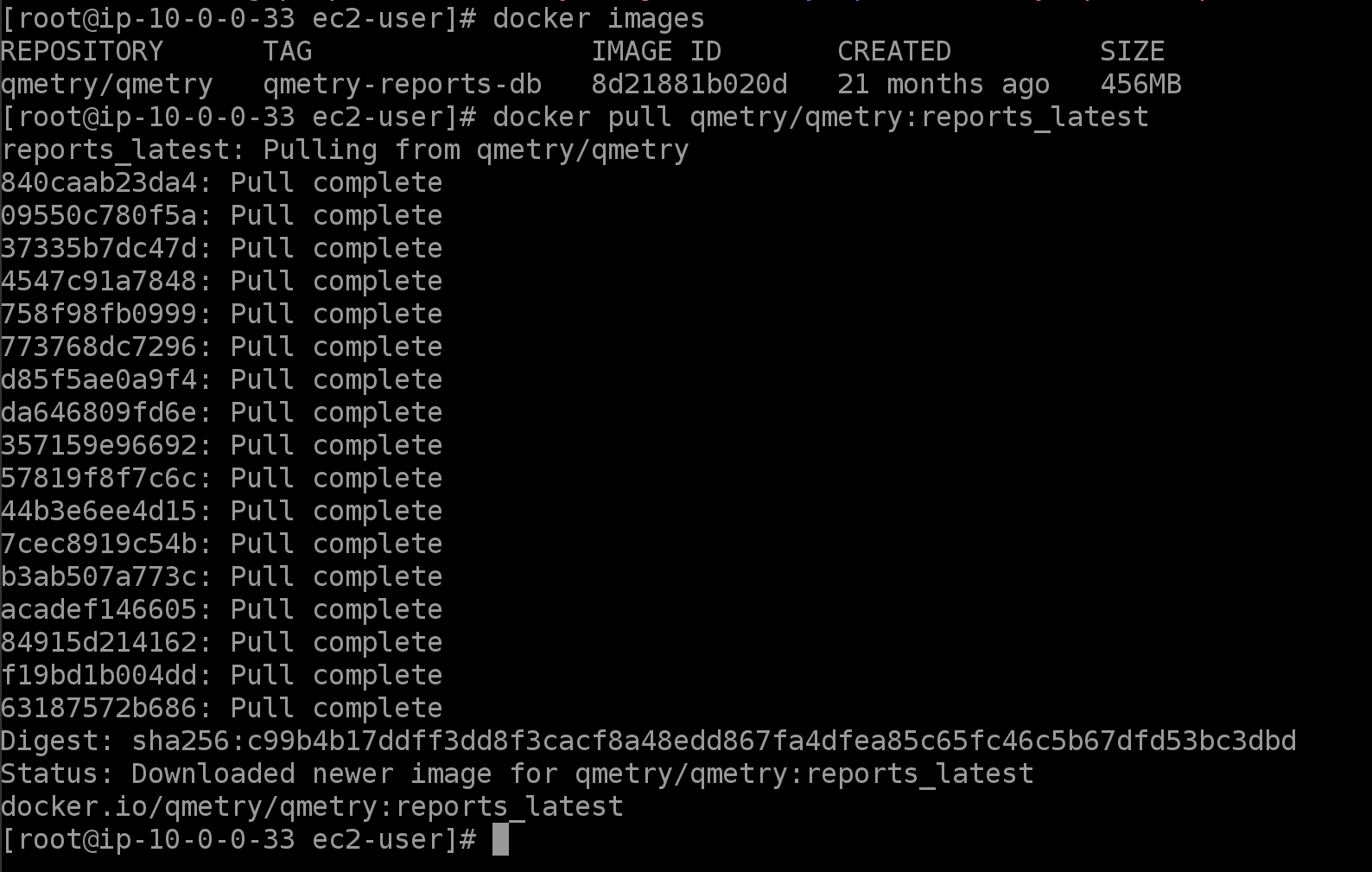 |
After the process gets finished, it will display the message as shown.
Run the following command to verify that docker image has been downloaded.
docker images
 |
Step 3. Save QMetry Reports docker image as .tar file.
Execute the following command to save QMetry Reports docker image as .tar file. You can change the path of .tar file in the following command.
docker save -o /opt/QMetryReports.tar qmetry/qmetry:reports_latest
Step 4. Download Required Files.
You can generate a request on QMetry Support Portal to get the latest version of QMetry Reports Upgrade Files.
Step 5. Transfer the files to server
Transfer the QMetryReports.tar and QMetryReportsUpgrade.zip file to the QMetry Reports server.
Steps to upgrade existing QMetry Reports to the latest version
Upgrade Steps
Step 1. Load the QMetry Reports Docker Image
On QMetry Reports server, navigate to the directory where .tar file has been placed and execute the following command.
Step 2. Check whether the docker images have been restored correctly or not.
sudo docker images
Step 3. Check the container name
sudo su
docker ps -a --format "table {{.ID}}\t{{.Names}}\t{{.Image}}"
Step 4. Go to the Upgrade Zip file location
Go to the Upgrade Zip file location where you have placed QMetry_Linux_Installer.zip.
unzip QMetry_Linux_Installer.zip
Go to QMetryReportsUpgrade folder
cd QMetry_Linux_Installer/
Step 5. Modify the container name.
Here, if the QMetry Reports Container name is different than 'qmetry-reports', then please perform Step 5. Otherwise, you can skip the step.
Open the file – upgrade.sh in edit mode.
vi upgrade.sh
Update the file for changed value with the respective name of the container
Press i to change the file mode to insert.
Update the variable value according to docker container name which exist in upgrade.sh file
OLD_CONTAINER_NAME=<existing docker container’s name>
Press Esc, and type :wq to save the changes
Step 6. Give permission to upgrade.sh file
chmod +x upgrade.sh
/.upgrade.sh
The next question during the upgrade process will be as follows.
Options | Allowed Values | Default Value | Recommended Value |
|---|---|---|---|
Do you want to make an online installation (Y/N)? | Y, y, N, n | Y | Enter “N” to begin the offline upgrade. |
Step 7. Enter your responses
The script determines the path based on whether the Report CDC and Sync containers already exist.
Scenario A — Existing installation (CDC & Sync running): the script backs up config.properties, stops/removes the old CDC and Sync containers, cleans up old images, and starts the new ones. When run offline it asks for the directories containing qmetrycdc.tar and qmetrysync.tar. No MQ or resource prompts appear.
Scenario B — Fresh installation (CDC & Sync not running): the script verifies the Report database container exists (else it prints “QMetry Report database container is not running. Contact QMetry Support!”). Database settings are read automatically from config.properties; you are then prompted for
Prompt | Default | Example |
|---|---|---|
Enter MQ URL | - | Message Queue broker URL (e.g. tcp://localhost:61616) |
Enter MQ UserName | — | MQ broker username |
Enter MQ Password | — | MQ broker password |
Enter Maximum memory to allocate for CDC app in GB(s) | 4 | Memory in GB (number only) |
Enter Maximum memory to allocate for Sync app in GB(s) | 8 | Memory in GB (number only) |
Enter Number of CPU's to allocate for CDC app | 4 | Number of CPUs (number only) |
Enter Number of CPU's to allocate for Sync app | 4 | Number of CPUs (number only) |
For an offline fresh install the script also asks for the directories containing qmetryreportdb.tar, qmetrycdc.tar, and qmetrysync.tar, installs the Report DB container using reportdb.yml, starts CDC and Sync, and initializes the sync job. Wait for execution to complete.
Note
Depending on your data this process can take time as it will be performing full data QMetry Data Sync. Users can continue to use QMetry Application during this time. But, QMetry custom reports remain inaccessible when syncing in progress.
Step 8. Configure Force Sync of Reports and verify
In the QMetry UI, under the Sync Data tab, set the Report Server URL to your report server domain URL followed by the reports sync port, click Test, then Test & Save, then Sync Data.
Confirm all containers are running and check logs / the Report UI:
docker ps
Ask Support
If you are facing any issues during the upgrade process, kindly generate a support ticket on Support Portal for assistance.