Auto-organize Imported Requirements
Note
If users enable auto-organization of requirements into a folder hierarchy, the existing folder structure will be overwritten. All existing and newly imported requirements will be reorganized based on the defined hierarchy.
You can auto-organize requirements imported from Jira using a two-level folder structure. This structure depends on the Jira Issue Fields configured from Integration. Any changes to the selected Jira field values are reflected in real time within QMetry.
Use Case: The project admin wants to select specific fields from Jira to organize the imported requirements. It creates the folder structure and arranges the requirements as per the set hierarchy.
Component and Priority fields are selected for Field 1 and Field 2 respectively.
Component values: Sanity, Regression
Priority values: High, Medium, Low
The folder structure will be created as per the values that exist in the field of requirements.
Sanity > High
Sanity > Low
Regression-Sanity > High
Regression-Sanity > Low
Note
You can create a folder structure by selecting Jira System fields or Jira Custom fields.
QMetry creates a single-level folder structure under the default “Imported from Jira” folder if you select only one Jira Issue field to organize requirement folders.
When you update a requirement’s field value, the system automatically reorganizes it in the folder structure based on the updated field values.
When the folder hierarchy field selection is changed in project settings, the system organizes both new and existing imported requirements according to the new folder str
When you create new values for mapped fields, the system automatically creates the folder structure.
When you update existing values of the mapped fields, the system automatically updates the folder structure.
When you delete existing values of the mapped fields, the folder structure stays unchanged unless they delete it manually.
If the values of any selected Jira fields change after import, the system reorganizes the imported requirements accordingly. For example, if a requirement’s “Priority” changes from “High” to “Blocker,” the system moves it from the “High” subfolder to the “Blocker” subfolder.
If a requirement has more than two values for a hierarchy field, the system creates a folder name that combines the values with a hyphen. For example, it creates “Regression-Sanity.”
You cannot archive or delete folders containing Jira Requirements.
If you choose auto-organizing for requirement folders, the existing folder structure will be replaced. Both existing and new requirements will move into the defined folder hierarchy.
To auto-organize imported requirements, perform these steps:
Go to Project Management and select Projects.
Open the Integration tab.
Select the Work Items to sync as Requirements.
Select the folder where the requirements will be synced.
Click the Jira Field Settings icon to configure folder hierarchy.
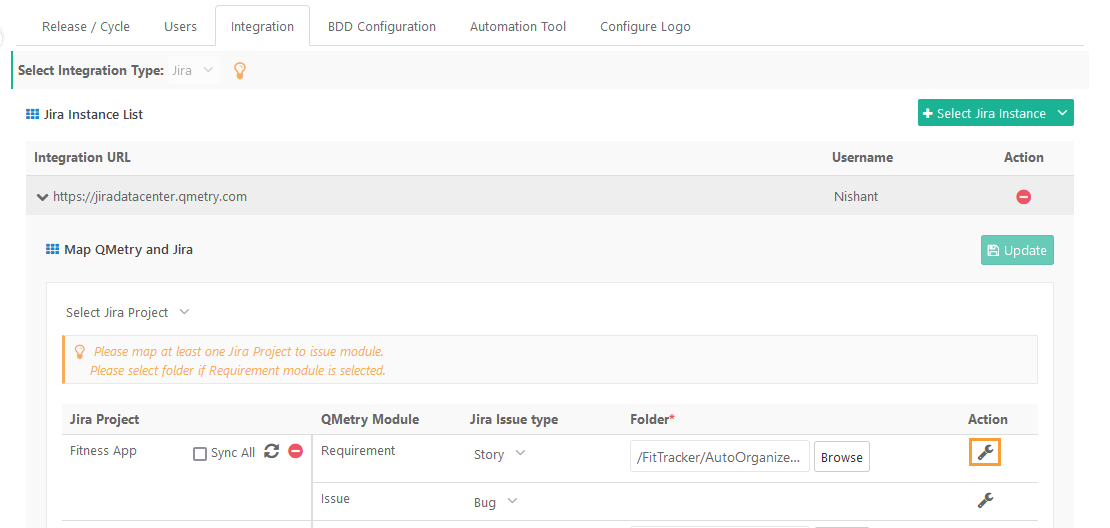
You can create:
A two-level folder hierarchy by selecting two fields.
A single-level hierarchy by selecting one field.
No hierarchy by skipping field selection. In this case, requirements will be imported directly into the selected folder.
Map Jira fields to QMetry. This is optional. Mapping Jira custom fields impacts the list of available fields for folder hierarchy.
Select fields to organize imported requirements.
Field 1: Select the desired Jira system or custom field. This will be used as the parent folder.
Field 2: Select an additional Jira field to create a sub-folder under the parent folder.
Click Save.
You can track the structuring of Requirement Folder in the Scheduled Tasks section.
The system automatically creates folders based on the values of the selected fields and organizes the imported requirements accordingly. All newly imported requirements from Jira follow this folder hierarchy based on their field values.
Note
Folders are created only for list values that are linked to imported requirements.
All new requirements from Jira will keep auto-importing into the set folder hierarchy depending on the field values of the requirements.
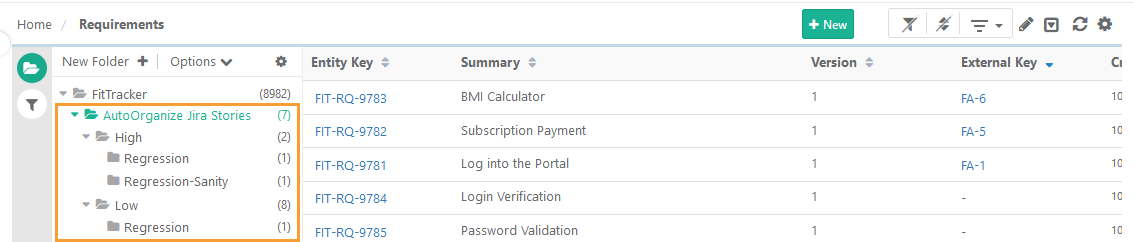 |
If you modify the field values, the system moves the entities to the folder structure accordingly.
If the values in the fields are new, a new folder structure is created accordingly.
The new and existing Jira-imported requirements are organized based on the new folder hierarchy.