Trigger CI/CD Rule from the Test Suites module
You can create and trigger CI/CD Rules from the Test Suites module as well. The details of CI/CD Rules will be displayed in the Change Logs tab of the test suite.
When a build is triggered from the test suite, all the related actions are captured in the Change Logs. This helps testers track which CI/CD Rule was triggered from which test suite.
Steps
Go to the Test Suites module.
Open the test suite detail page.
Click the Trigger CI/CD Rule button at the top of the screen.
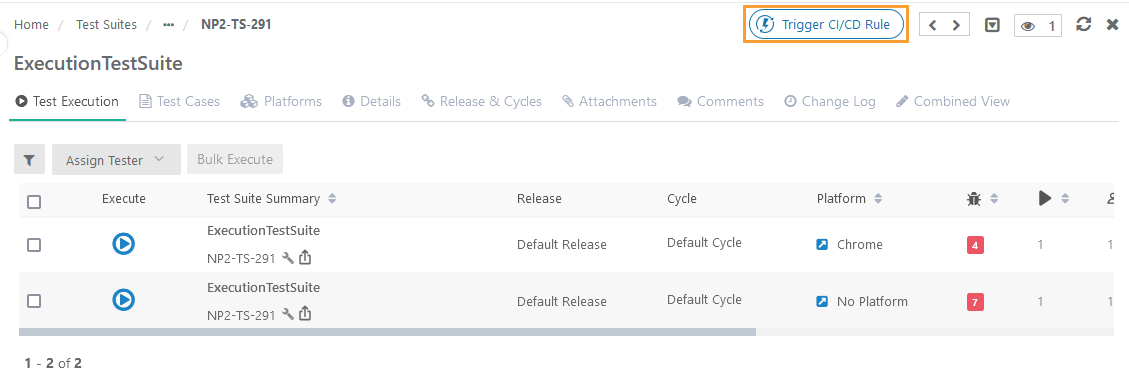
The Select CI/CD Rule panel opens.
If the CI/CD Rule is not configured from the Integration module:
If you do not have the CI/CD Rule configured in the Integration module of QTM, and you click on the Trigger CI/CD Rule from the Test Case Details page, the Select CI/CD Rule panel opens blank without any records of CI/CD Rule on it. You can create CI/CD Rules from the Test Suites module.
Create a CI/CD Rule from the Test Suites module
Steps
Go to the Test Suites module.
Open the Test Suites Details page.
Click the Trigger CI/CD Rule button at the top of the screen.
The Select CI/CD Rule screen opens.
To create a new rule from the Test Suites module, click the New button.
 |
The New Rule screen opens.
Perform the same steps described in Create a New Rule in QTM for creating a new CI/CD Rule.
Once the rule is added, it is displayed on the Select Rule screen.
The same CI/CD Rule also reflects in the Integration module.
Once the CI/CD Rules are created either in the Integration module or in the Test Suite module, you can view the summary of the configured rule on the screen.
Click the Key to view more configuration details for the rule.
The configuration details for the rule are displayed on the screen.
You can also make the required changes in the configuration from this screen.
Any changes made in the CI/CD rule configuration here in the Test Suites module will also be synced in the Integration module.
Link CI/CD Rule with Test Suite
Follow the steps mentioned below to link the CI/CD Rule with a test suite.
Go to the Test Suites module.
Open the Test Suite Details page.
Click the Trigger CI/CD Rule button at the top of the screen.
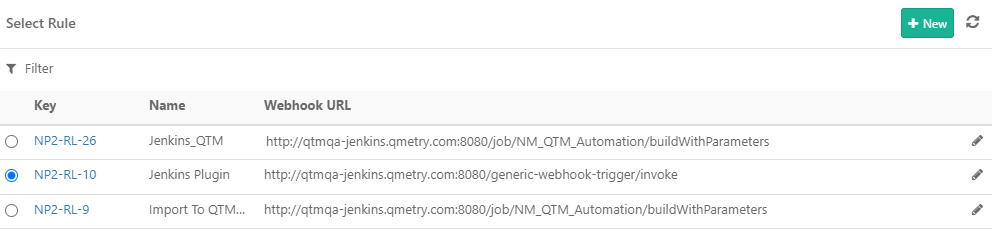
The Select CI/CD Rule panel opens with the list of rules on it.
Select the CI/CD Rule that you want to link with the current test suite. You can also apply a filter to search for a particular rule.
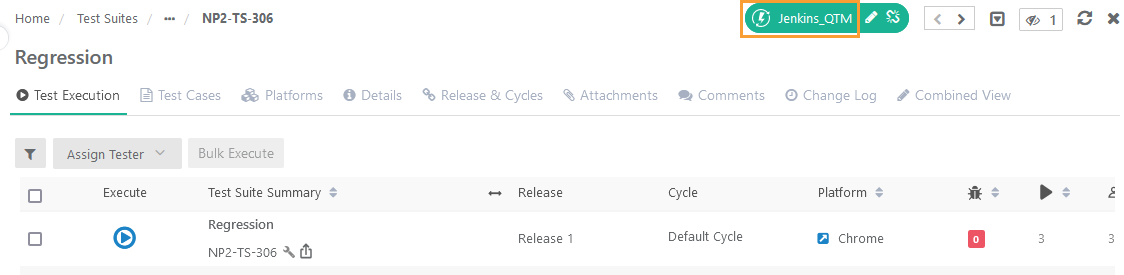
The linked CI/CD Rule starts displaying on the Test Suite Details page at the top.
Trigger CI/CD Rule from Test Suite
To trigger the CI/CD rule, click the rule linked with the test suite.
 |
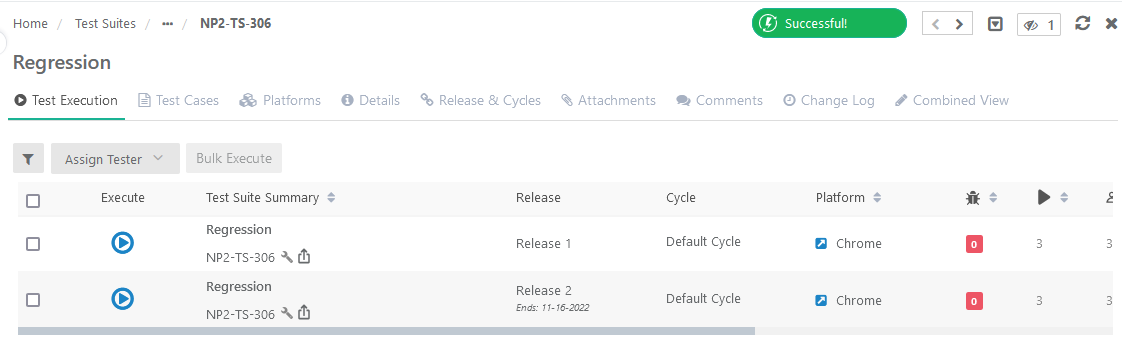
The CI/CD Rule name gets replaced with the Success label for a while.
 |
Trigger CI/CD Rule from Test Suite List View
Once linked to the test suite, you can also trigger the CI/CD Rule for it from the list view of the Test Suites module.
 |
Edit CI/CD Rule from Test Suite
You can edit the rule configuration details by clicking the Edit icon for the linked CI/CD Rule on the Test Suite Details page. Any changes made in the CI/CD Rule configuration here in the Test Suites module will also be synced in the Integration module.
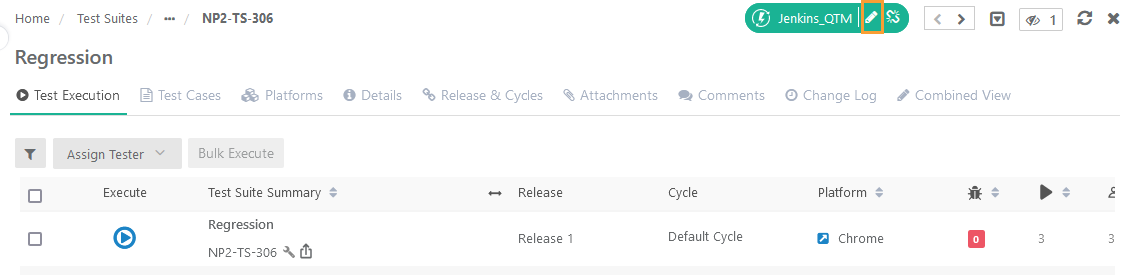 |
Unlink CI/CD Rule from Test Suite
To unlink the linked CI/CD Rule, click the Unlink icon (X) for the rule on the Test Suite Details page.
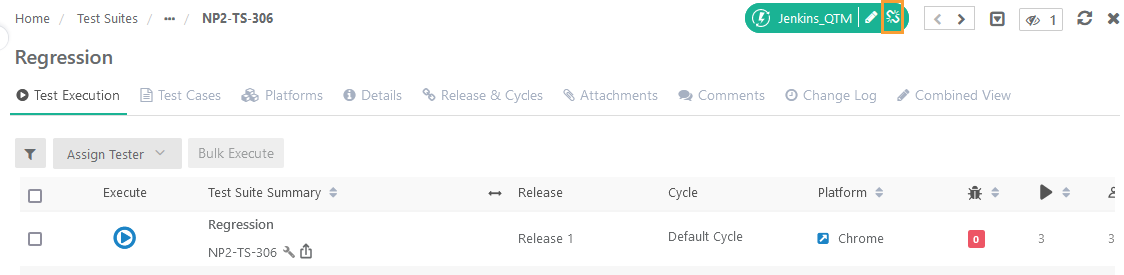 |
Change Logs in Test Suite
When a build is triggered from the test suite, all the related actions are captured in the Change Logs. This helps testers track which CI/CD Rule was triggered from which test suite.
Open the Test Suite Details page and open the Change Logs tab.
The Change Logs tab displays all the actions taken for the CI/CD Rules linked to the current test suite.
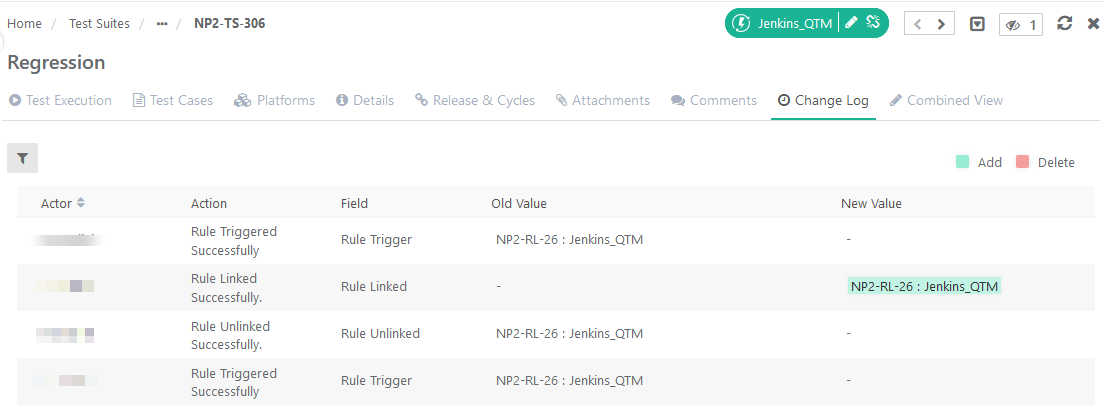 |