QMetry Reports Upgrade from v8.11.2 and above
Note
This document is applicable ONLY if your QMetry Reports version is 8.11.2 and above, and you want to upgrade to QMetry Reports version 8.27.0
In this guide, we will run you through upgrading Reports in your environment. These steps should be followed on your QMetry Reports server hosted on the Linux machine.
As a part of this upgrade - which introduces reports sync via QMetry UI, it is required to open port 8080 on the reports server to accommodate the changes as per upgrade steps 8, 9, and 10.
Ensure Docker is installed and running.
Confirm you have access to the server and Docker container.
Proceed with this upgrade ONLY IF your current QMetry Reports version is v8.11.2 or above.
Upgrade Steps
Step 1: Download Required Files
You can generate a request on QMetry Support, to get the latest version of QMetry Reports.
Download the QMetry_Linux_Installer.zip file on your report server's /opt directory once you receive the report upgrade package.
Step 2. Check the running containers
docker ps
 |
Ensure the following containers are present:
qmetry-reports
qmetryreport_db
Step 4: Run the upgrade script
sh upgrade.sh
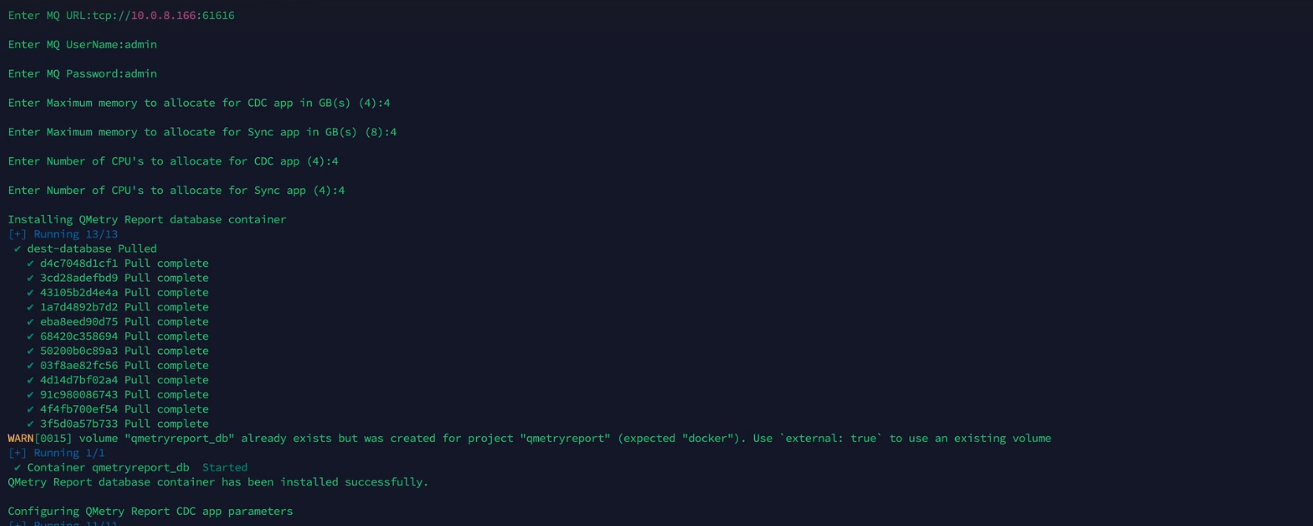
Step 5: Enter values for prompt
Prompts | Input Examples |
|---|---|
Enter MQ URL | tcp://10.0.8.166:61616 |
Enter MQ Username | admin |
Enter MQ Password | admin |
Enter maximum memory to allocate for CDC app in GB(s) (4) | 4 |
Enter maximum memory to allocate for Sync app in GB(s) (8) | 4 |
Enter number of CPU’s to allocate for CDC app (4) | 4 |
Enter number of CPU’s to allocate for Sync app (4) | 4 |
Step 6. List the dockers
docker ps

Step 7. Configure Force Sync of Reports and Trigger a Sync (Post Upgrade Step)
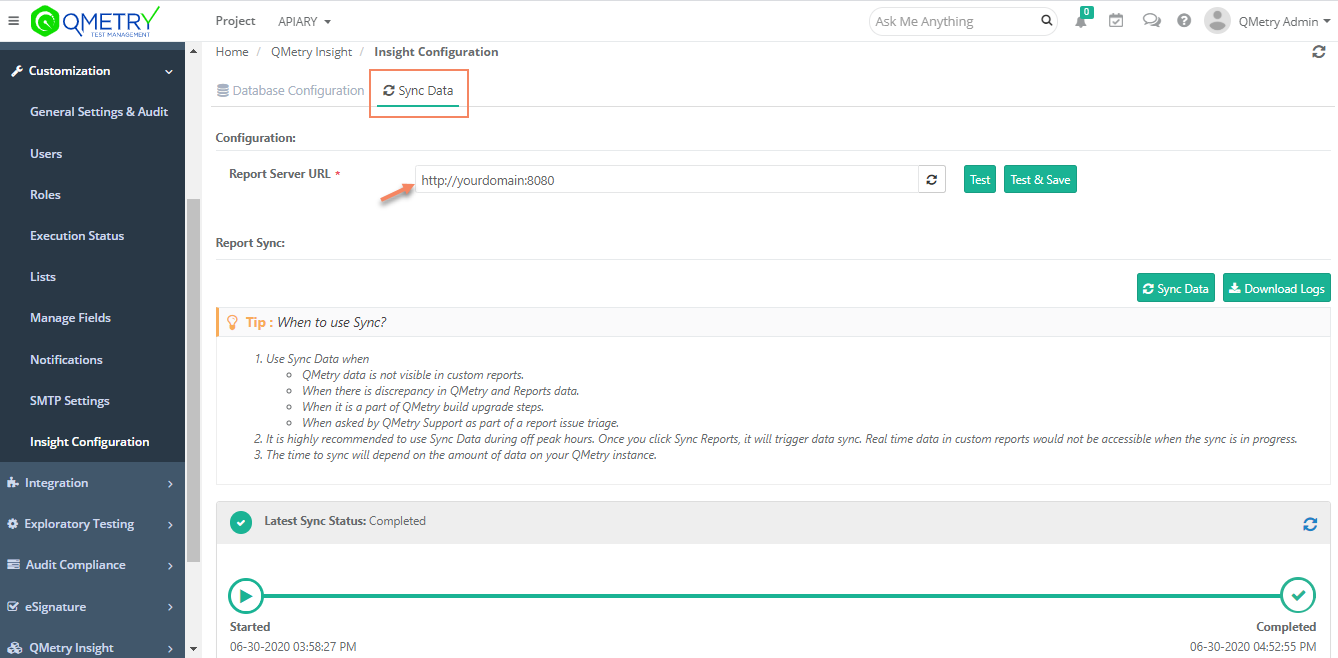
Under the Sync Data tab, set up the Report Data Sync from your reports server to QMetry Reporting.
Under the Sync Data tab, set up the Report Data Sync from your reports server to QMetry Reporting.
Report Server URL: This should be set to your report server domain URL followed by port 8080 as shown below. Ensure port 8080 is open on the reports server.
Click Test to ensure a successful connection and then hit Test and Save.
Hit "Sync Data" to start Reports Data Sync.
Note
Sync Data should be run after the upgrade. The time taken to sync depends on the amount of data in QMetry. Sync Progress and Status can be monitored as shown in the screenshot below. QMetry custom reports remain inaccessible when syncing is in progress. The sync process is recommended to be run only during off-peak hours.
Users can start using QMetry Reports when the sync is completed.
 |
Note
Depending on your data this process can take time as it will perform full QMetry Data Sync. Users can continue to use the QMetry Application during this time. But QMetry custom reports remain inaccessible when the syncing is in progress.
If you face any issues during the upgrade process, kindly generate a support ticket on the Support Portal for assistance.