Issue Analysis
Note
Issue Leakage Rate and Issue Average Aging reports do not show data for QMetry projects synced with Jira projects, as you can view this data directly in Jira.
To generate Issue Analysis reports for multiple projects and view details across projects, perform the following steps:
Go to QMetry System Reports.
Select Issue Analysis Report.
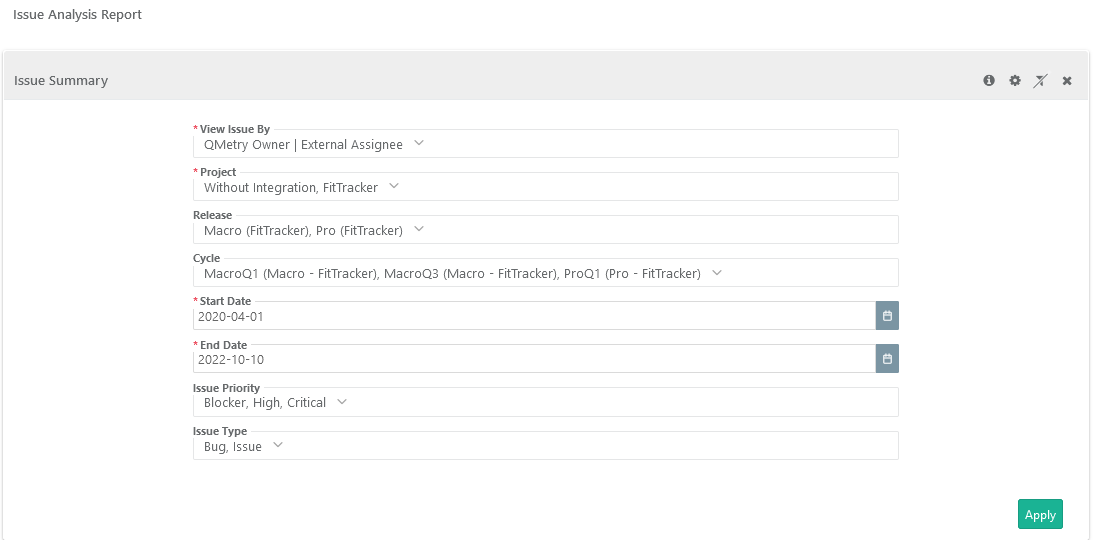
Click the filter icon and enter the following details.
Project: Select one or more projects to generate the report for.
Release: Select one release or “All” to include all releases. The graph shows cycles based on the selected release.
Date Range: Provide Start Date and End Date to define the duration.
Select Issue Priority and Issue Type to consider while generating the report.
Click Search.
Global Filters
You can apply unified filters for project, release, cycle, start date, end date, issue priority, and issue type across all issue analysis reports using the global filters.
 |
Issue Summary
You can generate the following types of reports to view Issue Summary. You can find the corresponding filters in the Filters menu.
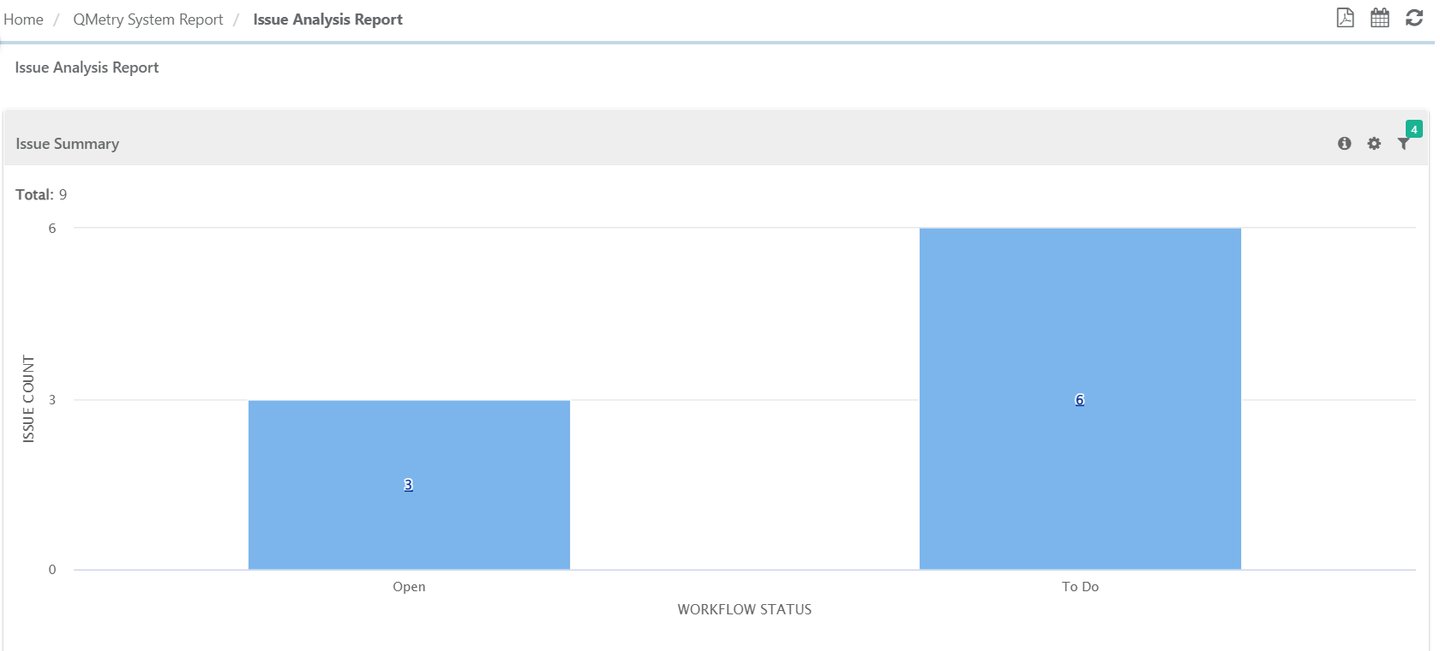
Issue Summary by Workflow Status: The report shows issues by their workflow status i.e. the value in the Status field of issues.
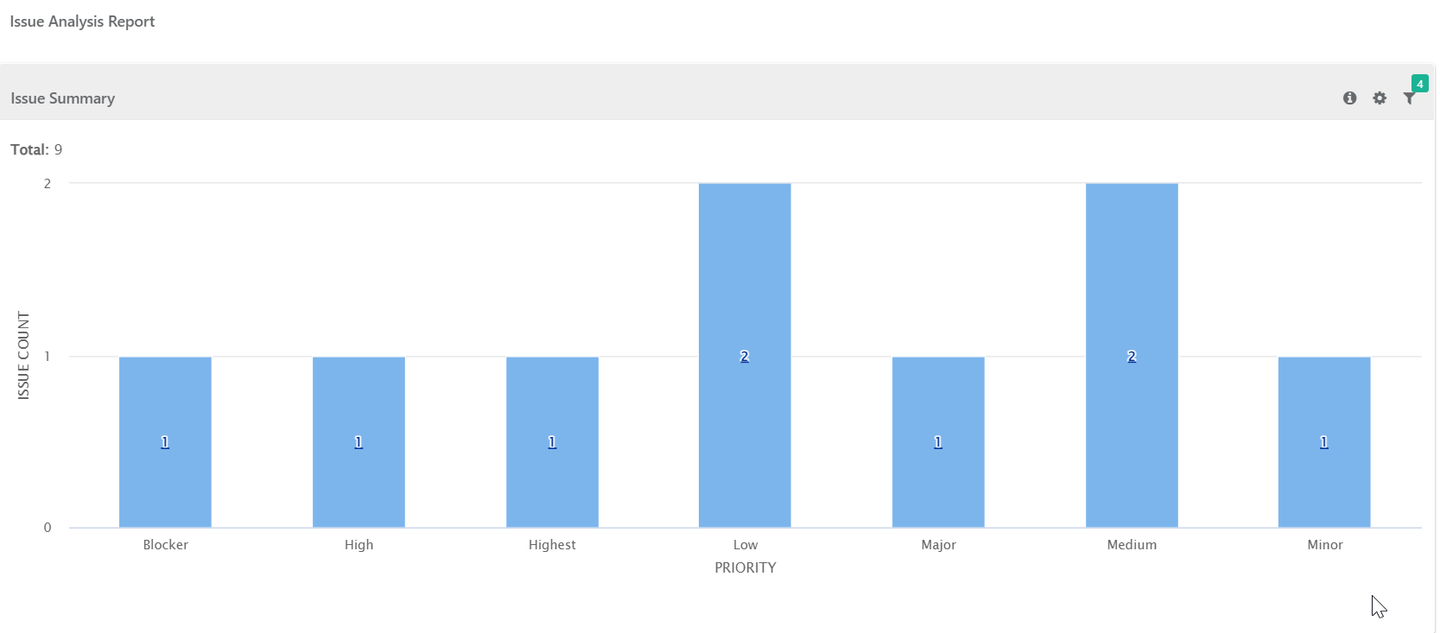
Issue Summary by Priority: The report shows all Issues organized by priority.
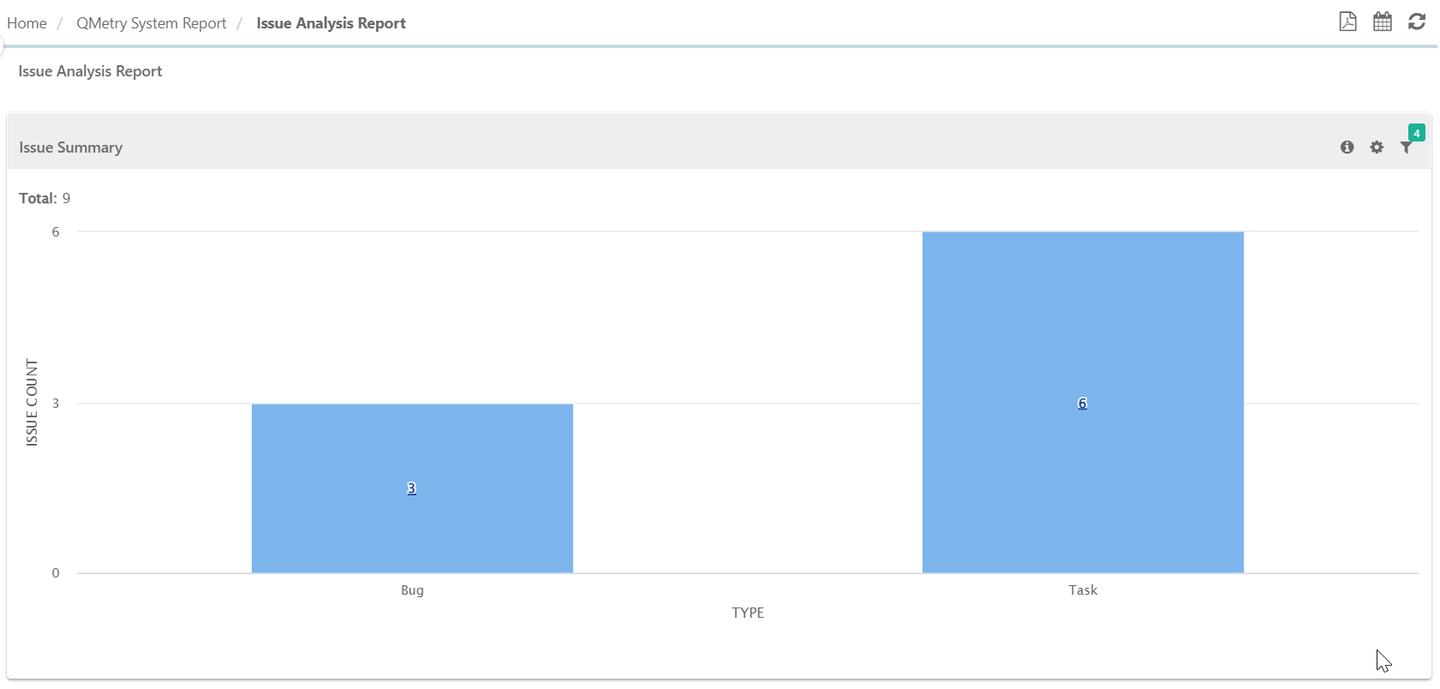
Issue Summary by Type: The report shows issues categorized by type.This is the Type mentioned while creating an issue/logging a bug.
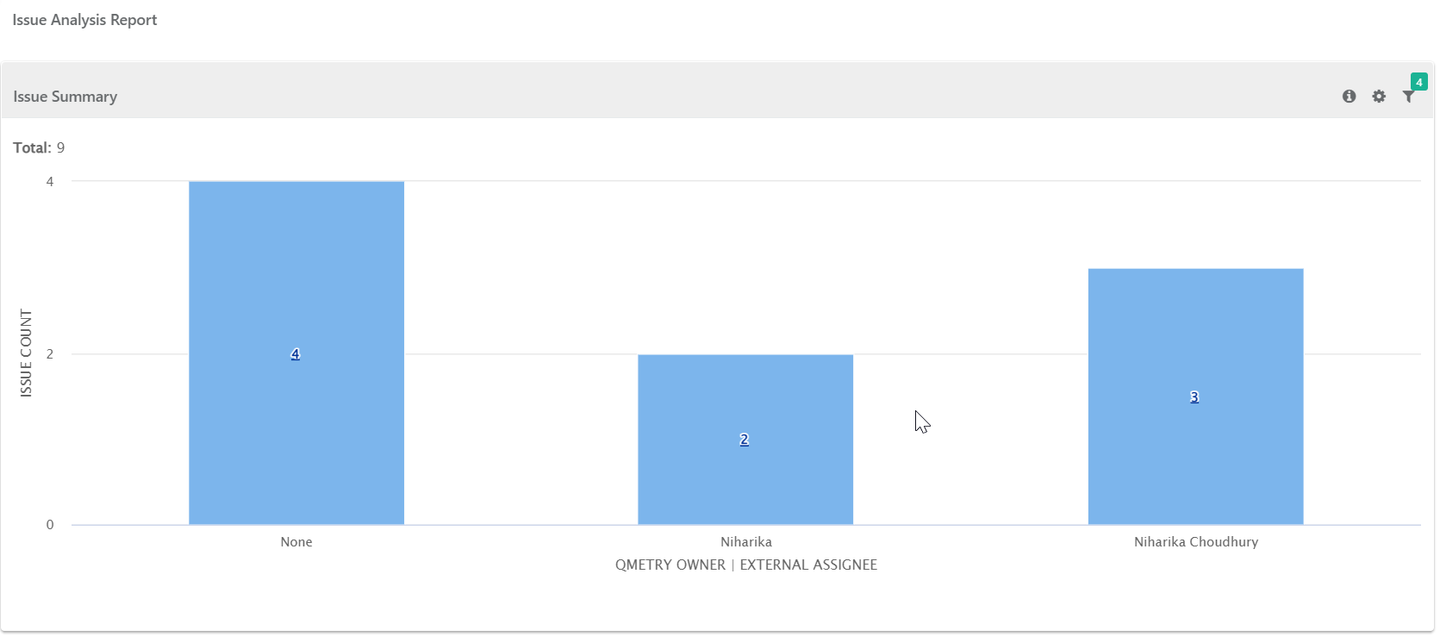
Issue Summary by Assignee: The report shows all issues organized by their assignee - either QMetry Owner or Jira Assignee.
You can drill down the chart to view details in tabular format.
Issue Summary by Workflow Status
 |
Issue Summary by Priority
 |
Issue Summary by Type
 |
Issue Summary by QMetry Owner or External Assignee
 |
Filter Report:
Click the Filter icon to generate the required reports.
 |
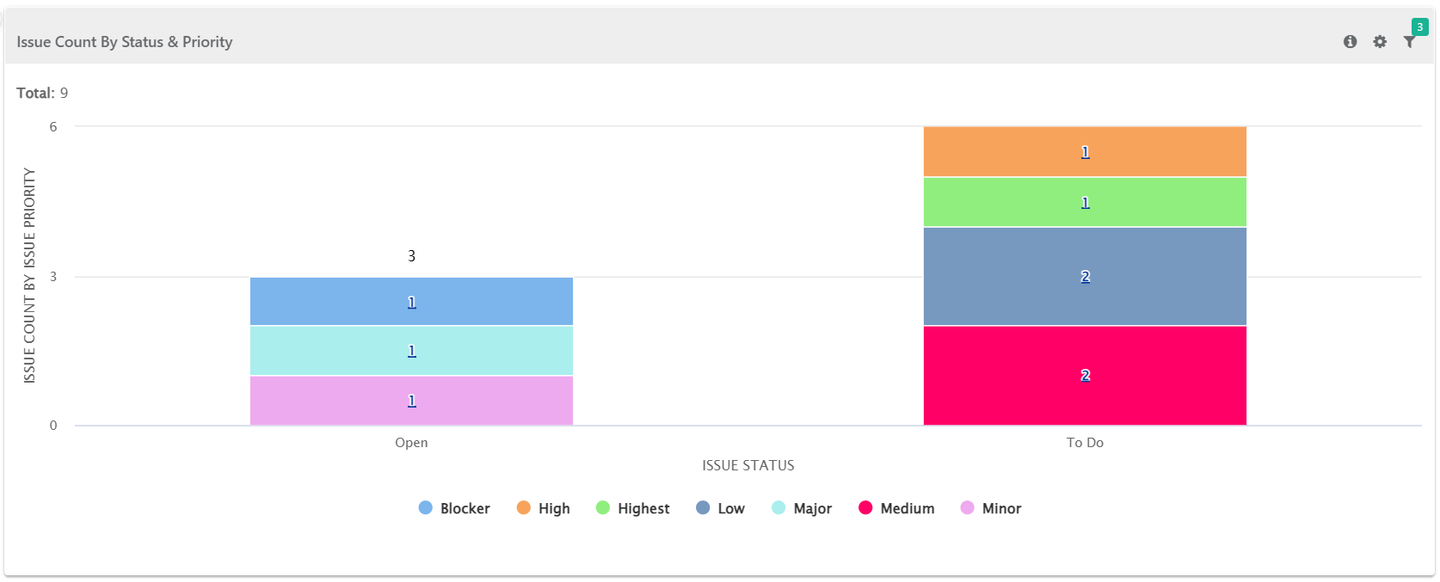
Issue Count by Status and Priority
This report shows the number of issues grouped by their status and priority, with legends provided below the graph. Click the legends to show or hide priorities on the graph.
You can also drill down the chart to view details in tabular format.
 |
Filter Report:
Click the Filter icon on the chart to generate the required report.
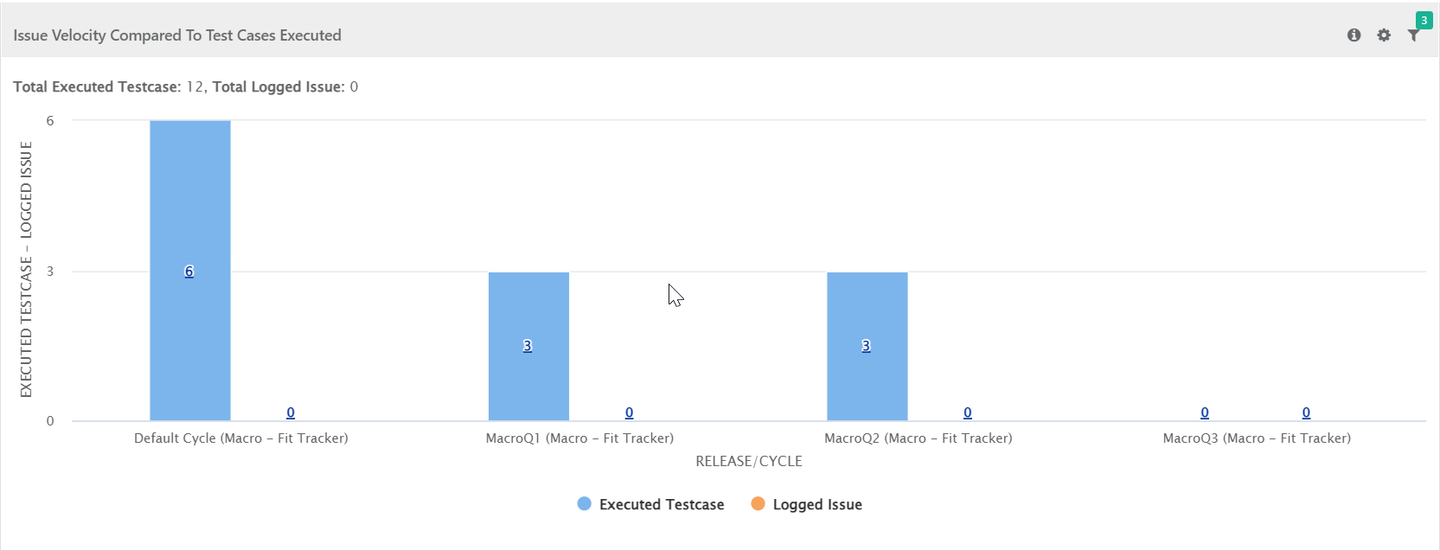
Issue Velocity compared to Test Cases Executed
The report shows the pace of logged issues versus executed test cases for a cycle, giving management visibility into bugs relative to execution progress.
X-axis - displays Cycles of selected Release(s).
Y-axis - displays count of logged Issues and count of Executed Test Cases.
Note
Archived records are excluded from the report.
You can drill down the chart to view details in tabular format.
 |
Filter Report:
Click on the Filter icon on the individual chart to generate the report as per requirement by applying multiple filters.
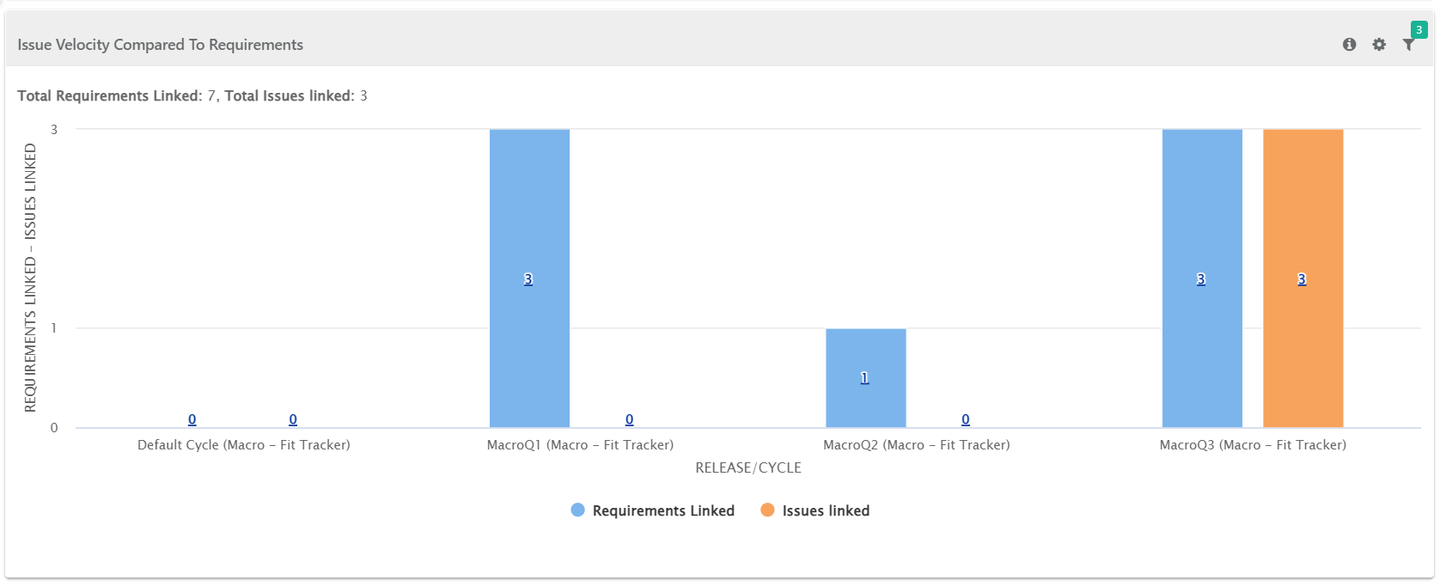
Issue Velocity Compared to Requirements
The report compares the number of issues logged during cycles with the number of requirements in the release and cycles, including distinct counts from requirements and test execution.
The report helps managers plan releases by comparing issue velocity with the number of stories.
X-axis - displays Cycles of selected Release(s).
Y-axis - displays the count of Requirements and issues logged for Test cases and Requirements for selected release.
You can drill down the chart to view details in tabular format.
 |
Filter Report:
Click the Filter icon on the chart to generate the required report.
Issue Leakage Rate
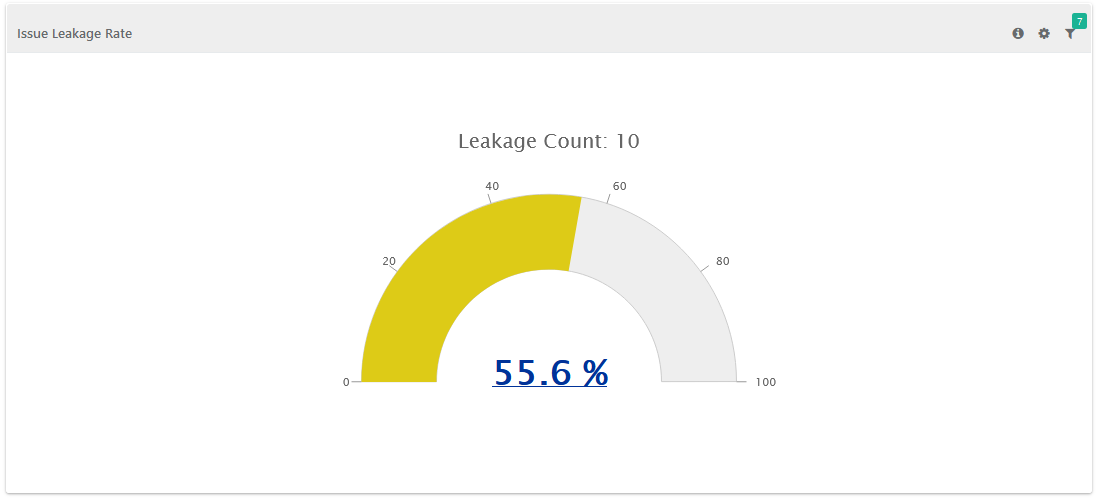
The report shows the percentage of issue leakage between the previous and current environments. Issue leakage refers to defects missed in one testing stage but found in the next. This helps the QA Manager monitor and control defect leakage.
You can drill down the chart and can find all Production Environment issues.
Issue Leakage is calculated as below:
Number of Issues found during next phase / (Number of Issues found during testing + Number of Issues found during next phase) * 100
 |
Filter Report:
Click the Filter icon on the individual chart to generate the required report.
You can select consecutive environments from the dropdown. The environment values come from those entered when logging issues.
Lower Environment: Refers to testing in a previous stage, such as a staging environment before production.
Higher Environment: Refers to testing in the current stage after the previous one, such as a build deployed in production.
Resolved Issue Verification
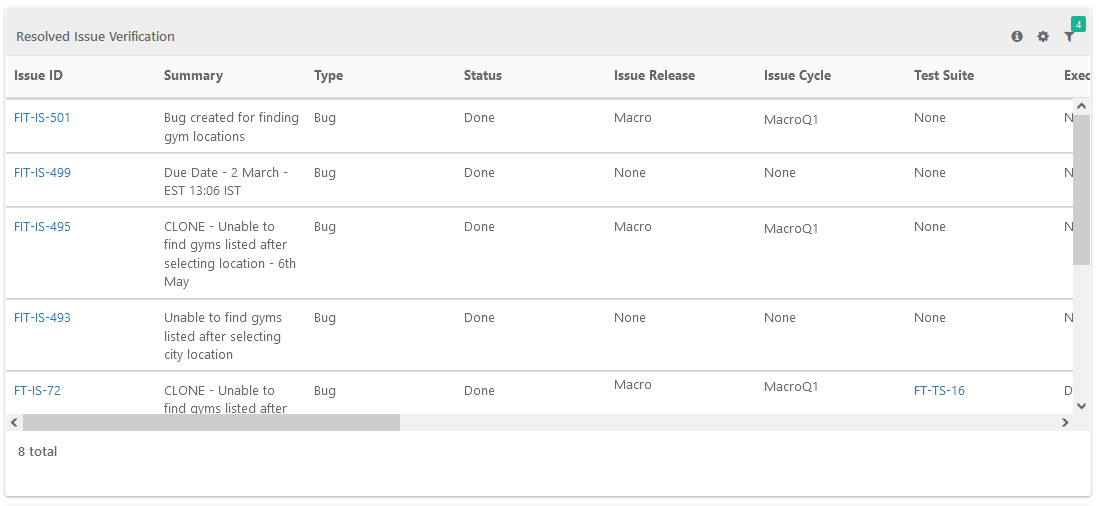
The report shows resolved issues based on their status.
For Jira projects, it uses Jira data and includes created and resolved dates.
For Azure integration, this report shows resolved issues depending on the relevant Default Resolved Status in the project settings.
Selecting multiple projects with different resolved status settings, displays issue data for each project accordingly.
Resolved Issue Verification tabular report shows traceability for issues marked as Resolved and lists them along with their related test suites and test case.
The report displays linkage hierarchy for issue i.e. issue linked at test case or test case step.
The system adds a linkage level column in the Resolved Issue Verification report to display the linkage level of an issue. If you have linked an issue at both the level, then the system displays different entries for each level.
The report includes issues linked to test steps or test cases during execution, as well as those directly linked from the test case Issues tab. It shows the test suites and test cases associated with resolved issues.
Filter Report:
Click the Filter icon on the individual chart to generate the required report.
Issue Average Aging
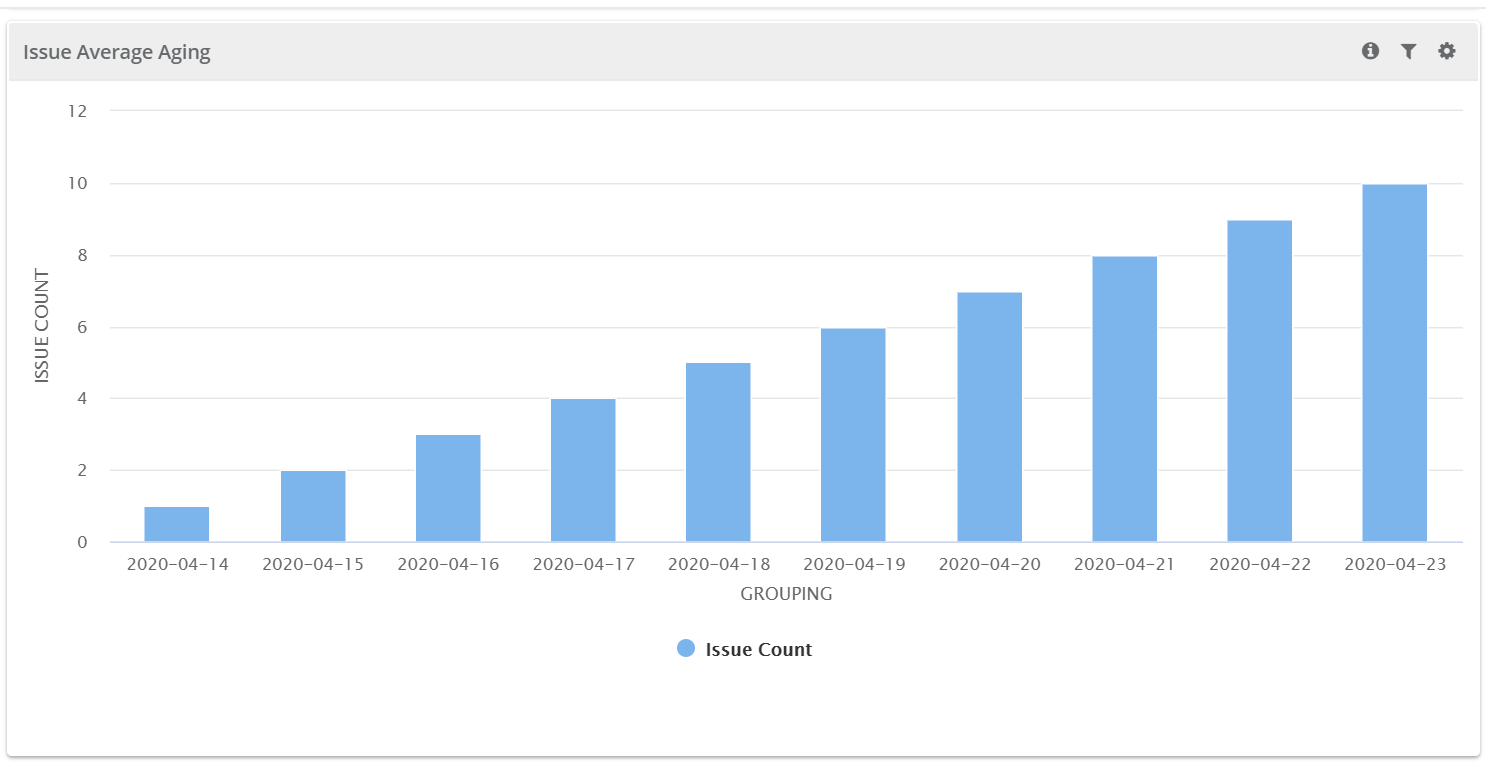
The report is a bar chart showing the average age of unresolved issues at a given time. It is based on the selected project, duration, and issue filters.
It is calculated as:
Average age of unresolved issues = Total age of unresolved issues ÷ Number of unresolved issues.
For example, if two issues are unresolved on a given day with a total age of 6 days, the average age is 3 days.
 |
Filter Report:
Click the Filter icon on the individual chart to generate the required report.