QMetry and Reports Installation on Linux - 3 Tier (RHEL8, RHEL9, RHEL10 & Podman)
Note
This documentation is for the installation of QMetry and Reports only on RHEL8, RHEL9 and RHEL10 OS.
This guide describes how to install QMetry Database, QMetry application and QMetry Reporting in a 3-tier Linux environment.
QMetry runs in Podman containers on Apache Tomcat 11.0.5, MySQL 8.4.8, and OpenJDK 25.
3 Tier Install
Server 1 | QMetry Application |
Server 2 | QMetry Database |
Server 3 | QMetry Reports |
Pre-requisites
Confirm every item in the Pre-requisites for QMetry Application and Report Server Installation document. After that confirm the following:
Prerequisite | What to confirm |
|---|---|
Operating System | RHEL 8, 9 and 10 |
Required commands | unzip, wget, curl, and vim commands are installed. |
Internet access | Enable Internet access on all 3 servers to install using podman, in case of online installation. |
Firewall and SELinux | Both are disabled on every server during installation. |
Proxy Servers | No proxy blocks downloads from the internet. |
Server communication | The application and report servers can reach each other on the required ports. |
Open ports | Ports 80, 443, and 3306 are free on the relevant servers. |
Root access | Podman and podman-compose utilities should be installed using root user. |
Disk space | The Podman and data directories have enough free space. |
Installation files | Get the QMetry_RHEL_Installer.zip files and Podman credentials from QMetry Support. |
In addition to these, ensure the following:
Configure podman service on QMetry Application, QMetry DB, and Report servers to start automatically on reboot of servers.
Refer QMetry Deployment Document for the hardware requirements.
To install using a non-root user, refer to Installing QMetry as a Standard User before starting the install on both QMetry and Report servers.
Post installation, QMetry application and QMetry Report both should be configured either on https or http.
If you are planning Jira integration with QMetry and Jira is running on https, make sure your QMetry is also running over https protocol. QMetry and Jira should run on the same protocol.
The following Ports should be open:
Installation
Ports that need to be enabled and should be available for use
QMetry Application
80/443
(8080/443 in case of rootless installation)
QMetry Report
80/443, 8081 & 3306
Report Server should be able to communicate with Application Server over 80/443 and Database Server 3306/DB Port. Ports 8081 and 3306 should be enabled/open on Reports Server to allow connections from the QMetry application server.
In case of offline installation
Step 1. Install podman and podman-compose tools. You can follow steps mentioned in the Podman and Podman-Compose Installation section to install the tools. However, it is not mandatory to follow these specific guidelines for the installation of the tools.
Step 2. Download container images of QMetry products.
Refer to Download Container/Podman Images of QMetry Products. Follow these steps on a machine where the internet is accessible so that the docker images can be downloaded on it.
In case of rootless installation
Note
It is mandatory to follow the steps mentioned for Podman and Podman-Compose Installation.
Install the QMetry Database
To install the QMetry database, perform the following steps:
Step 1: Extract the installation files
Copy the QMetry_RHEL_Installer.zip file that you received from QMetry Support to the database server. Go to the directory that contains the file and run the following command.
unzip QMetry_RHEL_Installer.zip
Step 2: Run the installer
Run the following commands to start the installer:
cd QMetry_RHEL_Installer.zip
sudo su (applicable only for installation using root user)
chmod +x install.sh
./install.sh
Step 3: Online Install Prompt
Options | Allowed Values | Default Value | Recommended Value |
|---|---|---|---|
Do you want to make an online installation (Y/N)? | Y, y, N, n | Y | Y |
Step 4: Podman Verification
Enter container repository credentials shared as a part of the installation package.
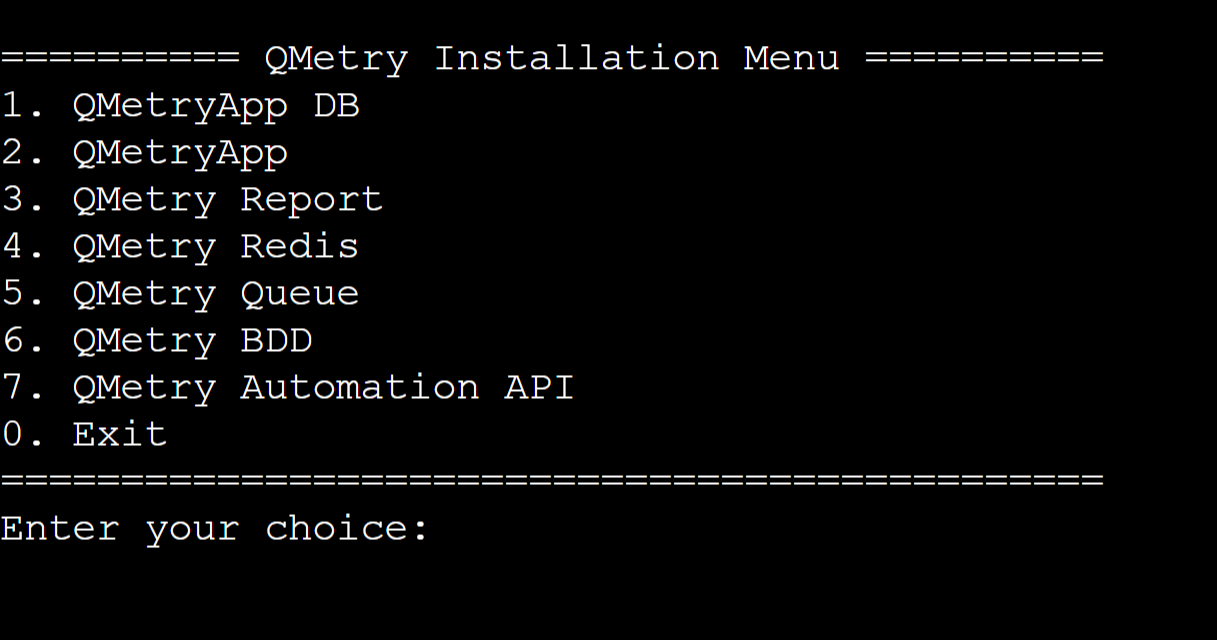
Step 5: Main Installation Menu
Type 1 to install QMetry Database.
Step 6: Set database password
Once the script finishes executing, it will prompt you to enter the following parameters:
Options | Details | Example |
|---|---|---|
Enter QMetry database password for root user | Enter QMetry Application Database Password for the root user. | QMetry@123 |
After successful installation of QMetry DB, you will see the message "QMetry RDS Installation is complete".
Type 0 to exit the installer.
Install QMetry Application
To install QMetry Application, perform the following steps:
Step 1: Extract the installation files
Copy the QMetry_RHEL_Installer.zip file that you received from QMetry Support to the server. Go to the directory that contains the file, and run the following command.
unzip QMetry_RHEL_Installer.zip
Step 2: Run the installer
Run the following commands to start the installer.
cd QMetry_RHEL_Installer.zip
sudo su
chmod +x install.sh
./install.sh
Step 3: Online Install Prompt
Options | Allowed Values | Default Value | Recommended Value |
|---|---|---|---|
Do you want to make an online installation (Y/N)? | Y, y, N, n | Y | Y |
Step 4: Podman Verification
Enter container repository credentials shared as a part of the installation package.
Step 5: Main Installation Menu
Type 2 to install the QMetry application.
Step 6: Specify the application data directory
Enter a directory path on the host machine to store QMetry data such as attachments, licenses, imports, and exports. You can specify any valid path, and the installer creates the directory automatically if it does not exist.
Options | Example |
|---|---|
Please enter QMetry application directory | /opt/QMetry_RHEL_Installer |
Note
Recommended: Back up the application data directory on a regular schedule. Periodic backups help prevent data loss if a disaster occurs.
Step 7: Enter the configuration parameters
After the script finishes running, enter the following parameters when prompted.
Options | Details | Default Value | Example |
|---|---|---|---|
Enter QMetry database hostname | Enter QMetry Database Host as DNS/IP Address | localhost | 192.168.0.100 |
Enter QMetry database port | Enter QMetry Database Port. If it is unchanged, use "3306" as the Database port. | 3306 | 3306 |
Enter QMetry database schema | QMetryApplication Database schema name. | qmetry | qmetry |
Enter QMetry database username | Enter Database's Username. | - | root |
Enter QMetry database password | Enter QMetryApplication Database Password for the root user. | - | QMetry@123 |
Enter Email for QMetryadmin user | Enter QMetryuser email address for Admin. | - | |
Enter password for QMetry admin user | Enter QMetryuser password for Admin. | - | Admin@123 |
Enter Min. Heap Memory for the web server in GB | Enter Heap Memory in GB | 2 | 2 |
Enter Max. Heap Memory for the web server in GB | Enter Heap Memory in GB | 4 | 4 |
Enter QMetryDatabase Connection Pool Size | Enter Pool Size in number format | 100 | 100 |
The installation may take a while. When it finishes QMetry displays the message "QMetry Application Installation is complete".
Run the following command to confirm that the containers are running. It lists the installed containers with their container IDs and names.
podman ps
Step 8: Get QMetry License and Install it
Choose the option that matches your license type.
For evaluating users
Use the evaluation license, valid for 30 days, that you received with the installation.
For commercial users
Find your MAC address
ifconfig (MAC address of Ethernet card for example eth0/eth1)
Send the domain name and MAC address to QMetry Support at qtmprofessional@qmetrysupport.atlassian.net to request your license.
Once you receive license.key from QMetry Support, you can follow the Steps to Apply License file .
Step 9: Access the Application
Open the QMetry application in a browser at the following address, where you substitute your own value.
http://<your IP Address OR Domain Name>
http://<your IP Address OR Domain Name>: 8080 (in case of rootless installation of QMetry)
Log in with the Default QMetry credentials.
Username: admin
Password: <user specified password in Step # 7 >
The MySQL 8.4.8 database is installed on port 3306 with the following details.
Username: root
Password: <user specified password in Step # 7 >
Schema: <user specified Schema in Step # 7 >
Step 10: Update the administrator profile
After you complete the previous steps, log in to the QMetry application and update the administrator profile.
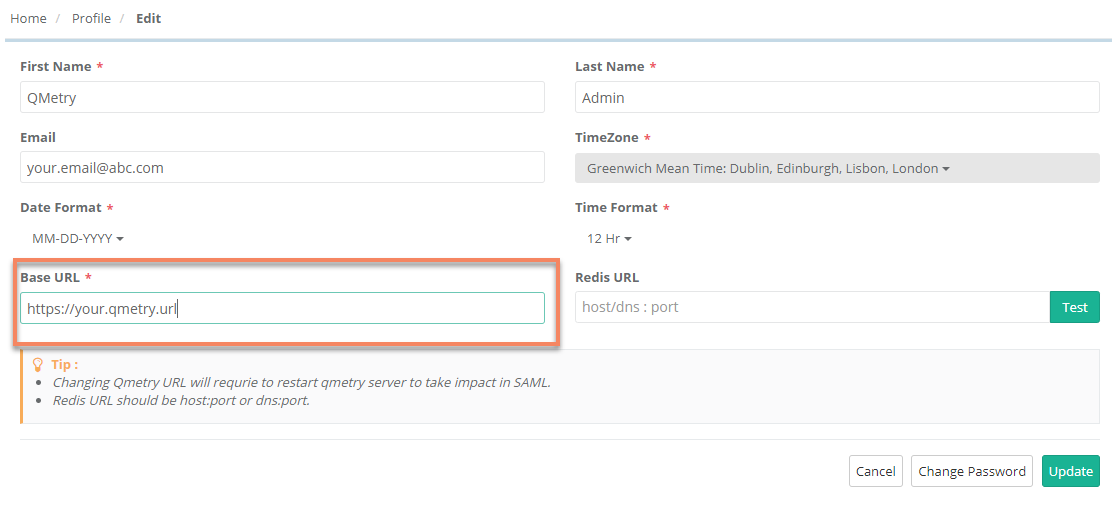
Go to "Admin" Profile and Edit the Profile.
Update the administrator email address in the Email field.
In the Base URL field, enter your QMetry URL.
Select Update.
 |
Step 11: Configure additional Tomcat settings
QMetry installs with a default configuration for minimum and maximum heap memory. You can adjust these settings to match your hardware configuration. For more information, refer to Additional Configuration for more details.
Install QMetry Reports
Note
Reports installation require Redis Server and ActiveMQ Server. Refer to the Redis and Automation installation sections for setup steps.
Pre-requisites
Before you install QMetry reports, verify the following requirements.
QMetry App is installed and running.
QMetry App DNS/IP is configured in profile section.
Active MQ and Redis containers are running and configured in QMetry App.
The services are reachable from the report server: Redis (6379), ActiveMQ (61616, 8161), App (80, 443), App DB (3306).
Installing QMetry Reports
To install QMetry Reports on the second server, perform the following steps:
Step 1: Get the installation zip file
Connect to the report server. Upload the QMetry_RHEL_Installer.zip to the /opt directory of the Report server and extract it with the following commands.
sudo su -
cd /opt
unzip QMetry_RHEL_Installer.zip
cd QMetry_RHEL_Installer/
Step 2: Run the reports installer
chmod +x install.sh
./install.sh
Step 3: Online Install Prompt
Options | Allowed Values | Default Value | Recommended Value |
|---|---|---|---|
Do you want to make an online installation (Y/N)? | Y, y, N, n | Y | Y |
Step 4: Podman Verification
Enter the podman credentials that were shared as part of the installation package.
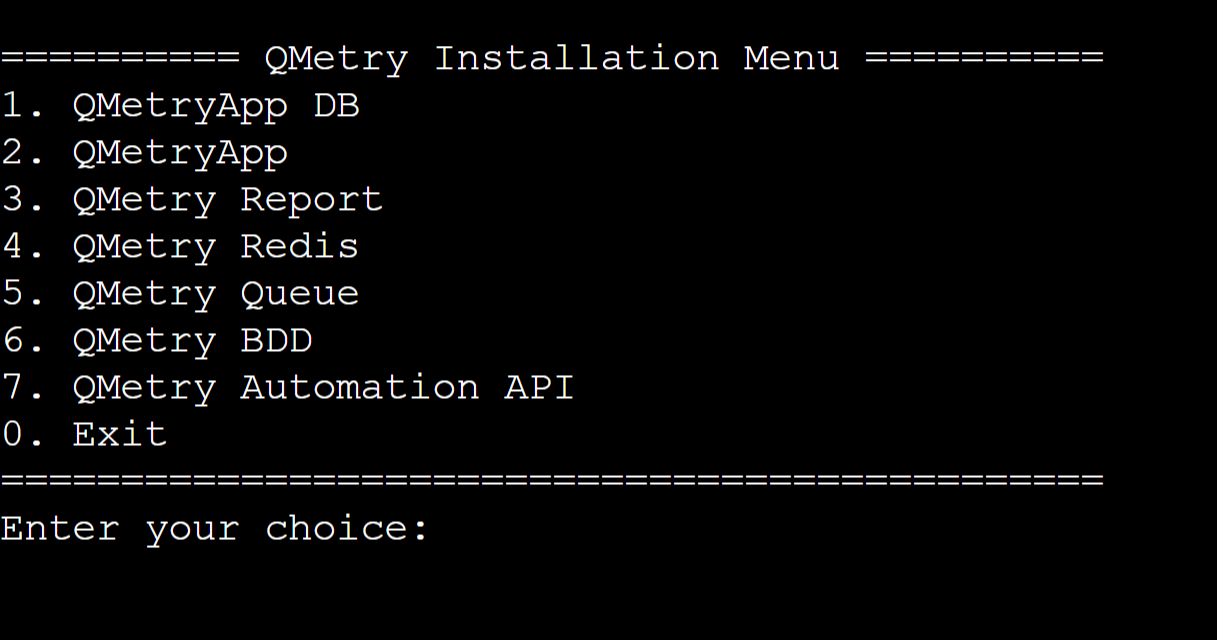
Step 5: Main Installation Menu
Type 3 to install QMetry Reports.
Step 6: Enter the following parameters
Options | Details | Example |
|---|---|---|
Enter App Database Host URL | Enter Database Host Public IP/DNS of QMetry application. | 10.0.8.166 |
Enter App Database Port | Enter Database Port of QMetry application. | 3306 |
Enter App Database Username | Enter Database username of QMetry application. | root |
Enter App Database Password | Enter Database password of QMetry application. | root |
Enter App Database Schema Name | Enter Database schema name of QMetry application. | qmetry |
Enter Report Database Host URL | Enter Database Host Public IP/DNS of QMetry Report. | 10.0.8.221 |
Enter Report Database Port | Enter Database Port of QMetry Report Database. | 3306 |
Enter Report Database Username | Enter Database username of QMetry Reports Database. | root |
Enter Report Database Password | Enter Database password of QMetry Reports Database. | root |
Enter Report Database Schema | Enter Database schema name of QMetry Reports Database. | qtmanalytics |
Enter MQ URL | Enter MQ Active URL | tcp://10.0.8.166:61616 |
Enter MQ UserName | Enter MQ Username | admin |
Enter MQ Password | Enter MQ Password | admin |
Enter maximum memory to allocate for CDC app in GB | Maximum memory allocation for the CDC container:
| 4 |
Enter maximum memory to allocate for Sync app in GB | Maximum memory allocation for the Sync container:
| 4 |
Enter number of CPU’s to allocate for CDC app | Number of CPUs to allocate for the CDC container. (The default is 4) | 4 |
Enter number of CPU’s to allocate for Sync app | Number of CPUs to allocate for the Sync container:
| 4 |
After QMetry creates the containers, the system runs a full sync. When the script finishes, QMetry displays the message "QMetry Report installation is complete".
Type 0 to exit the installer.
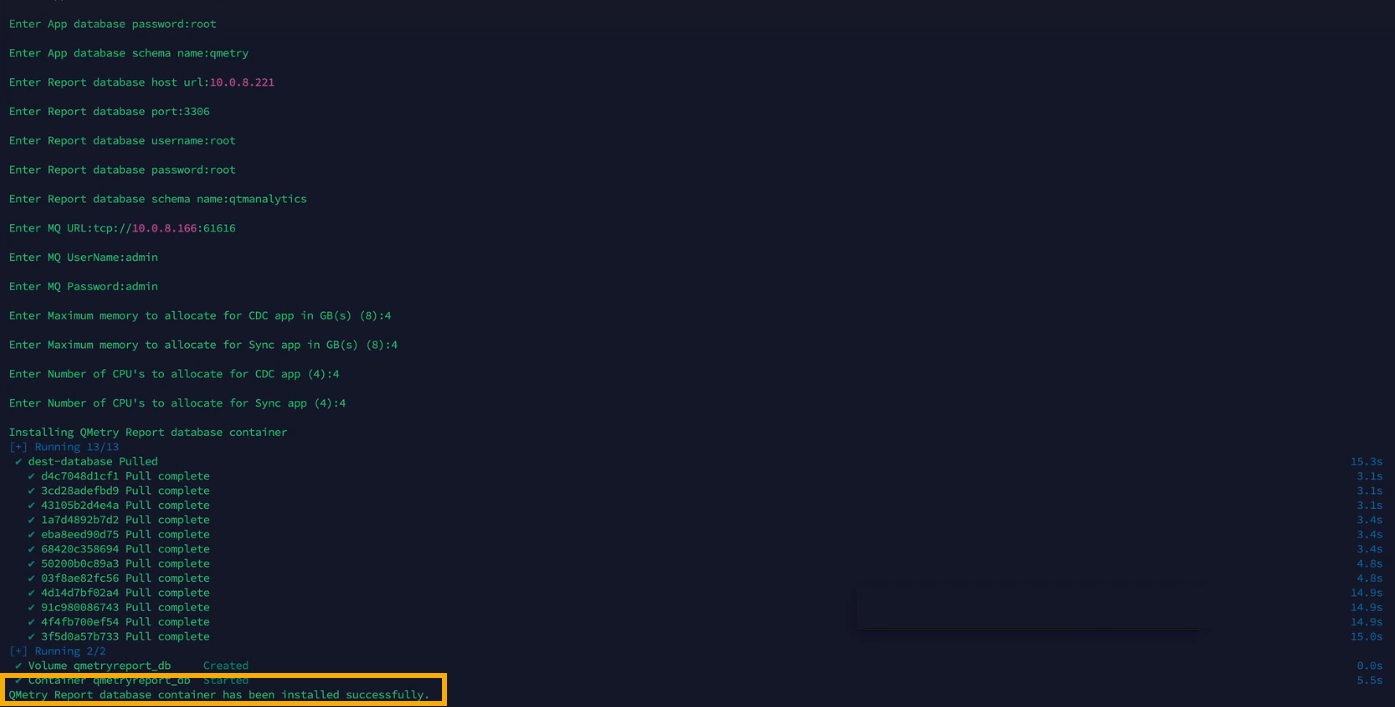
After creating the containers the system runs a full sync.
Note
In cases when you need to force sync to re-sync any missing data, just repeat step 6, and skip all parameter details (by hitting enter) and just enter y when prompted for a force sync.
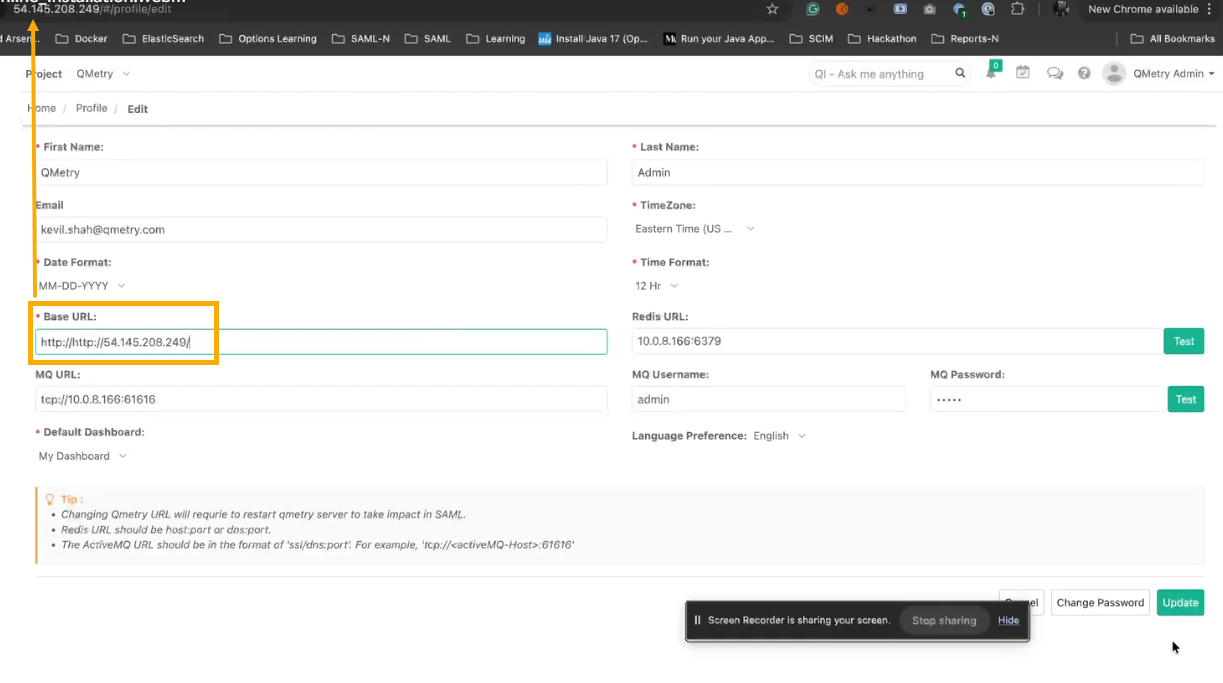
Step 7: Update the Base URL
Log into QMetry and go to your Profile section, edit the Base URL with QMetry app URL.
Step 8: Configure the database connection
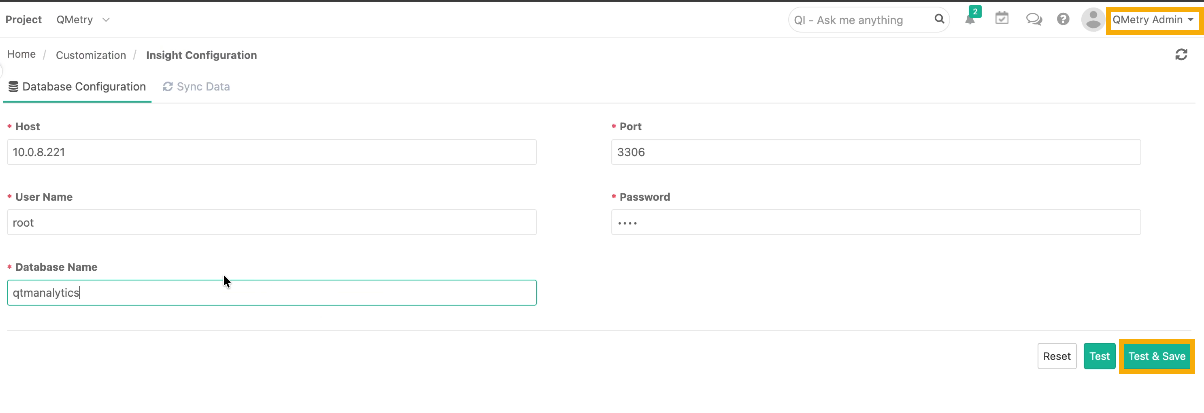
Configure the report database connection under Insight Configuration in the QMetry application. To configure the connection, perform the following steps:
Login to QMetry with administrator credentials and go to Customizations.
Select Insight Configuration and open Database Configuration tab.
Under Database Configuration tab, enter the following details:
Host: Enter Report Database Host URL from the report configuration table.
Port: 3306
Username: <Enter Report database username>
Password : <Enter Report database password>
Database Name: <Report DB schema specified during installation>
Select Test to confirm a successful connection, and then select Test & Save.
Step 9: Set up the report data sync
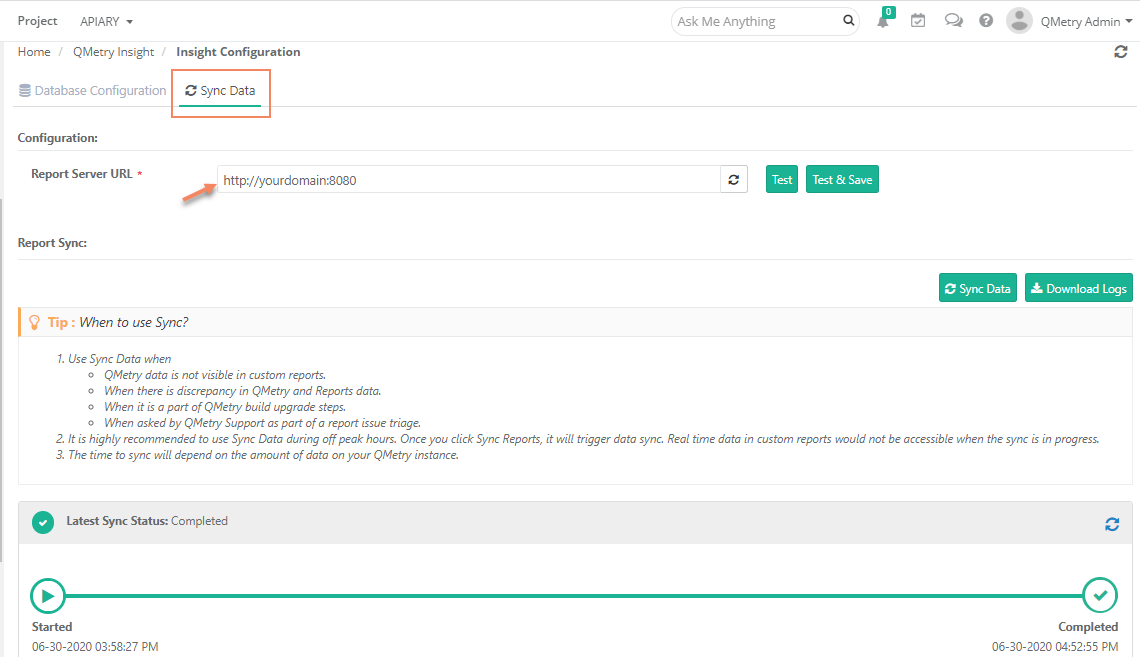
On the Sync Data tab, set up the Report Data Sync from your reports server to QMetry Reporting.
Report Server URL: Enter your Reports server domain URL followed by port 8081. For example: http://<reports-server-domain>:8081
Select Test to confirm a successful connection and then select Test & Save.
Note
Run Sync Data the first time after you install QMetry reports installation. The time that the sync takes depends on the amount of data in QMetry. You can monitor sync progress and status in the interface. QMetry custom reports are not accessible while the sync runs. Run the sync only during off-peak hours.
Users can start using QMetry Reports when the sync is completed. QMetry remains available during this time.
Podman and Podman-Compose Installation
Follow the steps mentioned below to install podman and podman-compose.
Step 1. Copy the installation file you received from QMetry Support to your server. Go to the directory where this file is kept.
Step 2. Run the following commands.
chmod +x podman_install.sh
sudo sh podman_install.sh
It may take some time to install the podman and podman-compose utilities. Please wait until it gets completed.
Get support
If you are facing any issues during the installation process, kindly generate a support ticket on Support Portal for assistance.