Installing Redis Caching Server for Offline Installations
Note
QMetry is supporting Redis from its version 7.0.10 onwards. Currently, the Docker will be installed with Redis version 7.4.1.
Pre-requisites
One additional Linux server is required for Redis Caching Server. Refer QMetry Deployment Document for the requirements.
Get the QMetryRedis.zip file from QMetry Support.
The port 6379 should be free and should not be in use by other applications.
The following should be installed on the server:
CentOS, RHEL-8, RHEL 9 and RHEL-10, Ubuntu 24
Docker Version 20.10.13
Docker Compose Version v2.5.0
Yum-tools
Make sure that the docker service has been configured on server to start automatically on reboot of server.
The Internet-enabled machine on which the docker images are downloaded should support the docker command.
Download Docker Images of Redis Server
Follow these steps on the Internet-enabled machine on which the docker image of Redis Server is to be downloaded.
Run the following command. Next, it will ask for docker's credentials. Enter the required credentials. Please contact QMetrySupport, if you do not have the credentials.
docker login
Execute the following commands to pull QMetry activemq’s docker image from the docker repository.
docker pull qmetry/qmetry:redis741
The download process is started. Wait till the time it gets finished.

After the process gets finished, it will display the message as shown below.

Run the following command to verify that the docker image has been downloaded successfully.

Run the following command to save QMetry Redis Server's docker image as .tar file. You can change the path of .tar file in the following command.
docker save -o /opt/qtm/qmetryredis.tar qmetry/qmetry:redis741

Transfer the qmetryredis.tar file to the QMetry Redis Server.
Install Redis Server
Follow the steps mentioned below.
On QMetry Redis server, navigate to the directory where .tar file has been placed and execute the following command.
sudo docker load -i qmetryredis.tar
Run the following command to check whether the docker images have been restored correctly or not.
sudo docker images

Copy the QMetry_Linux_Installer.zip installation file received from QMetry Support to your server and unzip it. Navigate to the directory where these files are saved.
unzip QMetry_Linux_Installer.zip
cd QMetry_Linux_Installer
Run the following commands
sudo su
chmod +x install.sh
./install.sh
The next question during the installation process will be as follows.
Options
Allowed Values
Default Value
Recommended Value
Do you want to make an online installation (Y/N)?
Y, y, N, n
Y
N
The installer then displays the QMetry Installation Menu. Enter 4 to install the QMetry Redis.
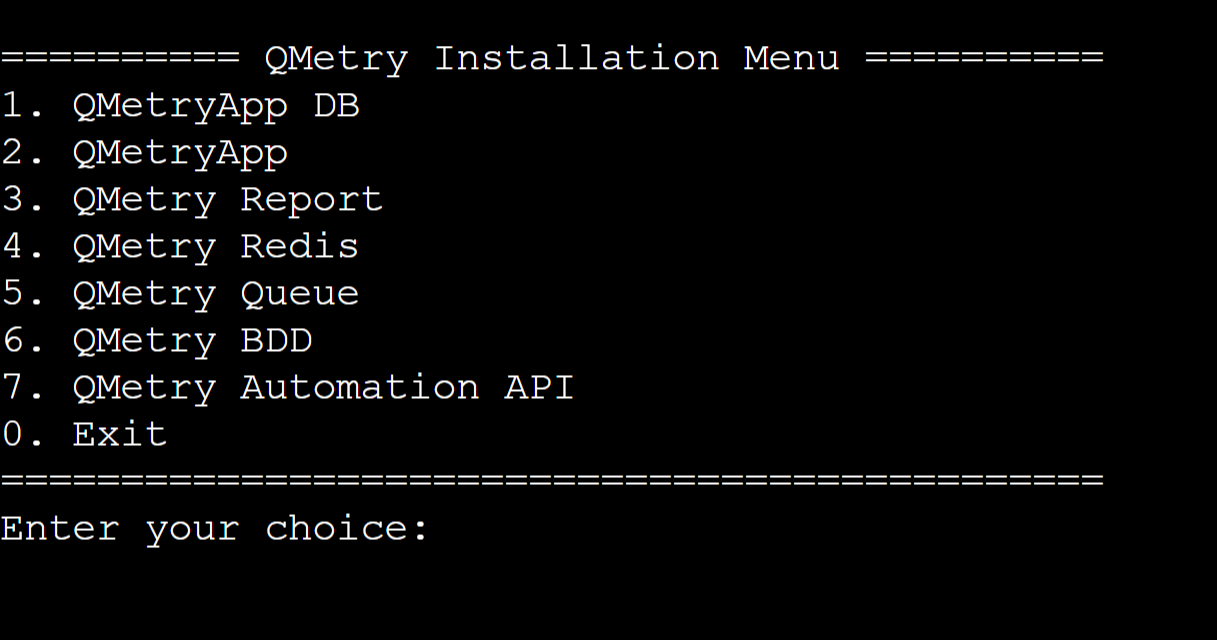
You will be asked for credentials. Enter the docker credentials provided by the support team.
The installation may take a while. Once the installation is complete, execute the following command.
docker ps
The following message will be displayed.

After the above steps are completed, log into QMetry application.
Go to "Admin" Profile and Edit the Profile.
Update QMetry Redis URL
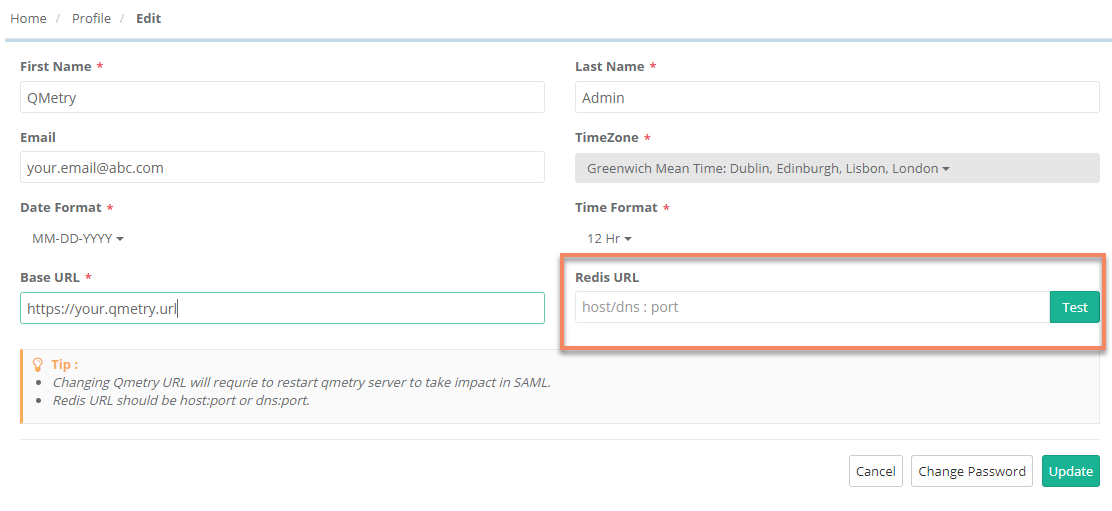
Configure the Redis with QMetry Application as mentioned in Step 3. If you are facing any issues from the QMetry Application side after Step 3, then you may be required to restart the QMetry Application docker container after Step 3.
If you are facing any issues during the installation process, kindly generate a support ticket on Support Portal for assistance.