Manage Schedule

The Manage Schedule option for the agent allows users to alter the scheduled time and execution commands for the run later or recurring triggers.

Steps

  1. Go to Integration, and then select Automation Agent.

  2. In the Registered Agents section, click the Manage Schedule button to manage the schedule details of that particular Agent.

    Screenshot of the Registered Agents table in QMetry highlighting the gear (settings) icon under the Actions column, used to manage an agent’s schedules.
  3. On the Manage Schedule screen, you can edit or delete an existing Schedule.

    • Edit Schedule: Click the Edit Schedule button to edit the schedule.

    • Delete Schedule: Click the Delete Schedule button to delete the schedule.

    Screenshot of the Manage Schedule page in QMetry showing a list of scheduled tasks with details such as execution command, schedule type, start and end dates, status, and options to edit or delete schedules under the Action column.

Edit Schedule

  1. Click the Edit icon for the scheduled agent that you want to update.

    Screenshot of the Manage Schedule page in QMetry showing a one-time scheduled task with details including schedule type, status, test suite key, release, cycle, platform, and an option to edit the schedule under the Action column.

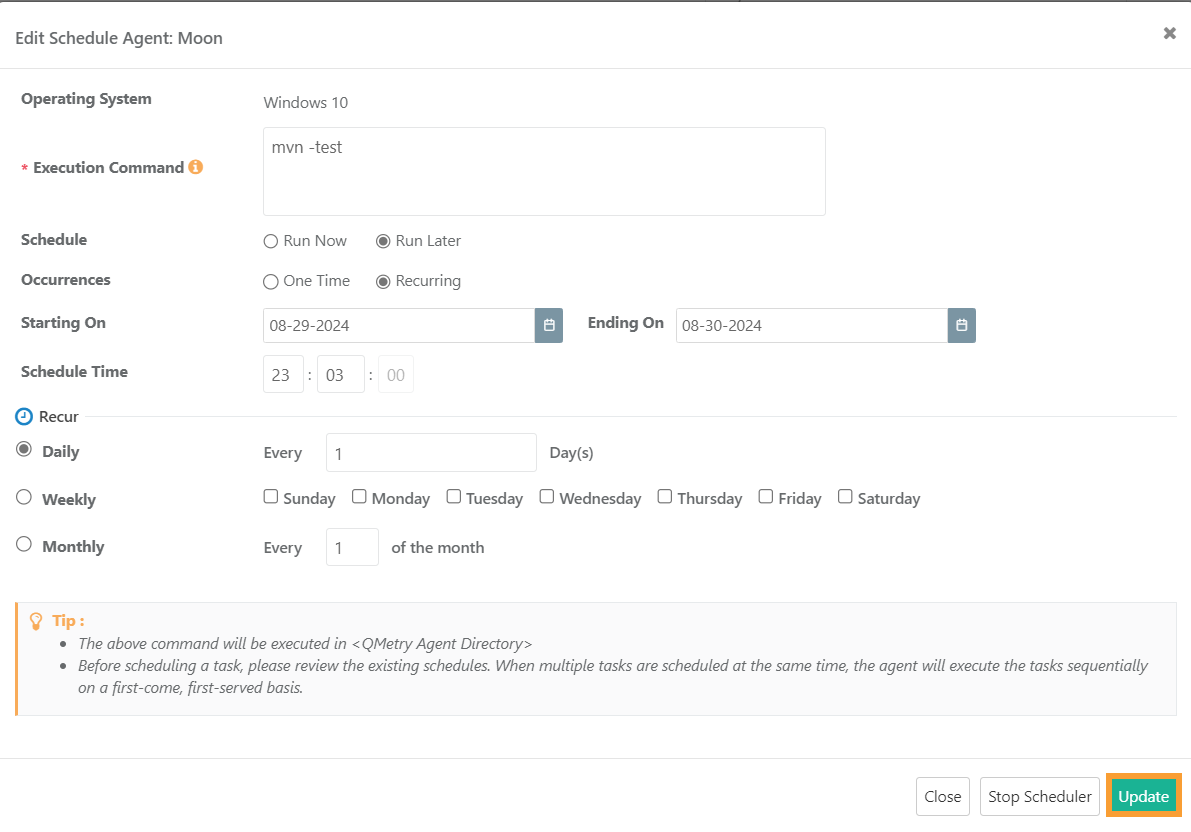
    The Edit Schedule Agent screen opens.

  2. Make the required changes in the schedule of the agent.

  3. Click Update.

    Screenshot of the Edit Schedule Agent window in QMetry showing execution command, Run Later with Recurring occurrence, start and end dates, schedule time, recurrence frequency, and the Update button highlighted.

Delete Schedule

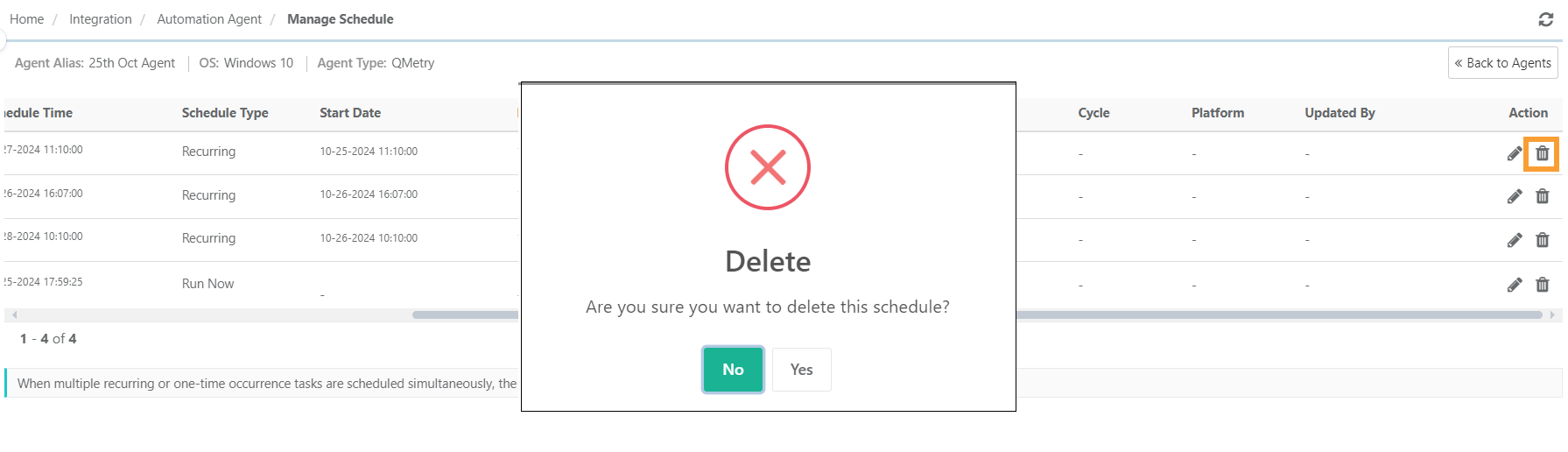
QTM_Screenshot_Delete_Schedule.png
  1. Go to Integration, and then select Automation Agent.

  2. In the Registered Agents section, click the Manage Schedule icon.

  3. Click the Delete icon to delete the schedule.

Publication date: