Managing Platform Attributes
You use Platform Attributes across projects. You create a Platform Attribute in one project and use it in other projects as well. Platform Attributes help you :
Search platforms by attribute value and link filtered platforms to the Test Suite
Record specific configuration details for different platforms that are common across platforms.
Record configuration details that vary during testing
Improve reporting by filtering test results by platform or attribute.
Note
You can use a Platform Attribute created in one project in other projects.
An organization tests a mobile app on the latest Android version without targeting a specific device. Each platform includes an OS attribute for the version, so testers use any mobile device and record the OS version used in each test.
Add Platform Attributes
Expand the Project section and open Platforms and Attributes sub-section.
Open the Platform Attributes tab.
Click New.

Select from the following options:
Field Type: Create different fields: String, Large Text, Number, Lookup List, Multi Lookup List, and Date Time Picker. Select the type of field for the platform attribute.
Add a Platform Attribute with Field Type as Lookuplist, and enter the following details:
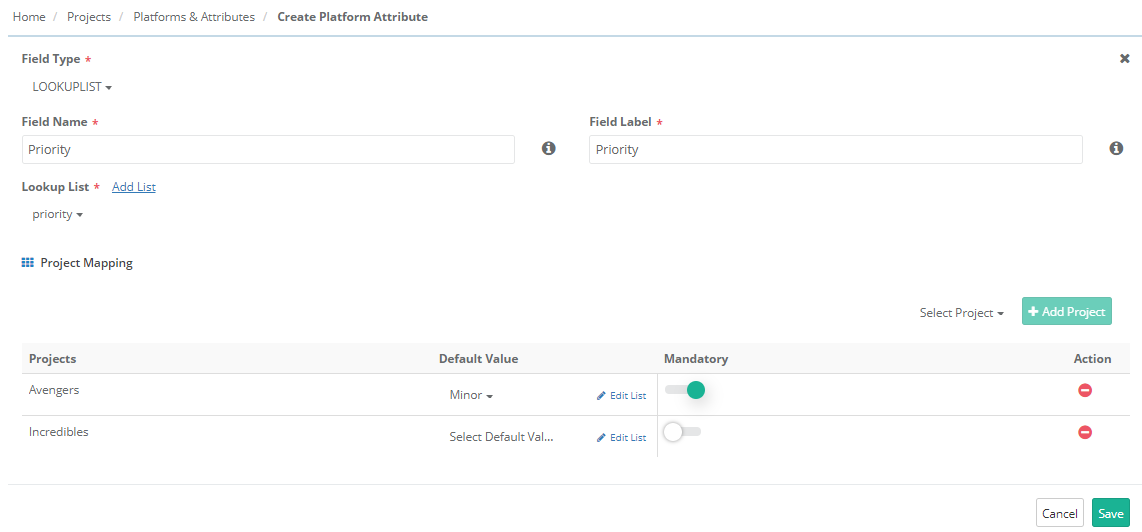
Field Name: This field represents the unique ID for the field. It remains same in any project. Blank space is not allowed in the name.
Field Label: Enter the label you want to display on the screen. You can treat it like a field alias and customize it for each project.
Field Type: If Field Type is Lookuplist, select the list that appears for the field. If the list does not exist, click to create new.
Fault Value: Mention the default value for the list.
Sharing Platform Attribute Values through Copy and Import
You can share Platform Attribute values across multiple projects. You can copy them from a source project to one or more destination projects, which avoids manual duplication and keeps custom fields consistent.
The system logs the events of Copy and Import of Platform Attributes in the Audit Log Report.
Use Case: The project admin wants to reuse list values from one project in multiple projects. This avoids manually adding and maintaining the same values in each project.
Required Permissions:
You should have the following permissions for creating or modifying Platform Attributes.
Source/Destination | Permissions |
|---|---|
Source Project The project from which the system copies the platform attributes. |
|
Destination Project Select the project where the system creates the platform attributes. |
|
Import Platform Attributes from Other Projects
To import Platform Attributes from other projects, perform the following steps:
Go to Projects and select Platforms & Attributes.
Select the Platform Attributes tab.
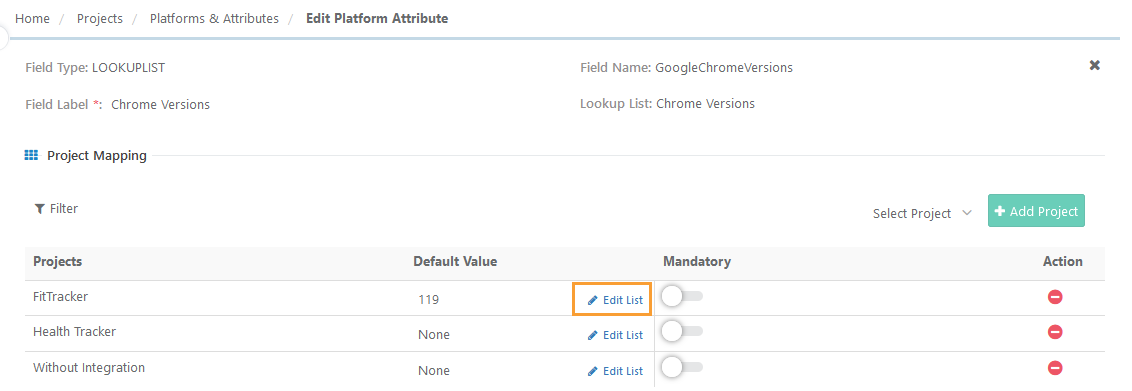
Click Edit for the Platform Attribute the values of which you want to import.
Click Edit List for the project you want to copy platform attribute values from.
Click Import.
Select the source project from where you want to import the Platform Attribute values.
Select the values to import, and click Import.
Note
You can select a maximum of 100 Platforms Attributes at a time.
The system ignores duplicate entities for name and alias while copying.
Copy Platform Attributes to Other Projects
Note
You can copy platform attribute list values only to projects where you have mapped the attribute.
To copy platform attributes, perform the following steps:
Go to Project Management and select Projects.
Go to Platforms and Attributes and select Platform Attributes tab.
Click Edit for the Platform Attributes values that you want to copy.
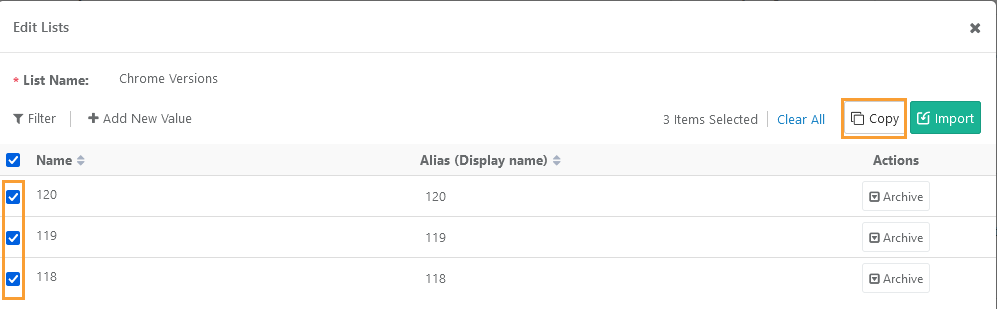
Click Edit List and select the Platform Attribute values.
Click Copy.
Select the target projects to copy the selected platform attribute values.
Click Copy.
Note
You can select a maximum of 100 Platform Attributes at once.
You can select a maximum 5 projects at a time.
The system ignores duplicate entries for name and alias while copying.
You can view the progress in the Scheduled Task section.
Link Attributes to Platform
Go to Projects and open Platforms and Attributes.
Go to the Platform tab.
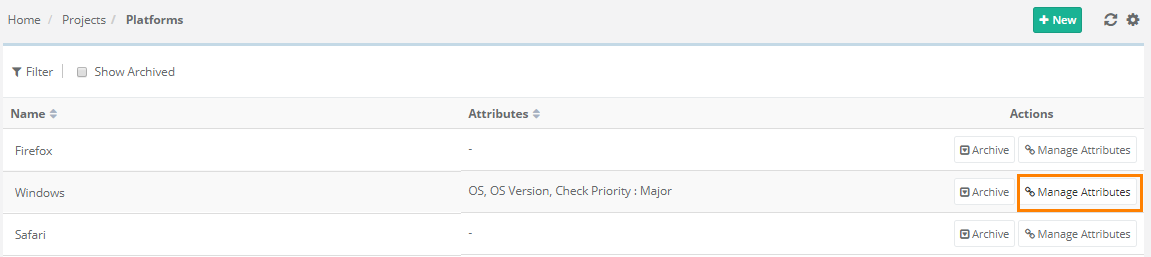
Locate the platform and click Manage Attributes.
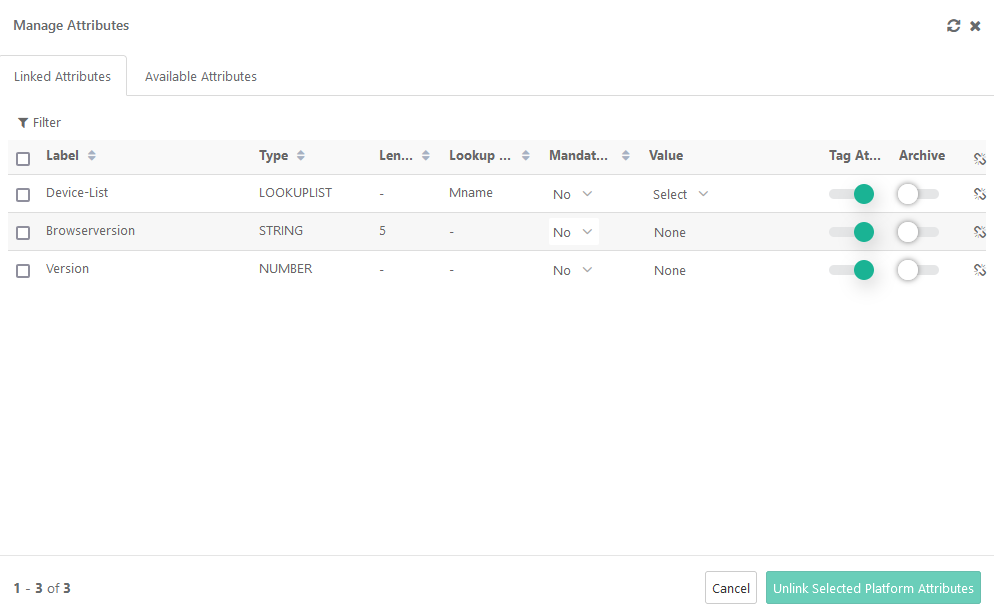
Open the Available Attributes tab. Check out the available attributes. To add new attributes, click Create New Platform Attribute link.
Select the attribute to link and click Link Selected Platform Attributes.
The Linked Attributes tab displays the linked attributes.
Note
To link or unlink Platform Attributes, the user role must have "View" and "Modify" rights for the Platform.
You can edit the rights from Roles under Customization.
Archive Platform Attributes
To archive a Platform Attribute, perform the following steps:
Open the Linked Attributes tab.
Enable the Archive flag for the attribute.
Edit Platform Attributes
Go to Projects and select Platforms and Attributes.
The Platform Attributes tab shows platform attributes.
Click Edit for the attribute.
You can modify the following values:
Field Label
Field Default (for "String" field type)
Flag for Mandatory
Remove association with current Project
Tag Attributes at Runtime
You can tag a Platform Attribute at runtime. Every execution of the test suite is run on the basis of default values set in Platforms and Attributes. You can change these predefined Platform attribute values at runtime.
You can change predefined Platform attributes at runtime if you enable Tag At Runtime. This lets you quickly tag a test with variable information during execution.
A customer tracks a platform that changes over time as part of test execution history. For example, a hardware company tracks firmware versions during testing. Testers tag the attribute to each test run and can update it during execution. They can also test earlier firmware versions when needed. Each test run is recorded with the correct firmware version.
The Platform and its Attributes details are visible on the Test Suite Execution Screen. Attributes marked Tag at Runtime appear as Runtime Attributes.
You must set required runtime attributes before each execution, even if you have run the test suite or platform before. Values you enter on the execution screen are not stored in the database. They apply only to that execution and are stored in the execution history after the run.
 |
You can provide attribute values on the Execution Screen before or after running a test.
The attribute shows a default value, which you can change before execution.
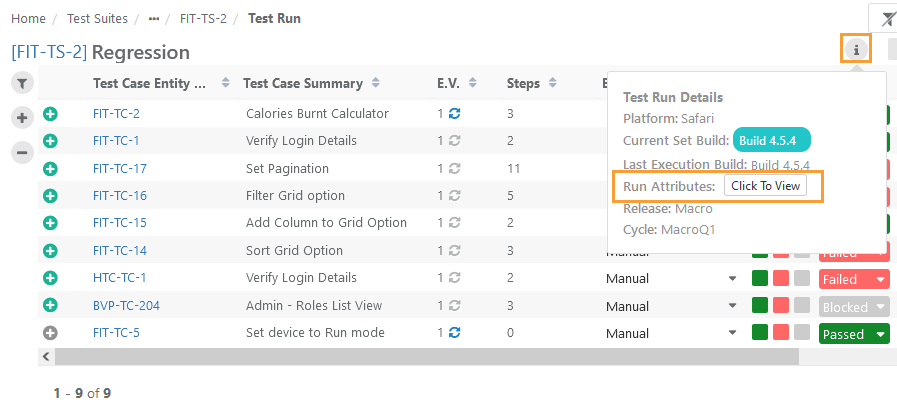
If you link platform attributes to a platform, the system shows the Click To View button on the Platform Attributes tab. You can use this button on the Test Suite Execution screen to view runtime attributes at any time.
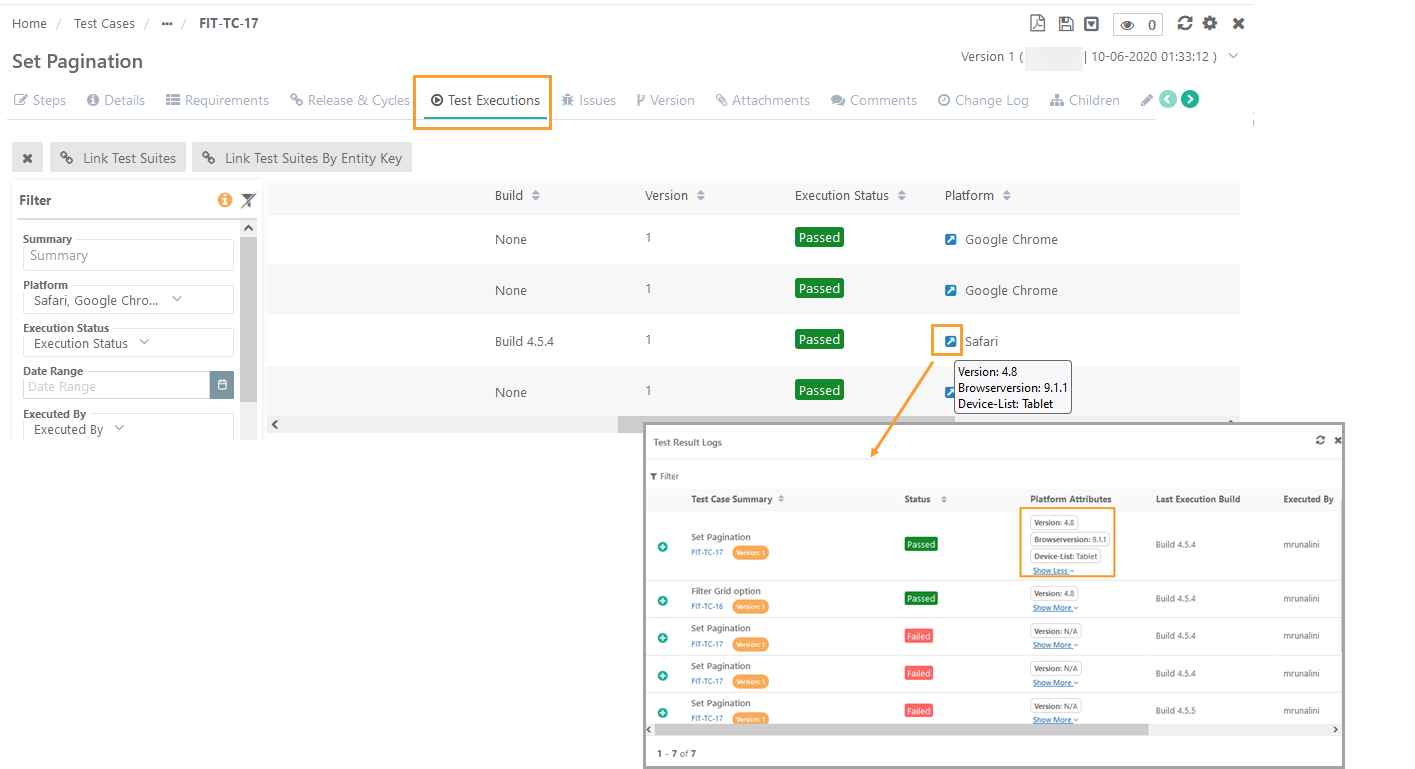
The system displays attribute values entered at run time on the Platform attributes column on the following pages.
On the Test Executions tab of the Test Case detail view.
On the Test Executions tab of the Test Suite detail view.