Execution Summary Report
The Execution Summary report shows key metrics, summarizing test executions and issues for the selected project, release, cycle, and type.
Test Suite Execution Summary by Status: The report displays execution summary of the test suites based on execution status of its test case runs.
Platform Summary by Test Suites: The report displays execution summary of the test case runs for a combination of Platform and test suites.
You can generate the report for multiple projects:
If you select only the project, the system uses the latest version of the test case.
If you select a release or cycle with the project, the system uses the test case version linked to that release or cycle.
Note
You can generate the report by applying filters Project, Release, Cycle, Start Date, End Date.
The report includes summary of archived test case executions.
For eSignature enabled projects, the report shows count for Approved, In Review, Closed execution status.
Global Filters
You can use global filters to apply unified filters for project, release, cycle, build, test suite folder, start date, end date, execution type, and platform across all execution summary reports.
 |
Execution Summary reports show key metrics, with chart colors matching the execution status colors set in Execution Status under Customization.
Execution Summary Report Matrices
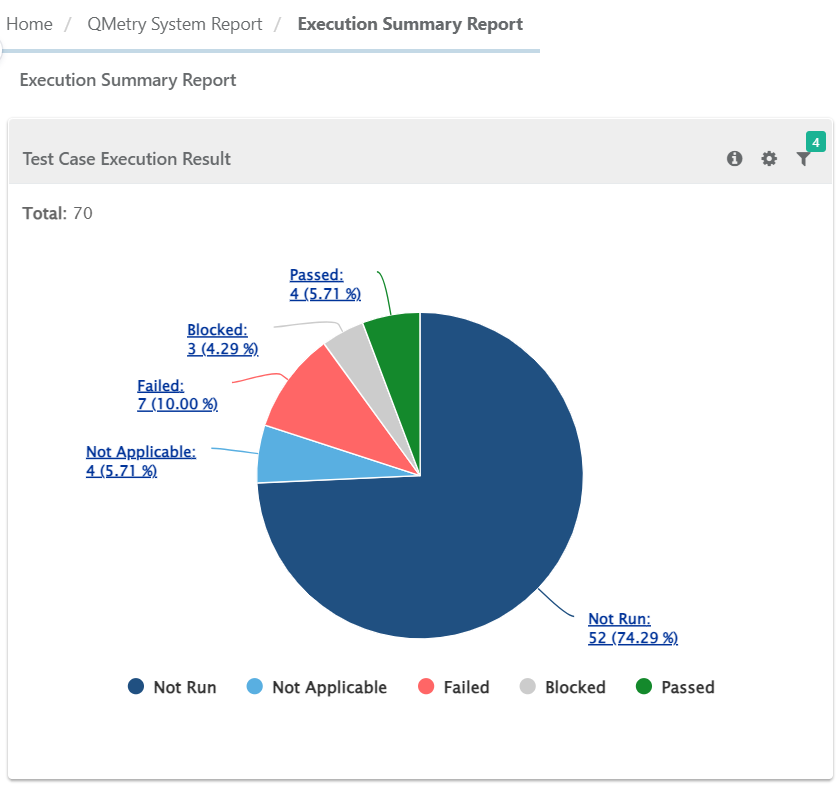
Test Case Execution Result
This report shows summary based on test execution results.
 |
Filter Report:
Click the Filter icon on the individual chart to generate the required report.
Start Date and End Date are based on Test Execution Run Creation Date.
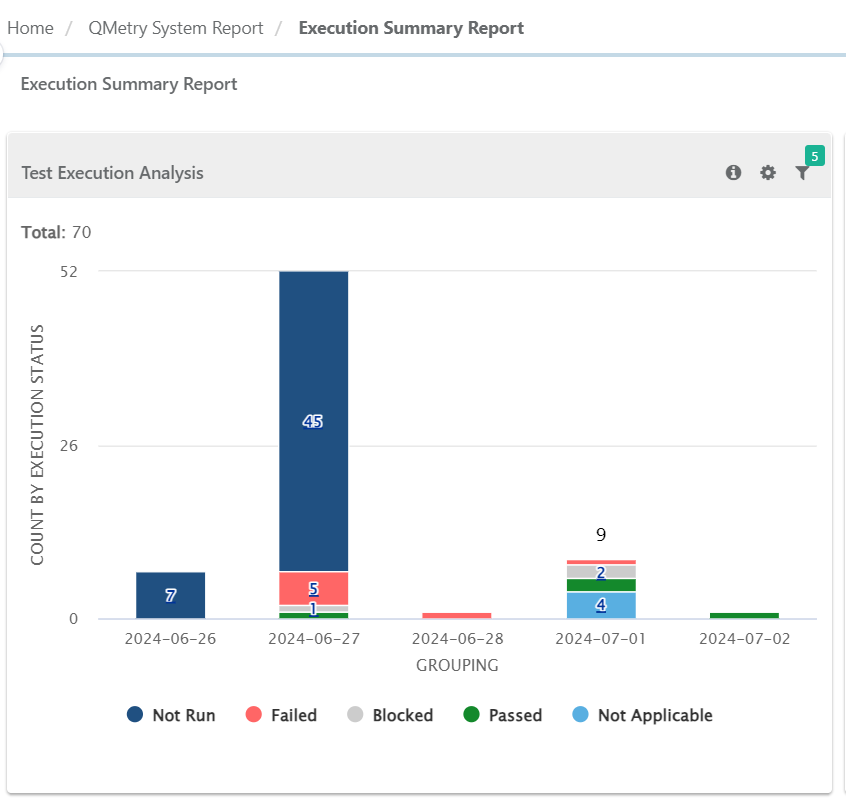
Test Execution Analysis
This report shows summary of test case executions grouped Day/Week/Month and Execution Status. This report graph can be filtered by day/week/month.
 |
Filter Report:
Click the Filter icon on the individual chart to generate the required report:
Start Date and End Date are based on Test Execution Run Creation Date.
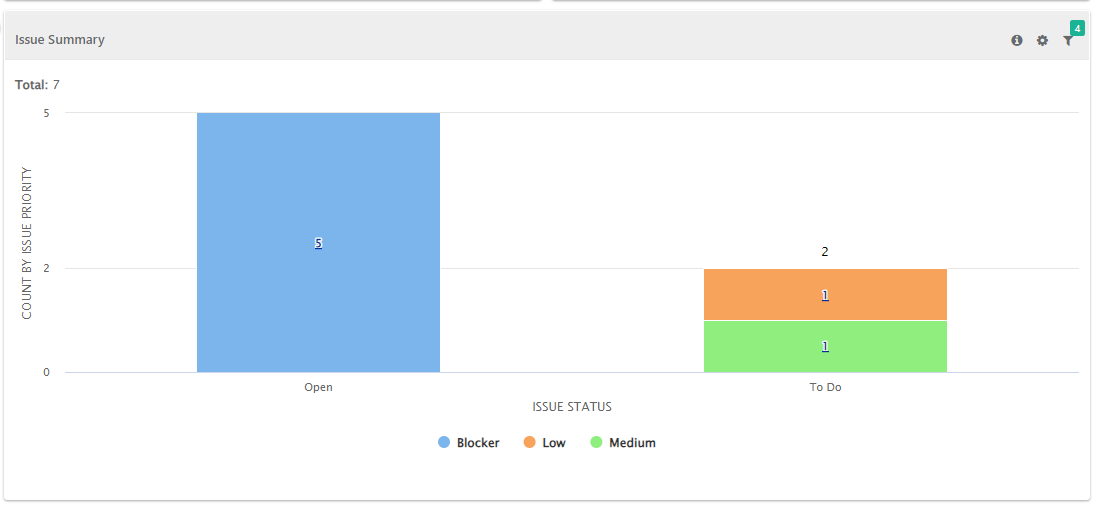
Issue Summary
This report shows the summary of issues raised during test case executions grouped by Workflow Status and Priority.
 |
Filter Report:
Click on the Filter icon on the individual chart to generate the report as per requirement by applying multiple filters.
Start Date and End Date are based on Test Execution Run Creation Date.
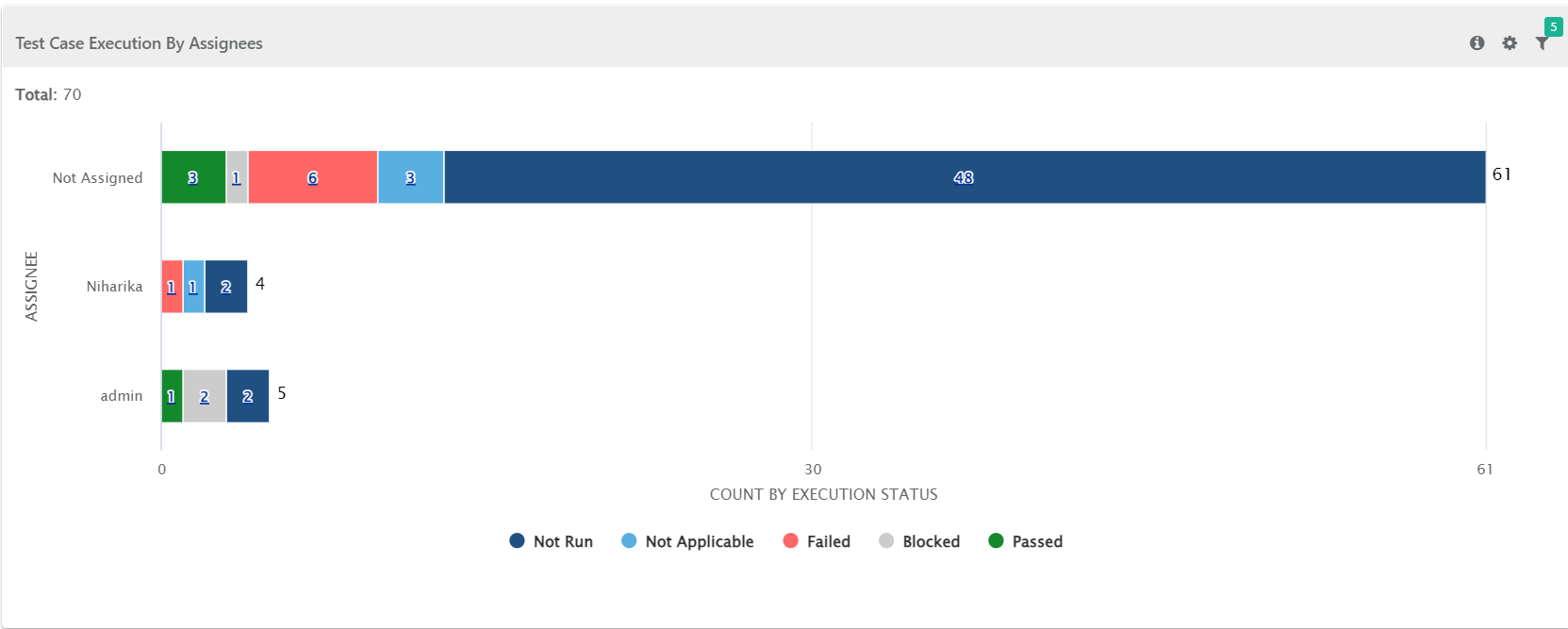
Test Case Execution by Assignee
This report shows the summary of test case executions grouped Assignee and Execution Status. This report graph can be filtered by assigned testers.
 |
Filter Report:
Click the Filter icon on the individual chart to generate the required report.
Start Date and End Date are based on Test Execution Run Creation Date.
Test Suites Execution Summary
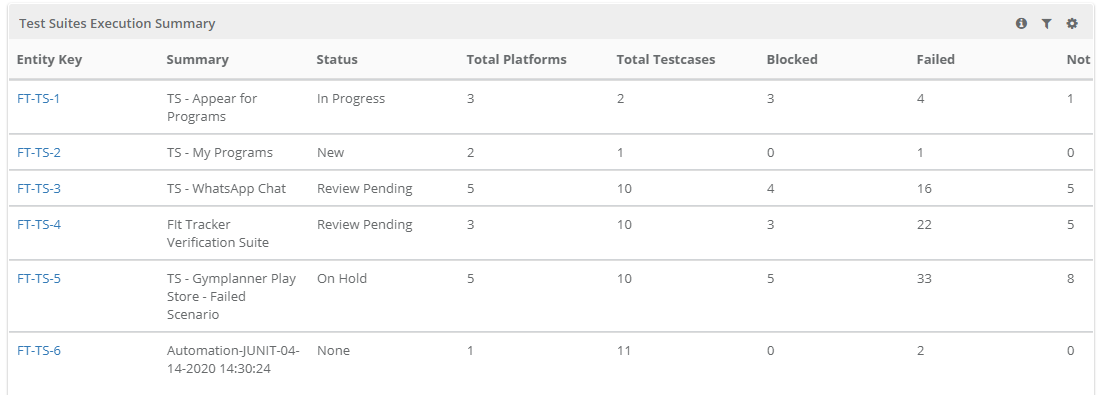
The Test Suites Execution Summary report shows test suite execution based on the status of their test case runs.
Generate the report by applying filters on Project, Release, Cycle, Start Date, End Date and Execution Type.
It includes Execution Summary of archived test case executions.
For eSignature enabled projects, the report shows count for Approved, In Review, Closed execution status.
This report shows the overall execution status of test suites, so users don’t need to open each one individually. It helps QA leads and managers quickly see the status of test cases in each suite. For example, a suite with 10 test cases may have 5 passed, 2 failed, and 3 not run.
The Total Platforms and Total Test Cases columns in report displays the respective association with the test suite.
 |
Filter Report:
Click the Filter icon on the individual chart to generate the required report.
You can set the criteria for test suites to obtain the report. The following parameters are available to filter the report:
Project
Release
Cycle
Start Date: Start Date is based on Test Suite Creation Date.
End Date: End Date is based on Test Suite Creation Date.
Execution Type
Build
Test Suite Folder
Platform Summary by Test Suites
The report displays execution summary of the test case runs for a combination of Platform and test suites.
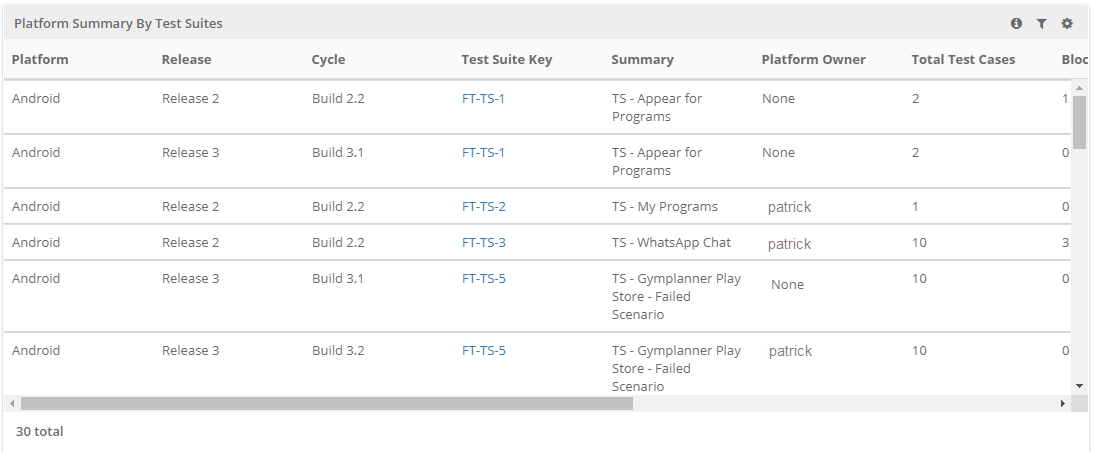 |
Generate the report by applying filters Project, Release, Cycle, Start Date, End Date, Platform, and Platform Owner.
The report includes Execution Summary of archived test case executions.
For eSignature enabled projects, the report shows count for Approved, In Review, Closed execution status.
The report displays Platform Summary of all platforms including archived platforms.
Filter Report:
Click the Filter icon on the individual chart to generate the required report.
You can set the criteria for platforms to obtain the report. The following parameters are available to filter the report:
Project
Release
Cycle
Start Date: Start Date is based on Test Suite Creation Date.
End Date: End Date is based on Test Suite Creation Date.
Platform
Platform Owner
Build
Test Suite Folder
Build Execution Summary
The Build Execution Summary report shows test case results for builds across test suites and platforms. It helps QA managers see which test cases pass or fail across different builds.
The report includes columns for test case summary, test case entity key, test suite entity key, platform, last executed build, and the selected build (or all builds if none is selected).
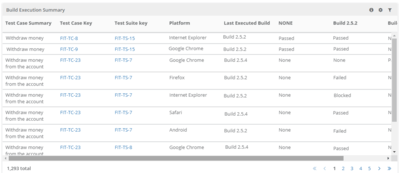 |
None: If you have not executed the test case under any build, then the system displays the execution status under the None column.
Last Executed Build: Last Executed Build column shows the build name of the test case executed.
Filter Report:
Click the Filter icon on the individual chart to generate the required report:
Project (mandatory)
Release (mandatory)
Cycle (mandatory) Report work on cycle level (Single cycle only).
Build - The report shows details for the selected build if test cases were executed on it. If no build is selected, it shows all executed builds. Archived builds are not included.
Test Suite Folder
Planned vs Actual Execution
The Planned vs Actual Execution analysis gadget shows the current and expected execution progress, helping QA managers meet release timelines.
The report shows a line chart of test execution progress during a sprint or period. It helps track actual progress against planned execution and supports decisions on resource and task allocation.
The test run scope is set by selecting the project, releases, and cycles. You can filter test suites using folder path, folder name, platform, or test suite key. This shows the total planned test executions for the selected scope.
The report can also show detailed execution progress for each assignee.
Planned Execution: Number of test executions planned for a sprint or period. It is calculated as total planned executions divided by number of days. The chart shows the cumulative planned executions.
Actual Execution: Number of test executions completed in a sprint or period. The chart shows the cumulative actual executions based on selected statuses.
For example,
For example, if a sprint runs for 10 working days and includes 50 test executions across 5 test suites:
Planned execution is 50 ÷ 10 = 5 executions per day, meaning 5 tests should be completed daily. The chart shows this planned progress cumulatively.
Actual execution shows the cumulative number of tests actually completed each day.
Current Average and Required Average Test Executions
Current Average Test Executions is the actual average number of executions completed so far in the current period.
Required Average of Test Executions is the rate at which the test executions should be performed to achieve the sprint target.
Formula:
Current Average Test Executions = Total Actual / Completed Time Period
Required Average Test Executions = ( Total Planned - Total Actual ) / Remaining Time Period
The system generates the required average rate only if you apply a future date in the filter.
If you select Show Test Suite with Details, the chart shows the actual progress of each test suite. The legend displays the test suite key and color, and hovering over it shows the test suite summary. You can also hide a test suite’s data by disabling its key.
If you select Consider only Executions with Scheduled Dates, the report includes only test executions with planned dates within the selected range. By default, this option is off, and the system saves the filters based on your last configuration.
Note
How do you know that your execution is planned?
To confirm a planned execution, you must ensure the Planned Date field is filled and falls within the Start Execution Date and Planned Date range.
 |
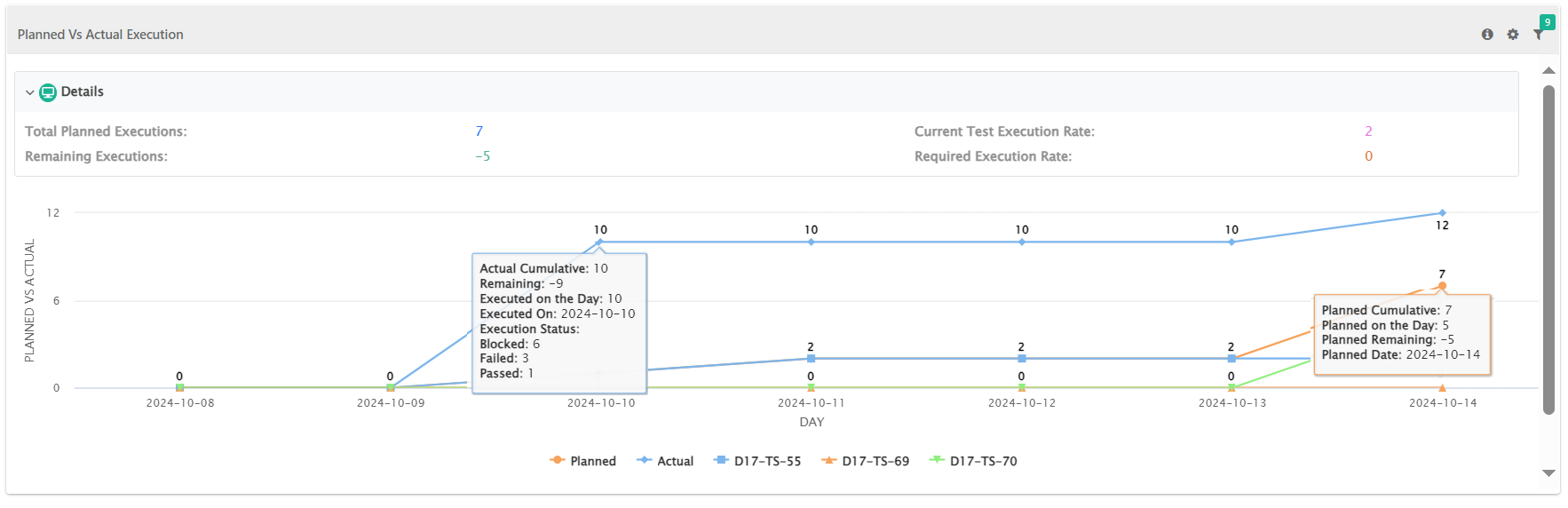
The Planned Date Graph shows the number of test executions planned for each day. It uses a cumulative view, showing the total planned executions within the selected date range.
When you hover over a point, it shows both the daily planned executions and the cumulative total. The graph only includes executions with planned dates within the selected start and end date range.
Note
The system does not include Test executions without a planned date in this graph.
Actual Date Graph
The Actual Date Graph includes only test executions that have a planned date. If a test execution does not have a planned date, the system excludes it from the calculation, even if it occurs within the selected time period.
The graph displays the following parameters, applicable to both reports with and without planned dates:
Total Planned Executions: Displays the total count of planned executions.
Remaining Executions: Shows the count of executions that are still pending.
Current Test Execution Rate: Calculated as the ratio of total executed test cases to the number of days from the start of the report period until the report generation date.
Required Execution Rate: Calculated as the ratio of pending executions to the remaining days in the reporting period.
If you hover over an execution in the chart, it shows further details regarding that execution.
 |
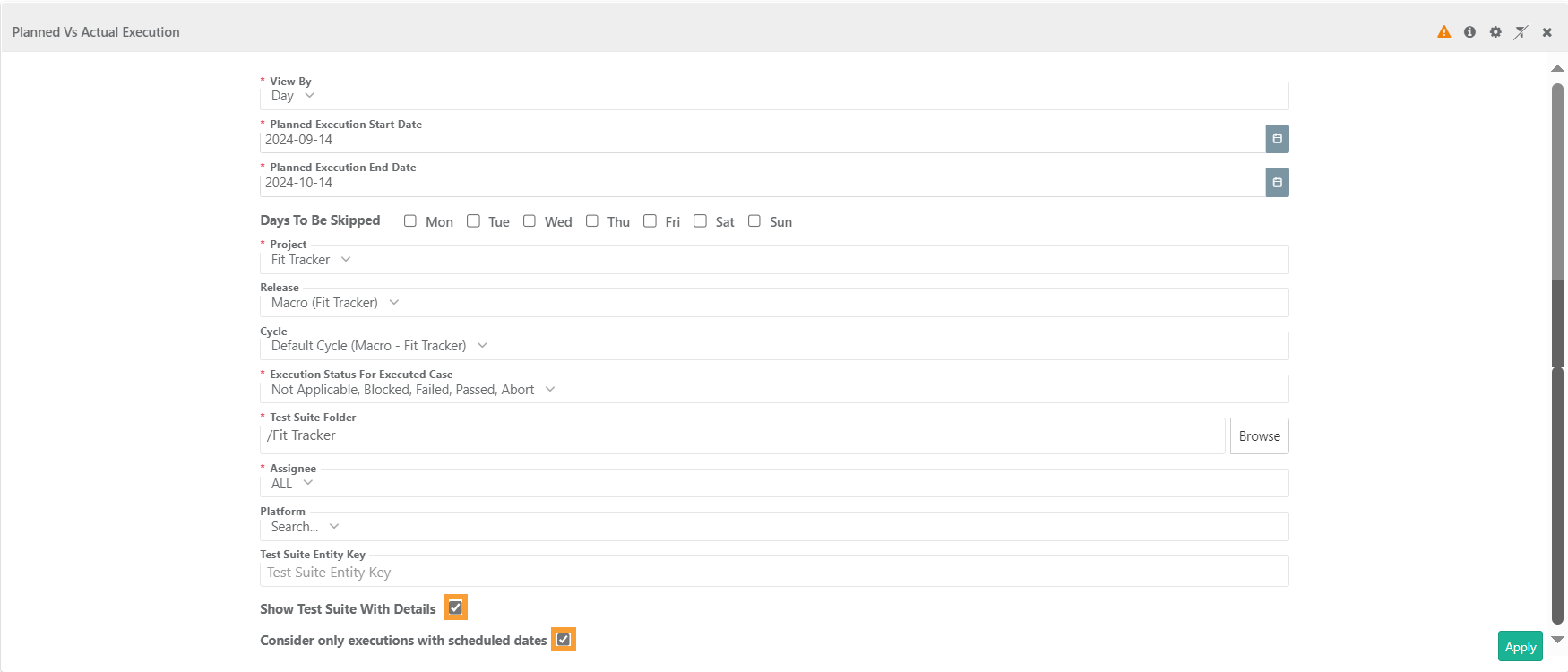
Filter Report:
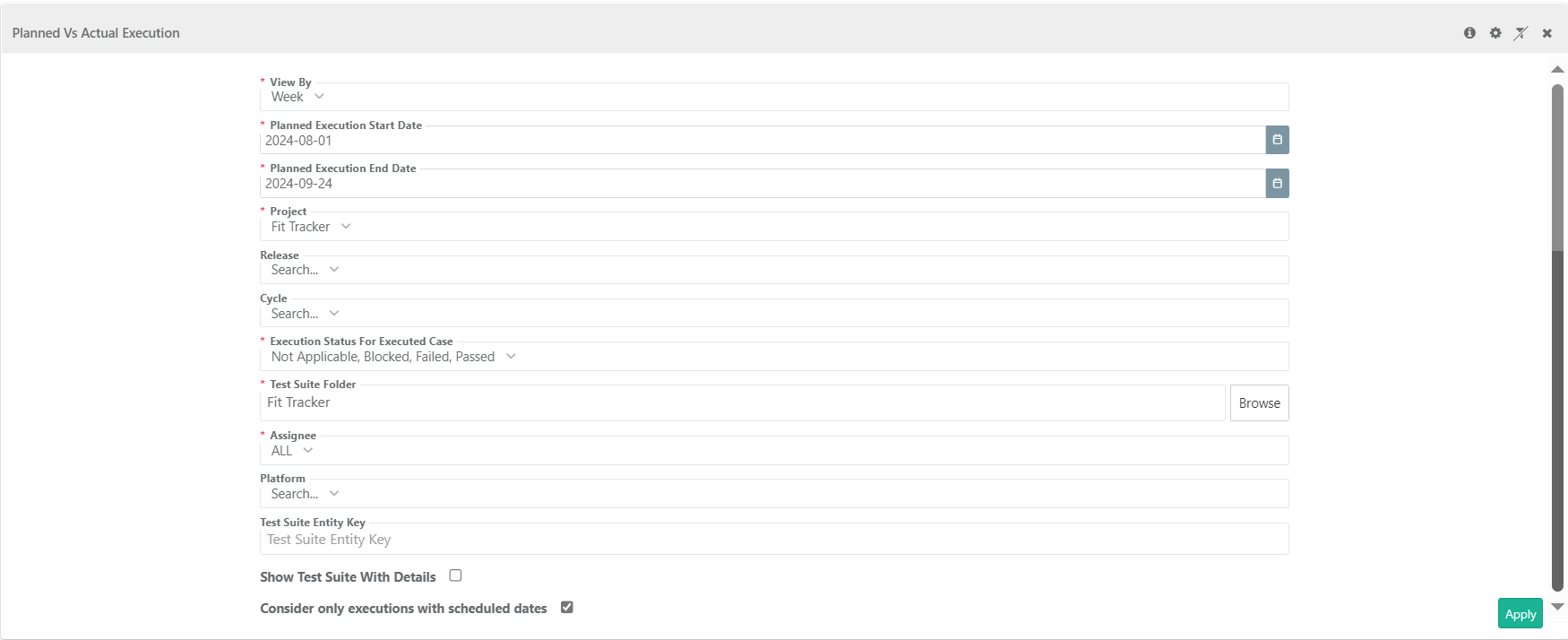
Click the Filter icon on individual charts to generate the report.
View By: Select from the options Day, Week and Month. For Daily report, you get an option to skip particular days from the calculation of duration. For example, 100 test execution runs to be completed in 10 days from 1st October to 15th October (excluding Saturday & Sunday).
Start Date and End Date: Start Date of Execution and End Date of Execution. The duration of sprint for which the Planned and Actual Test Execution Run will be calculated.
Project: You can select only one project.
Release: Release values populated in accordance with the project selection above.
Cycle: Cycle values populate according to the releases selected.
Execution Status for Executed Case: Select Execution Statuses for executed cases. For example, test executions with status “Passed”, “Failed” and “Not Applicable” are considered as executed. Rest of the execution statuses are not considered as executed. This filter is only applicable for actual executions.
Folder: Browse and select the test suite folder. If a parent folder is selected, then all the sub-folders under that parent are also considered.
Assignee: Select a test suite assignee to have a granular view of execution progress of that individual assignee.
Platform: Select the platforms to consider test executions on that particular platforms.
Test Suite Entity Key: Enter a single test suite key or comma separated test suite keys to consider those test suites for planning.
Show Test Suite with Details: Select the check box to view the actual progress for each test suite in the scope.
Planned Execution Start Date and Planned Execution End Date: Start Date of Execution and End Date of Execution. The duration for which the Planned and Actual Test Execution Run will be calculated. By default, the end date is configured to the current date, with the planned start date set to 30 days prior.
Consider only executions with scheduled dates: This option filters test executions to include only those with planned dates within the specified Planned Execution Start Date and Planned Execution End Date. By default, the checkbox is unchecked, and the filters will be saved based on the user's last generated report settings.
Archived execution data will not be reflected in the graph.
 |
Export Report
To export the report, click the cog icon and select Export Raw Data.
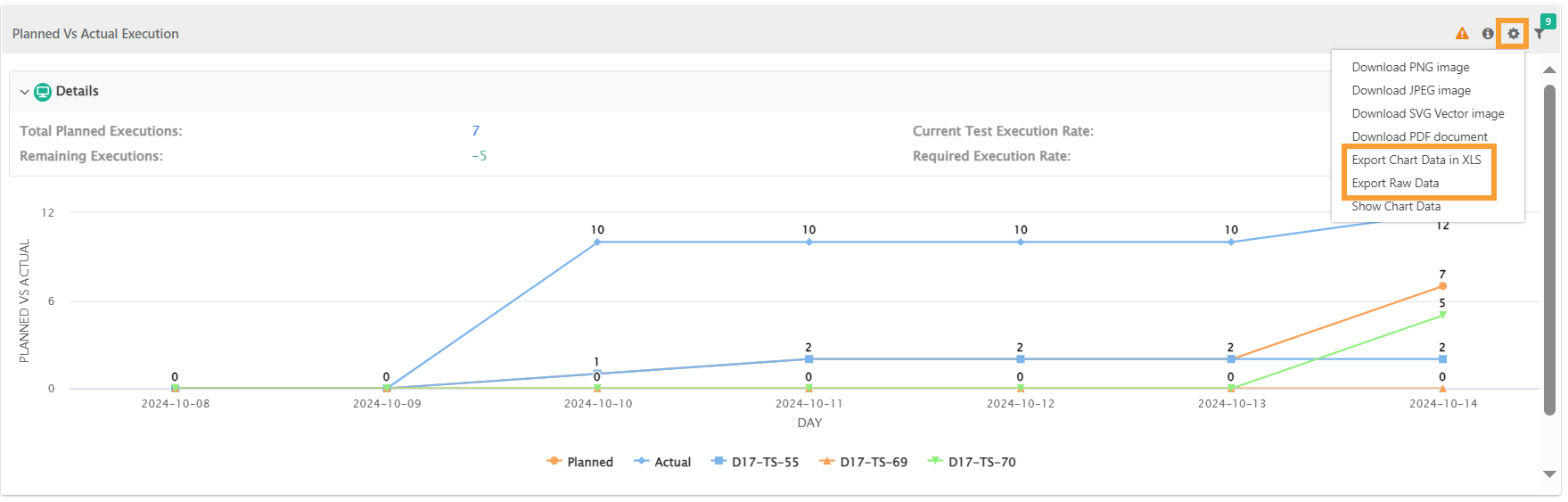 |
You can check the export progress in the Scheduled Task section.