Insight Configuration
Note
This option is only available for customers who have opted for Advanced reports.
Admin can set QMetry Insight configuration.
Database Configuration
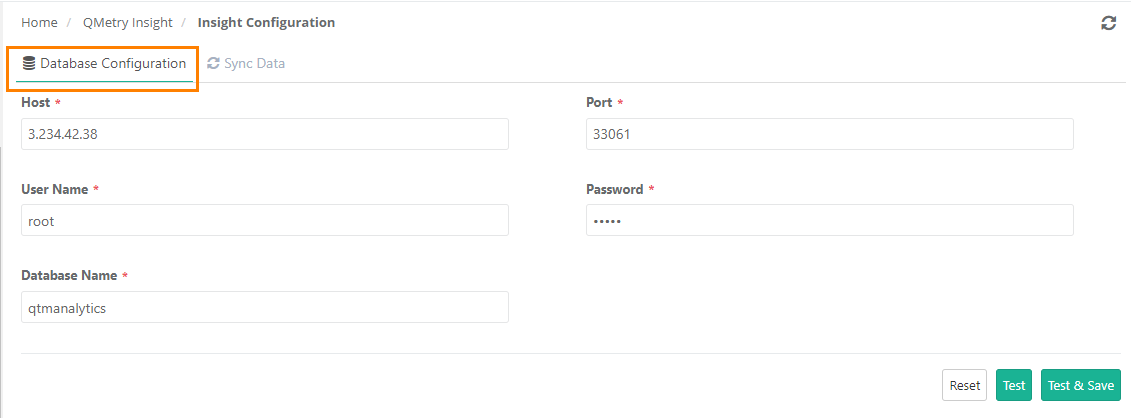
Go to Customization and select Insight Configuration and click Database Configuration. configure relevant settings to enable the QMetry Insight report module.
Sync Data
To trigger live sync of reports, perform the following steps:
 |
Go to Customization.
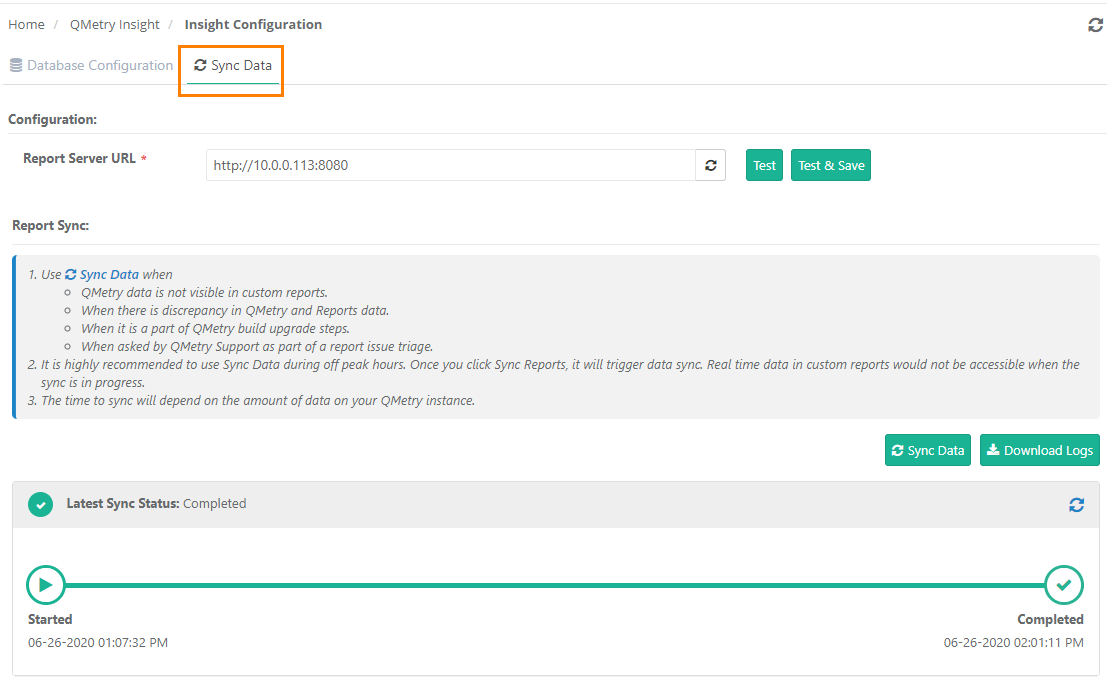
Select Insight Configuration and click Sync Data.
Use Sync Data when:
QMetry data is not visible in custom reports.
When there is discrepancy in QMetry and Reports data.
When it is a part of QMetry build upgrade steps.
When asked by QMetry Support as part of a report issue triage.
Note
Use Sync Data during off peak hours. Once you click Sync Reports, it triggers data sync. Real time data in custom reports would not be accessible when the sync is in progress.
The time to sync depends on the amount of data on your QMetry instance.
Report Server URL: Set to your report server domain URL followed by port 8080 as shown below. Ensure port 8080 is open on the reports server.
Click Test to ensure successful connection and click Test & Save.
Click Sync Data to start Reports Data Sync.
The Latest Sync Status shows “Initializing”, Completed”, “Failed” or In Progress” status.
You can also download relevant logs by clicking on the Download Logs button.
 |