Users
Super admins can create users and assign roles with predefined permissions.
If it is the Base Platform, super admins perform basic configurations like creating users and assigning roles. These roles include only “View” and “Modify” rights.
Note
To access advanced user and role settings enable Customization App.
Creating a User
Super Admins can add new users and assign roles to define their access in the system.
 |
To create a new user, perform the following steps:
Go to Customization and select Users.
Click New.
Enter the following details:
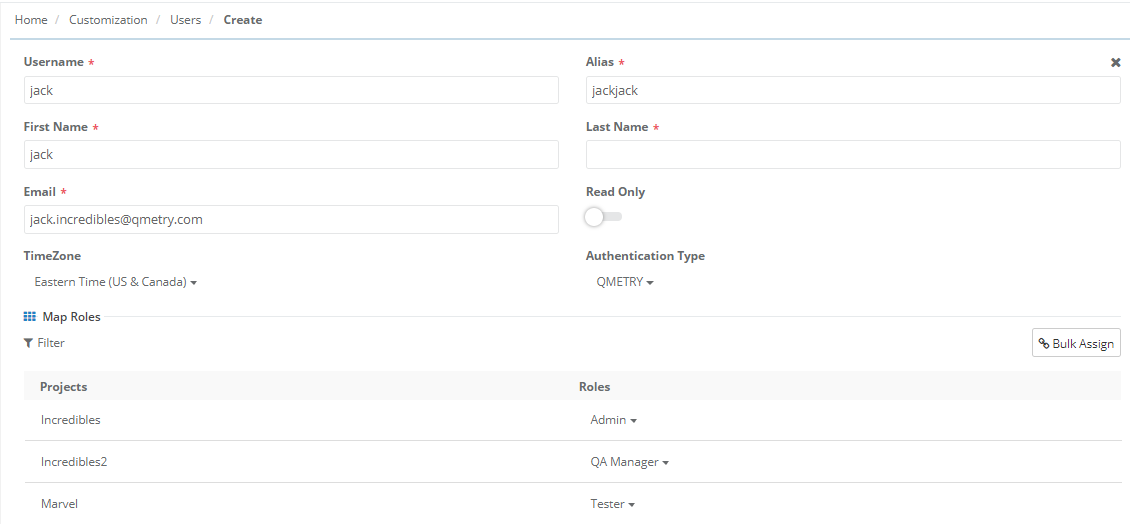
Username: The name users uses to log in to QMetry.
Alias: A unique name to identify the user across QMetry.
Time Zone: Select the user’s time zone.
Authentication Type: Users can log in using LDAP, SAML, or QMetry authentication.
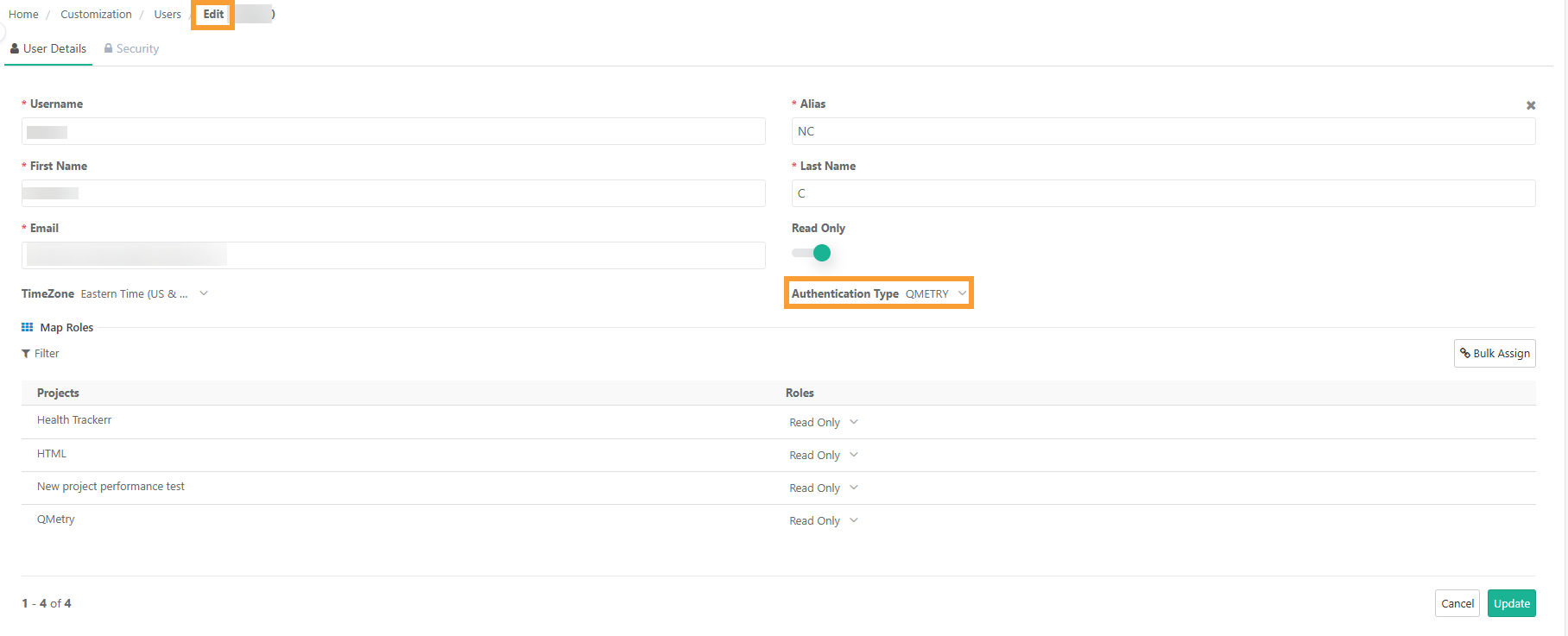
Setting Authentication Type
Super Admins can set the authentication type to QMetry Database, LDAP, or SAML (for single sign-on) while creating a new user. Super admins can change the authentication type later, if needed.
QMetry Authentication
By default, QMetry uses its own database to verify user login. When a super admin selects QMetry Authentication while creating a new user, the system sends a welcome email to the user’s registered email address.
Switching from QMetry to LDAP or SAML authentication
To change an existing QMetry user’s authentication method to LDAP or SAML:
Login as a super admin.
Go to the User Management screen under the Customization section.
Select Edit.
Manually set the Authentication Type to LDAP or SAML.
Click Update.
LDAP or SAML Authentication
When creating a user, super admins set the Authentication Type to LDAP or SAML. These options are available only after LDAP or SAML is configured in the Integration section.
Users authenticated through LDAP or SAML cannot update or reset their password in QMetry.
Switching from LDAP or SAML to QMetryauthentication
If an LDAP or SAML user needs to switch to QMetry authentication:
The user must log in using LDAP or SAML authentication.
After the first login, the Super Admin can change the Authentication Type to QMetry Database.
The user receives a link to set a new QMetry password.
After the update, the user can log in with their QMetry username and new password.
After login, the system assigns the user a default project and role
Note
Turn the Read Only flag “ON” to give the user "View" access to all assigned projects.
Read Only users use Read Only license.
Switching a user from a Regular to a Read Only license automatically updates their access to Read Only in all assigned projects.
Switching a user from a Read Only to a Regular license:
The system restores the user’s previously assigned roles unless you change them during the update.
The system restores previous roles even if it shows the warning, “Please map at least one Project and Role.”
Update the pre-assigned roles manually before or after switching if needed.
Mapping Roles
Super admins can assign Projects and Roles to the new user.

A. To assign a single Project and Role, select user's Role for the Project.
B. To assign multiple Projects to the user with the same Role for all the Projects:
Select the Projects and click Bulk Assign.
Select a Role and click Create.
Read Only Role Rights
The Super Admin assigns “View” rights to a role and maps it to users who need read-only access. These users can view test assets in QMetry but cannot add, edit, execute, or delete them.
If a user has a Regular license but only has Read Only rights, they still use a Regular license.
Use Case: A customer has a group of users who do not need to add, edit, or delete test assets in QMetry. Read-only access is sufficient for them. The customer only wants these users to view company data in QMetry.
Editing an Existing User
To edit the details of an existing user:
Click Edit under the Action column.
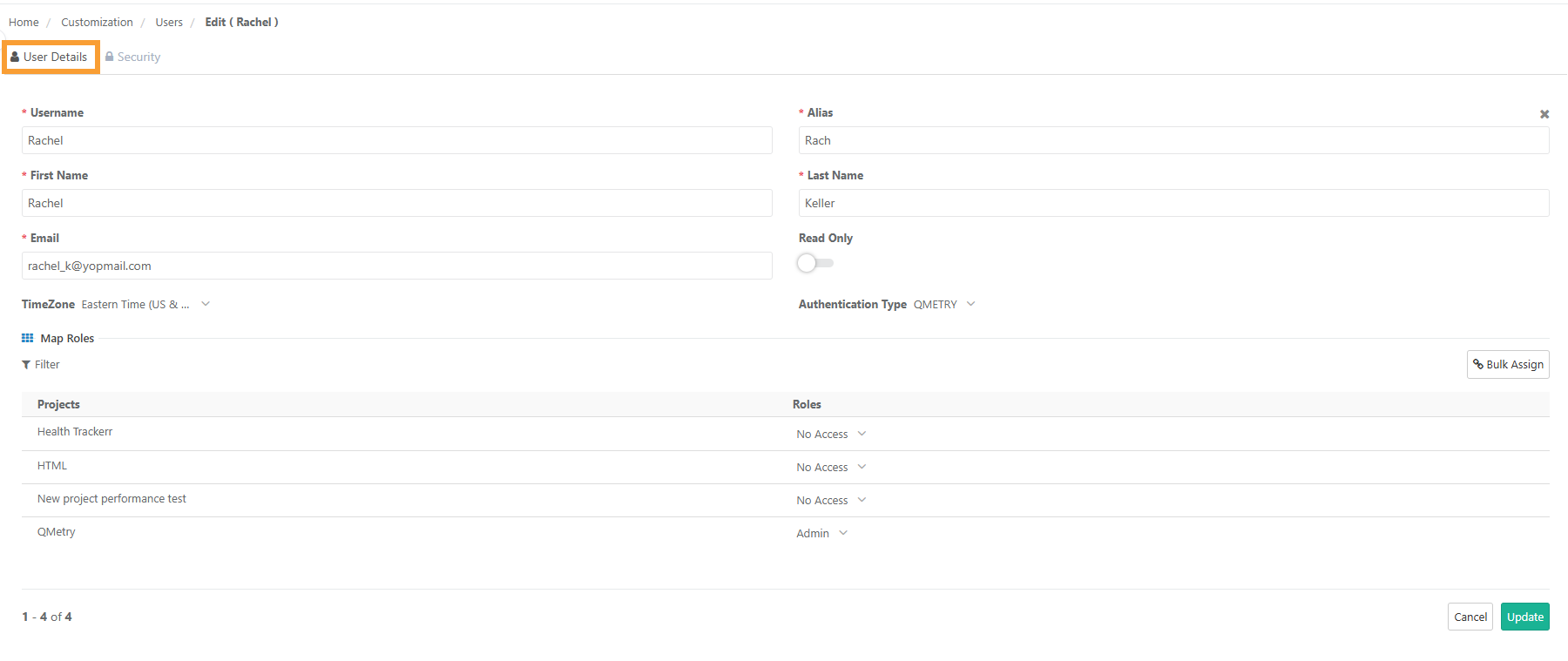
On the User Details tab, you can
Update user details
Update User Role Assignment
On the Security tab, you can:
Update User Password
Enable or disable Two-step Verification for QMetry.
Note
Super Admins can update a user's login username.
The super admin username is non-editable.
When updating a username, ensure it is unique across all users, including Active, Archived, and Deleted users.
When a username is updated, audit logs capture this change, and the updated name will reflect throughout the application.
Deactivating a User
A super admin can deactivate an active user, restricting them from logging in to QMetry.
To deactivate a user:
Go to Customization and select Users.
Select the user and click Deactivate.
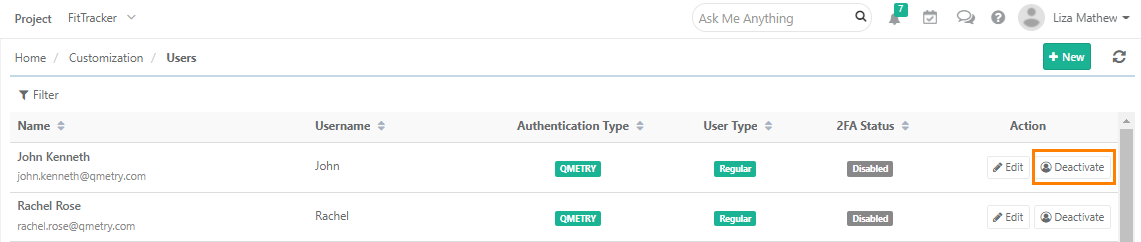
When deactivating a user, the admin can assign another user as the co-owner of the deactivated user's dashboards. All dashboards owned by the deactivated user are shared with the selected co-owner.
Select a user to be co-owner of the dashboards created by the user being deactivated.
Select Yes to proceed
Reactivating a User
The super admin can activate the deactivated users.
Steps to reactivate a user:
Go to Customization and select Users.
To view the deactivated users, apply filter on the Active parameter and select “No”.
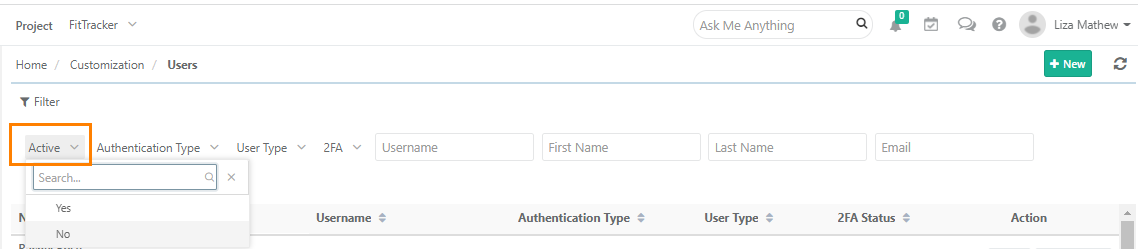
Select the user and click Activate.
Deleting a User
When the admin deletes a user from QMetry, the system marks them as inactive and blocks login access. It also prevents the creation of new users with the same username.
All deleted users appear as “inactive” in user dropdowns where applicable.
Steps to delete a user:
Go to Customization and select Users.
Deactivate the user.
To view the deactivated users, apply filter on the Active parameter with option No.
Select the user and click Delete.
Restoring Deleted Users 
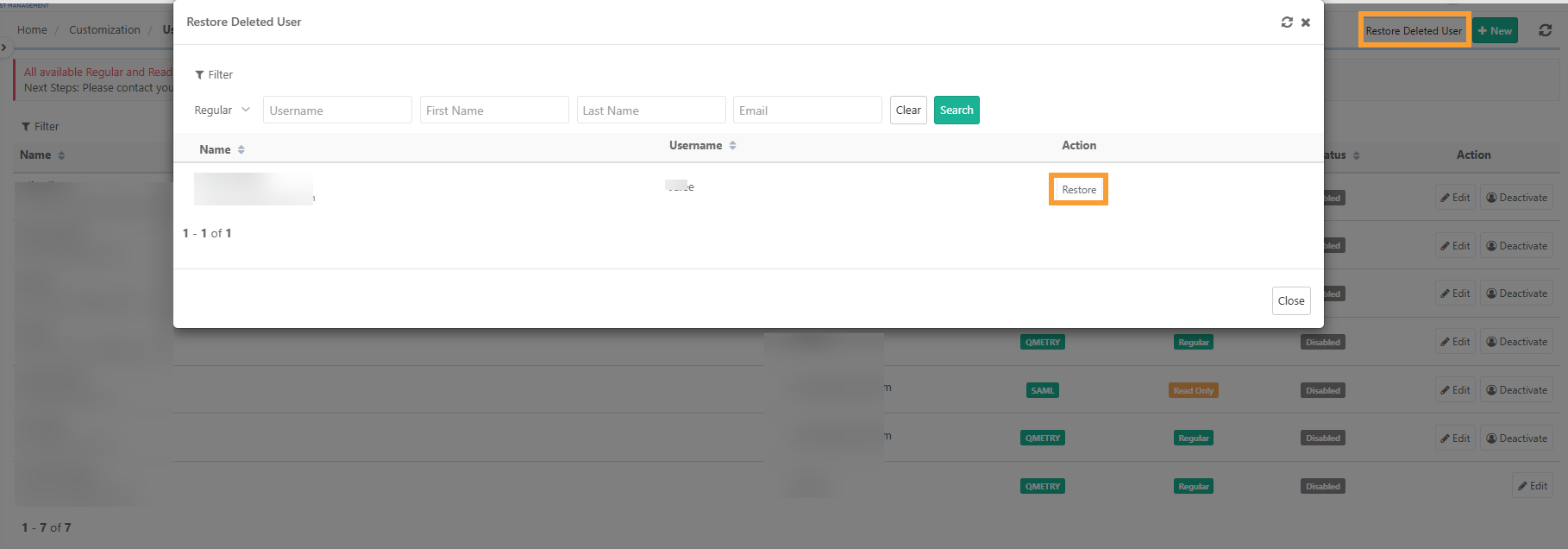
Super Admins can restore deleted users. Restored users are reactivated in a deactivated state and do not retain previous project access, allowing admins to review and reassign access as needed.
 |
To restore deleted users:
Navigate to Customization and select Users.
Click the Restore Deleted User button (refer above image).
Select the user from the list of deleted users.
Click Restore.
The selected user is restored as a Deactivated user and appears in the User List.
Note
When a user is reactivated, the super admin must reassign all relevant projects and roles to the user.
Transferring Super Administrator Role
Super admins can transfer their access to another user directly from General Settings, eliminating the need to contact QMetry Support. This facilitates smoother transitions during organizational changes.
Self-Transfer
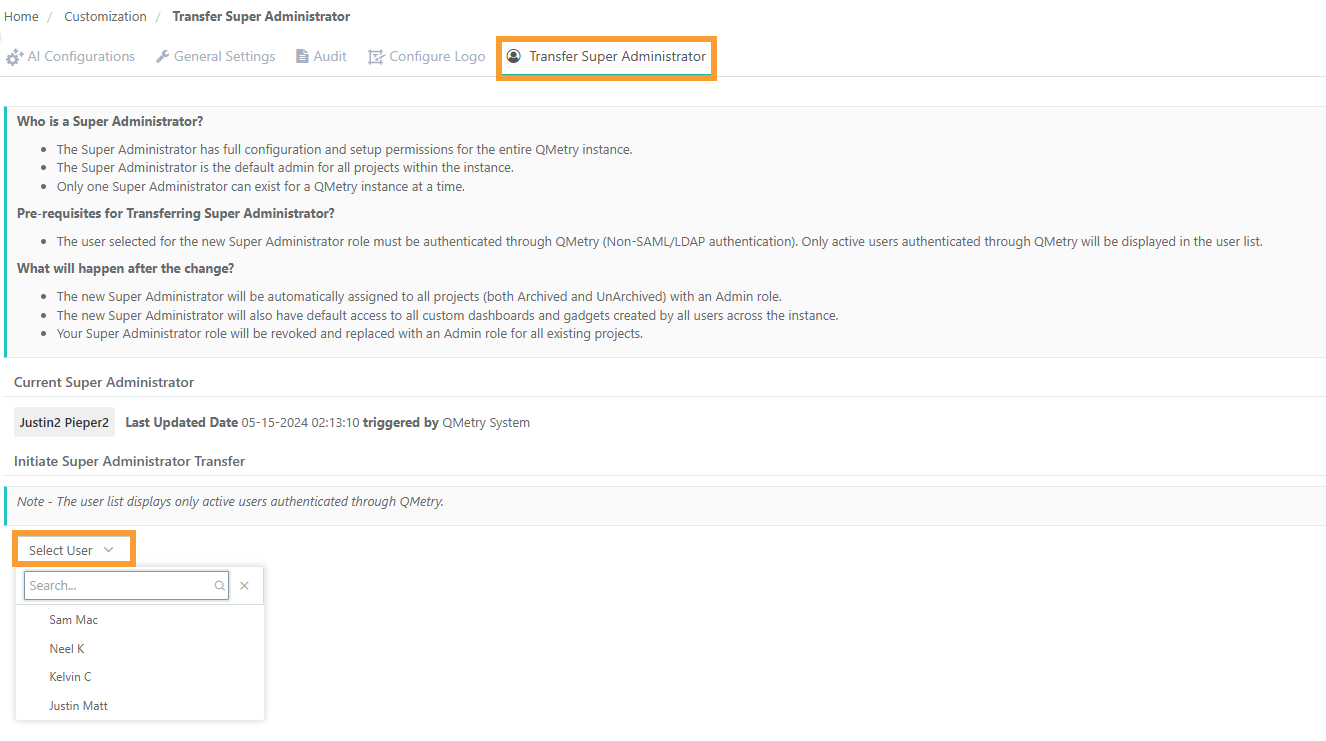
A Super Admin can transfer their rights to another user using the Transfer Super Administrator tab under General Settings.
 |
For self-transferring the super admin role:
Navigate to Customization and select General Setting and Audit.
Go to Transfer Super Administrator tab.
Select the new super admin from the Select User list.
Only eligible users (active and QMetry-authenticated users) are listed.
Read-only license users will not appear in the list.
Click Yes to confirm the transfer.
Note
The new super admin is granted admin rights across all projects, including archived and active ones.
They receive default access to all custom dashboards and gadgets within the instance.
They have full permissions to manage organization settings, users, projects, and system configurations.
The current Super Admin’s privileges are revoked and replaced with project-level admin access for all existing projects.
Once the transfer is complete, email notifications are sent to both the new and previous super admins.