Importing Issues from Excel
Use the Import feature to create issues in QMetry from one or more worksheets in a Excel file. Imported issues are created in the same sequence as they appear in the source file.
Pre-requisites
Before you begin, ensure the following:
The Excel file size must not exceed 10 MB.
Use the official import template to ensure correct formatting.
When importing multiple worksheets, all selected sheets must use the same column structure and field names.
Warning
If Jira is integrated with QMetry, the Issues Module is not available.
Sample Template
Prepare your data using the provided Excel template:
Importing Issues from Excel
To import issues from Excel, perform the following steps:
Open the Issues Module.
Click the Cog (⚙️) icon and select Import.
Select Import.
The Import Wizard opens and guides you through three stages: Upload Source File, Map Fields, Save Mapping.
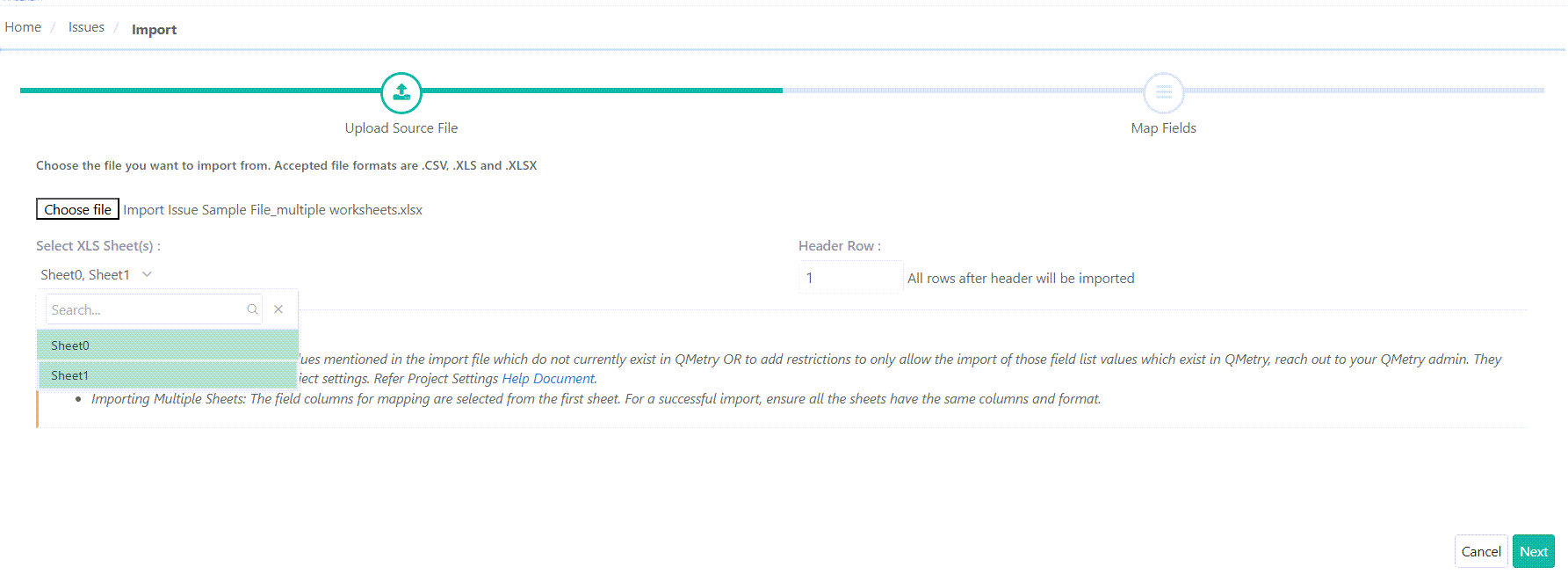
Upload Source File
Click Choose File.
Browse to and select the Excel file.
Select one or more worksheets to import. At least one worksheet must be selected.
Table 19. Worksheet SelectionOption
Description
Select XLS Sheet
Select one or more sheet from available worksheets in the uploaded Excel file from the dropdown.
Multiple Worksheet Import
The first selected worksheet is used to determine field mapping. All selected worksheets must have identical column structure and formatting.
Header Row
Specify the row number that contains column headers. All rows below the header row are imported as issues.
Note
Troubleshooting: Invalid File Error
If the message"Invalid file" appears during upload:
Open the file in Microsoft Excel.
Save the file as an Excel Workbook (.xlsx) using a new file name.
Retry the import using the newly saved file.
Map Excel Fields to QMetry Fields
The mapping page displays:
Sheet Field – fields from the uploaded Excel worksheet.
QMetry Field – corresponding system fields in QMetry.
Configure Field Mapping
Map each Excel column to the appropriate QMetry field.
Ensure all mandatory fields are mapped. Mandatory fields are highlighted in red.
Import with Warning
Enable Import with Warning to allow import of records whose Summary value exceeds 255 characters. When enabled the record is imported and the summary field is automatically truncated to 255 characters. When disabled the import process fails if any summary exceeds the limit.
Remove a Field Mapping
To clear an existing field mapping select the QMetry field from the drop down.
Save and Reuse Field Mappings
You can save field mappings for future imports that use the same Excel format.
Save a Map
Click Save Map.
Enter a mapping name.
Save the mapping.
Reuse a Saved Mapping
Select a previously saved mapping from My Mappings. The selected mapping name indicates the mapping currently applied to the import.
Auto Map Fields
Use Auto Map to automatically match Excel columns with QMetry system and custom fields based on keyword similarity.
Click Finish.
Select Next to start the import process.
Track Import Progress in the notification window on the application header.
Best Practices
Validate worksheet structure before importing multiple sheets.
Use consistent column names across all worksheets.
Save frequently used mappings to reduce setup time for recurring imports.