Schedule Automation Agent Run
You can schedule QMetry Agent to run at your preference.
One Time
Recurring
The agent list screen now displays the total count of Scheduled and In Progress tasks for each agent.
 |
Scheduling Recurring Test Execution Commands for Multiple Test Suites
You can schedule automation tasks (execution commands) for multiple test suites to recur, run immediately, or execute as a one-time run, all through a single QMetry Automation Agent.
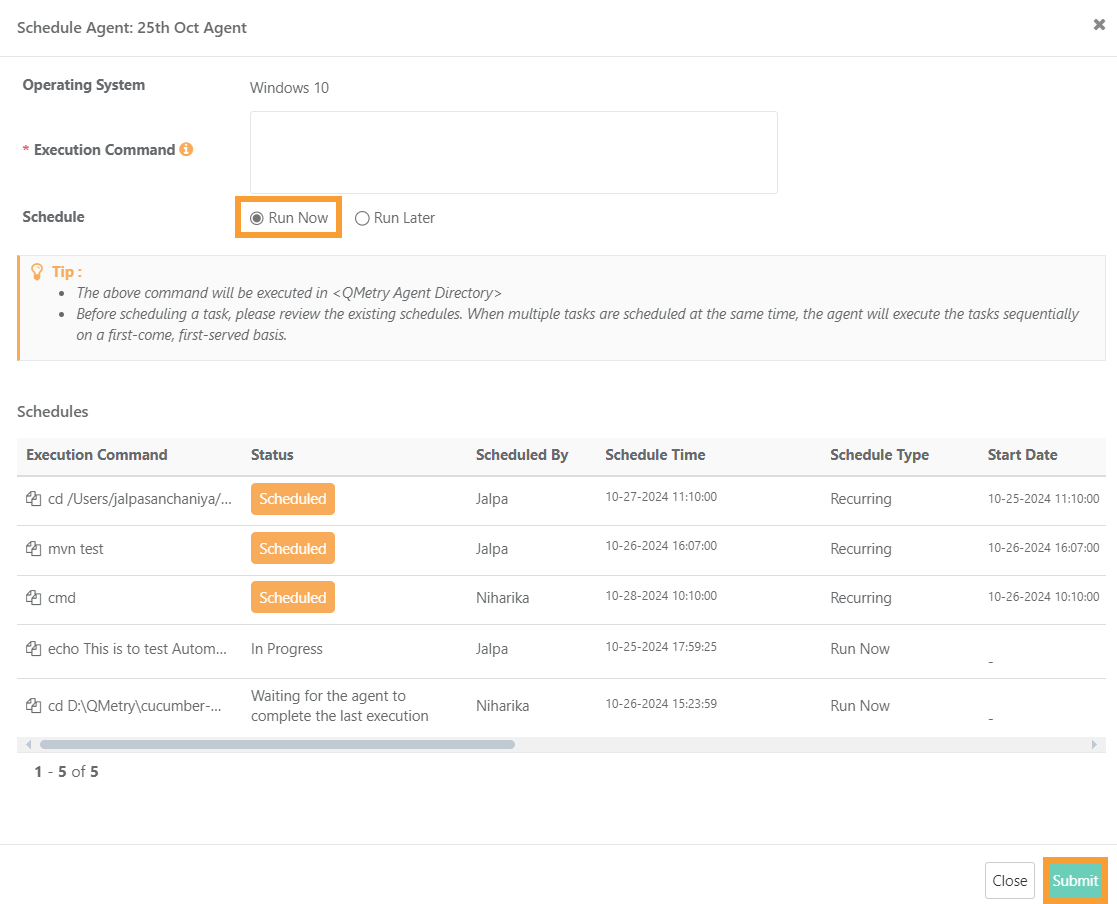
If you want to execute the Agent job immediately, then select the Run Now option and click Submit.
 |
You can schedule the agent to run on a future date and time. Scheduling executions helps testers set execution schedules to be run one after the other.
One Time Occurrence
To schedule the run only once on a particular day and time, select the Run Later option for Schedule and the One Time option for Occurrences.
Schedule: Run Later
Occurrences: One Time
Schedule date and time: Open the calendar and select the date and time to initiate the Agent job, and click Submit.
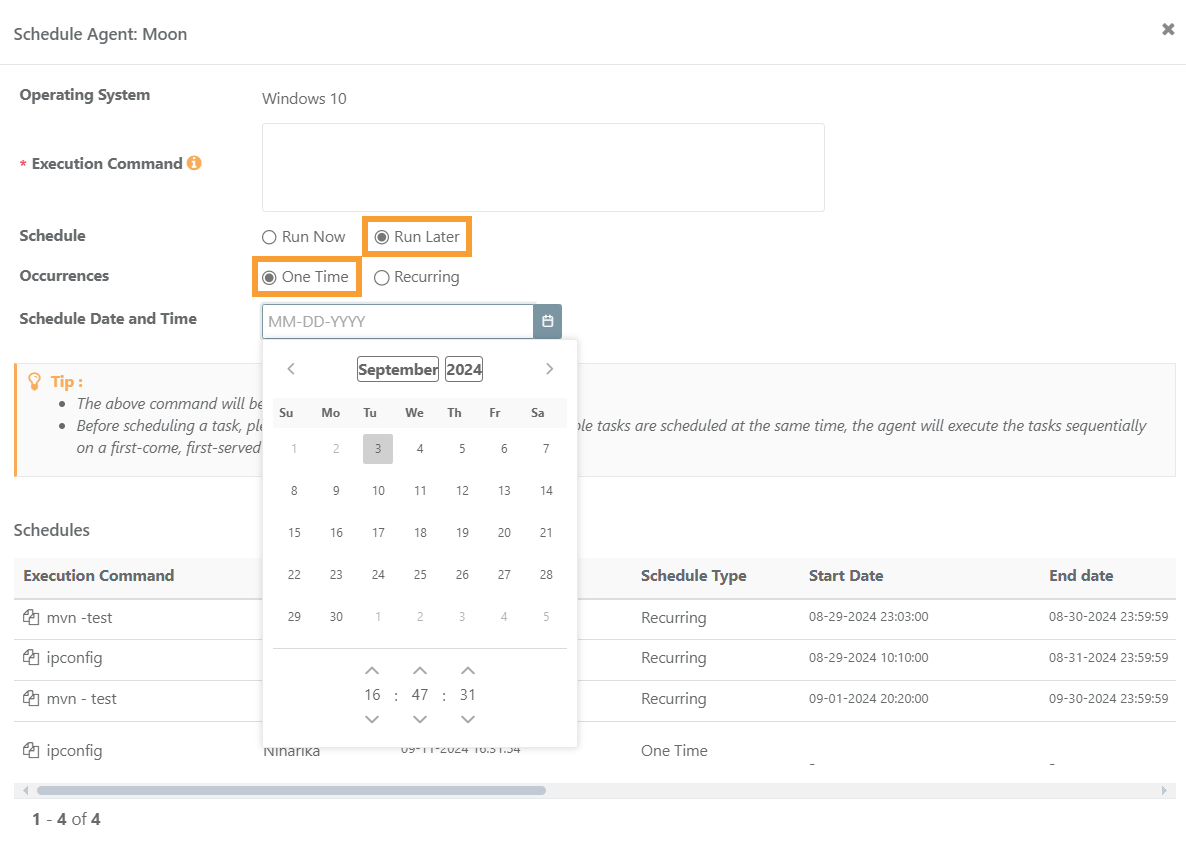
Schedule Date: This is the scheduled date to execute the command. By default, the field shows current system date in MM-DD-YYYY format. User can modify the date as per requirement. To pick date from calendar, click the calendar icon adjacent to the field.
Schedule Time: This is the scheduled time to execute the command. Three separate number fields are provided for Hours, Minutes and Seconds. By default, the drop-down list shows the current system time in
HH:MM:SSformat. User can modify the time as per requirement by selecting the suitable time to execute the command. Schedules will be sent to the agent at the defined time.
Recurring Occurrence
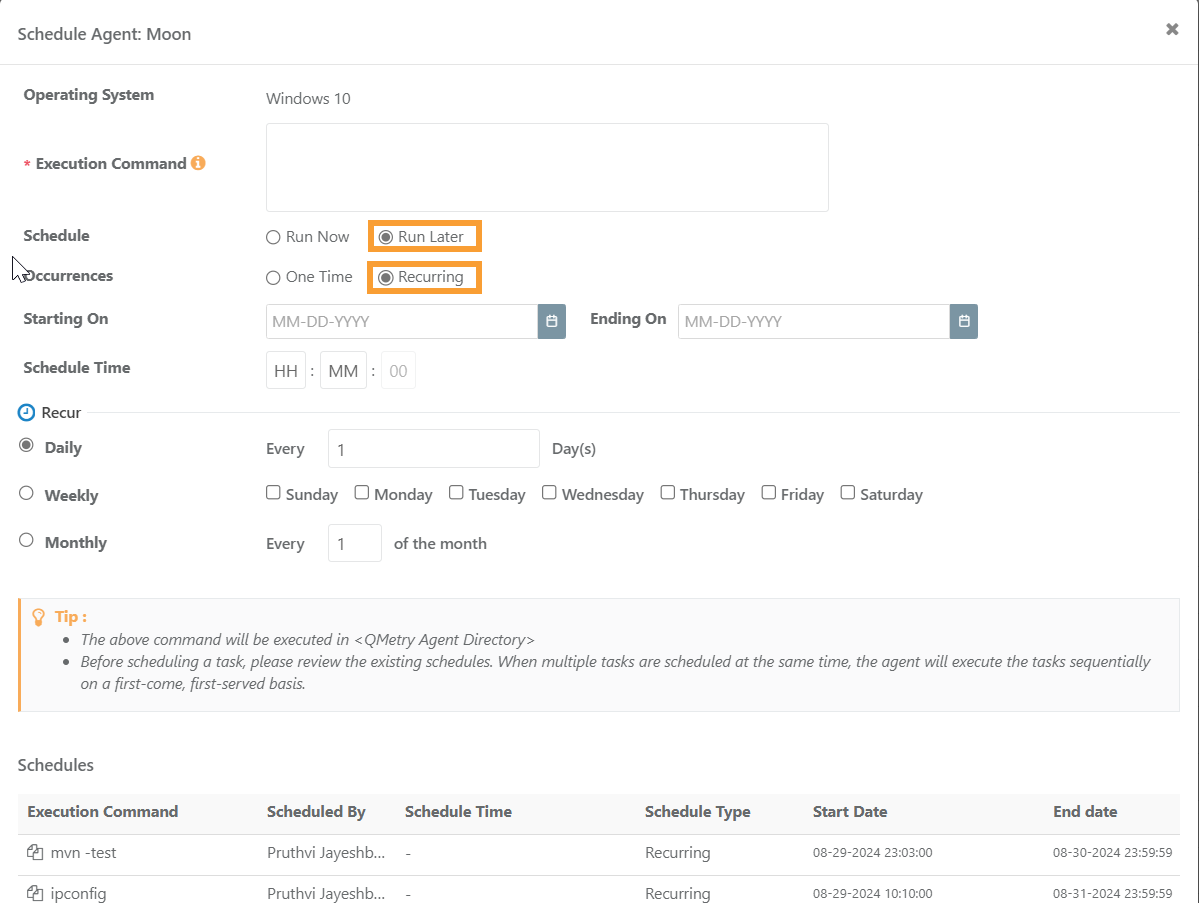
The Automation Agent supports setting up recurring schedules for multiple test suite executions on the same agent, whether for the same test suite or different. When scheduling an execution command for an agent, all upcoming schedules for the agent are displayed, making it easier for testers to identify overlapping tasks. For multiple execution schedules set for the same time on the same agent, the agent will execute them sequentially on a first-come, first-served basis.
Schedule: Run Later
Occurrences: Recurring
Starting On and Ending On: Select dates using the calendar
Schedule time: Enter time in HH: MM format
Recur: Select one frequency from the following and its corresponding option to schedule the QMetry Agent run recurrently.
Daily
Weekly
Monthly
Then click Submit.
Once the Agent is scheduled, the Total Schedules count increases on the Schedule screen.
The task that is immediate on the schedule gets executed. Other scheduled tasks get executed in sequence in accordance with their scheduled date and time.