JSON Templates
After you save a field mapping, QMetry generates a JSON template that stores the mapping. You can open and edit the JSON directly to add advanced configuration.
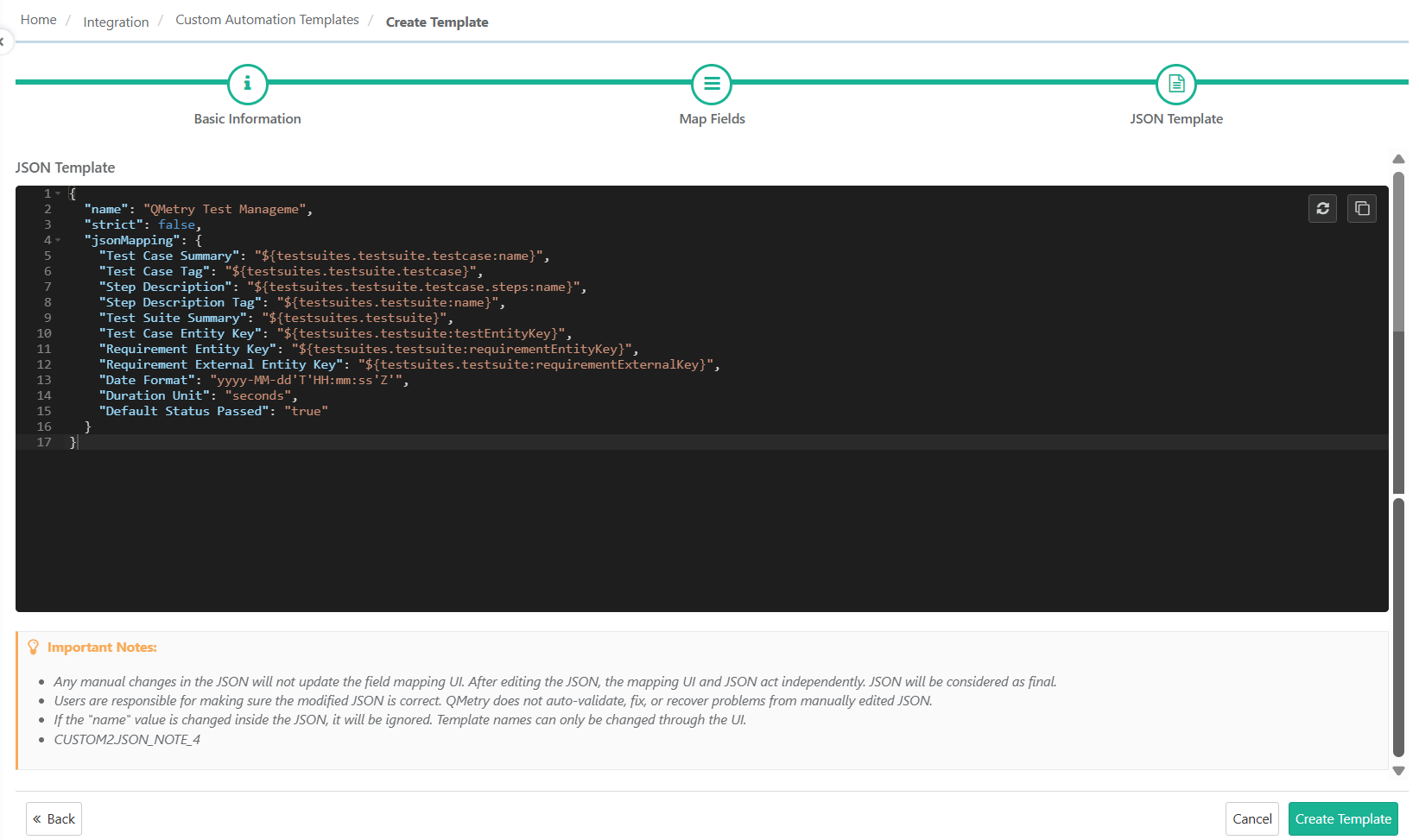 |
JSON structure
The following table describes the main parts of the JSON.
Part | Description |
|---|---|
| The name of the custom template. |
| The description of the custom template. |
| The JSON data that stores the mapping details. |
| Controls how QMetry matches XML nodes. The default is |
Editing the JSON
You can edit the JSON directly to add advanced mapping that the mapping screen does not offer, such as field comparisons. You can do this when you create or edit a template.
Keep the following rules in mind when you edit the JSON:
Caution
Manual changes in the JSON do not appear in the mapping screen. After you edit the JSON, the mapping screen and the JSON work independently, and QMetry treats the JSON as final.
You are responsible for making sure the JSON is valid. QMetry does not check, correct, or recover from errors in JSON that you edit manually.
To change the template name, update it in the QMetry interface, not in the JSON.
JSON Actions
The JSON editor provides actions that help you reset and review the JSON. The following table describes each action.
Action | Description |
|---|---|
Regenerate JSON | Resets the JSON to the state that QMetry generates from the current field mapping. This action removes all manual changes. |
Copy JSON | Copies the JSON in a formatted structure so that you can review, debug, or fix it outside QMetry. |
Note
QMetry does not let you save invalid JSON. If the JSON contains an error, QMetry displays a message that identifies the issue before you save.