Login Summary Dashboard
The Login report shows the login/logout summary for the selected user. Admins use this report for audit purposes on user logins and to find any unauthorized access from unknown IPs.
Users with the Report permissions will not get access to the Login Summary Dashboards and Gadgets. The Admin Report permissions are needed to control user access to the Login Summary Dashboard. These permissions are granted by default to the Super Admin and Admin Role.
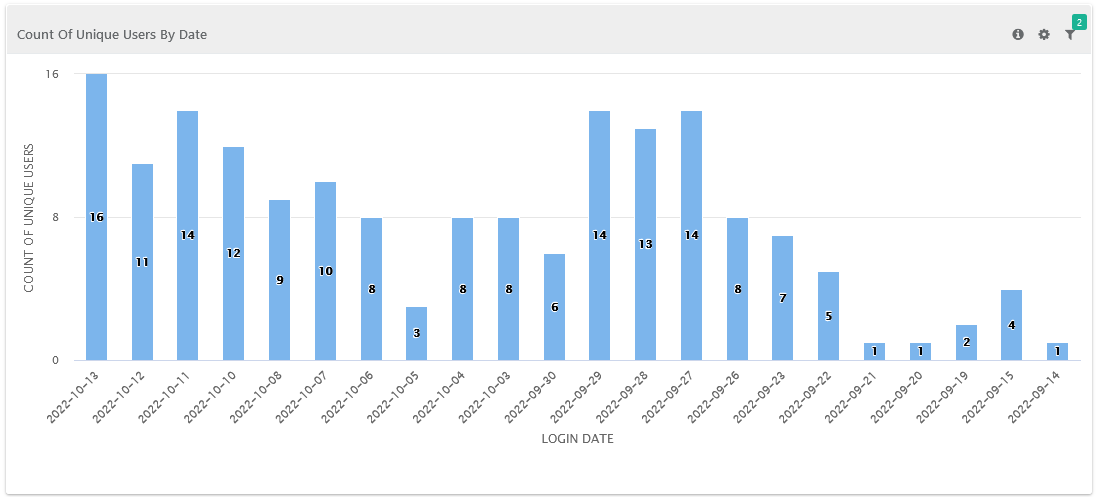
Count of Unique Users by Date
The report displays the count of unique users who logged in on any date for the chosen date range. By default, the report shows details for the last one month.
 |
Filters:
Start Date - Default 30 days before
End Date - Default current date
Browser
IP Address
Authentication Type - QMetry, LDAP, SAML
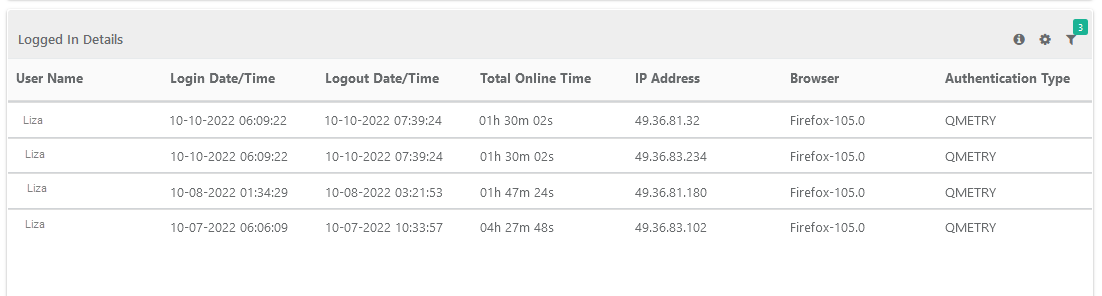
Logged-in Details
The above graphical chart is displayed in tabular format. This section of the report displays the login details of the selected user.
 |
Filter Report:
Click the Filter icon on the individual chart to generate the report.
Online Login User
This section shows all users who are currently logged into QMetry and online. You can use the dropdown menu to search for specific users.
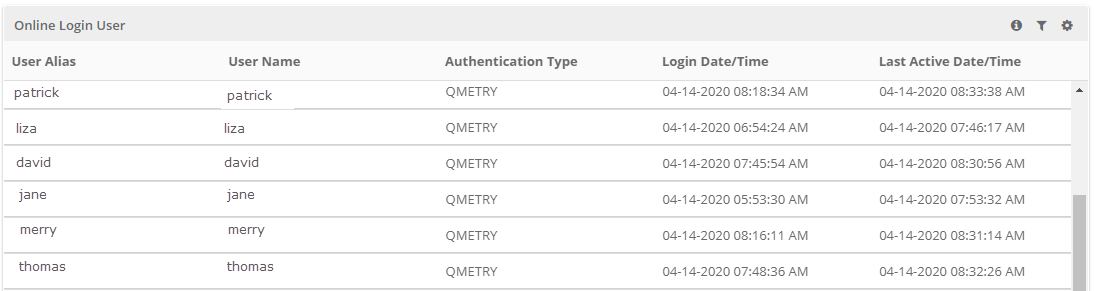 |
User Name: The logged-in username.
Authentication Type: QMetry or LDAP.
Login Date and Time: Shows when users logged into the system.
Last Active Date/Time: Shows the last time users accessed the system after logging in.
Filter Report:
Click the Filter icon on the individual chart to generate the report.
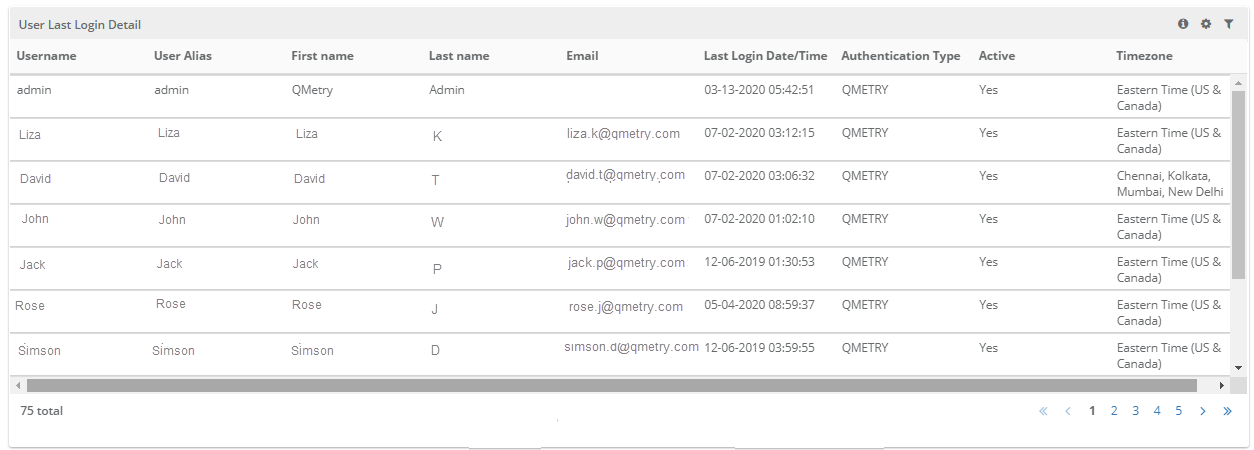
User Last Login Detail
The report gives details of all Last Login Date and Time for each user.
 |
Note
If the Last Login Date/Time shows None it means the user has never logged into QMetry.
Filters
Username
First Name
Last Name
Email
Authentication Type - QMetry, LDAP, SAML
Active - Active Users, Inactive Users
Total API Utilization
Note
Users with Admin Report Permissions can view and add these reports to their custom dashboards.
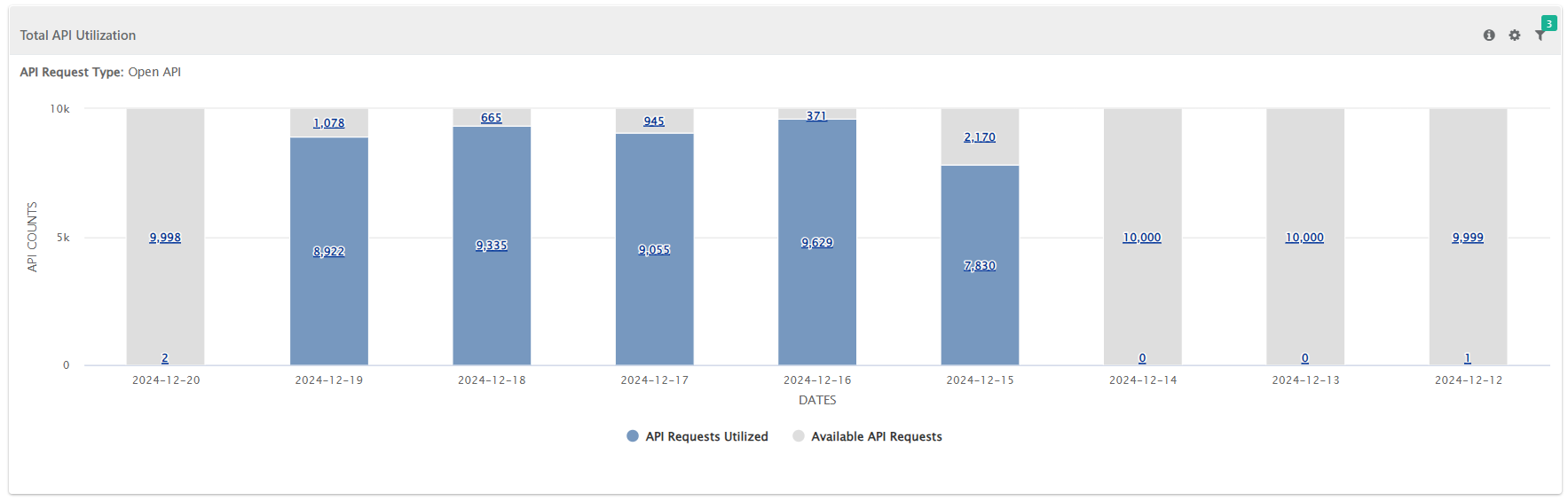
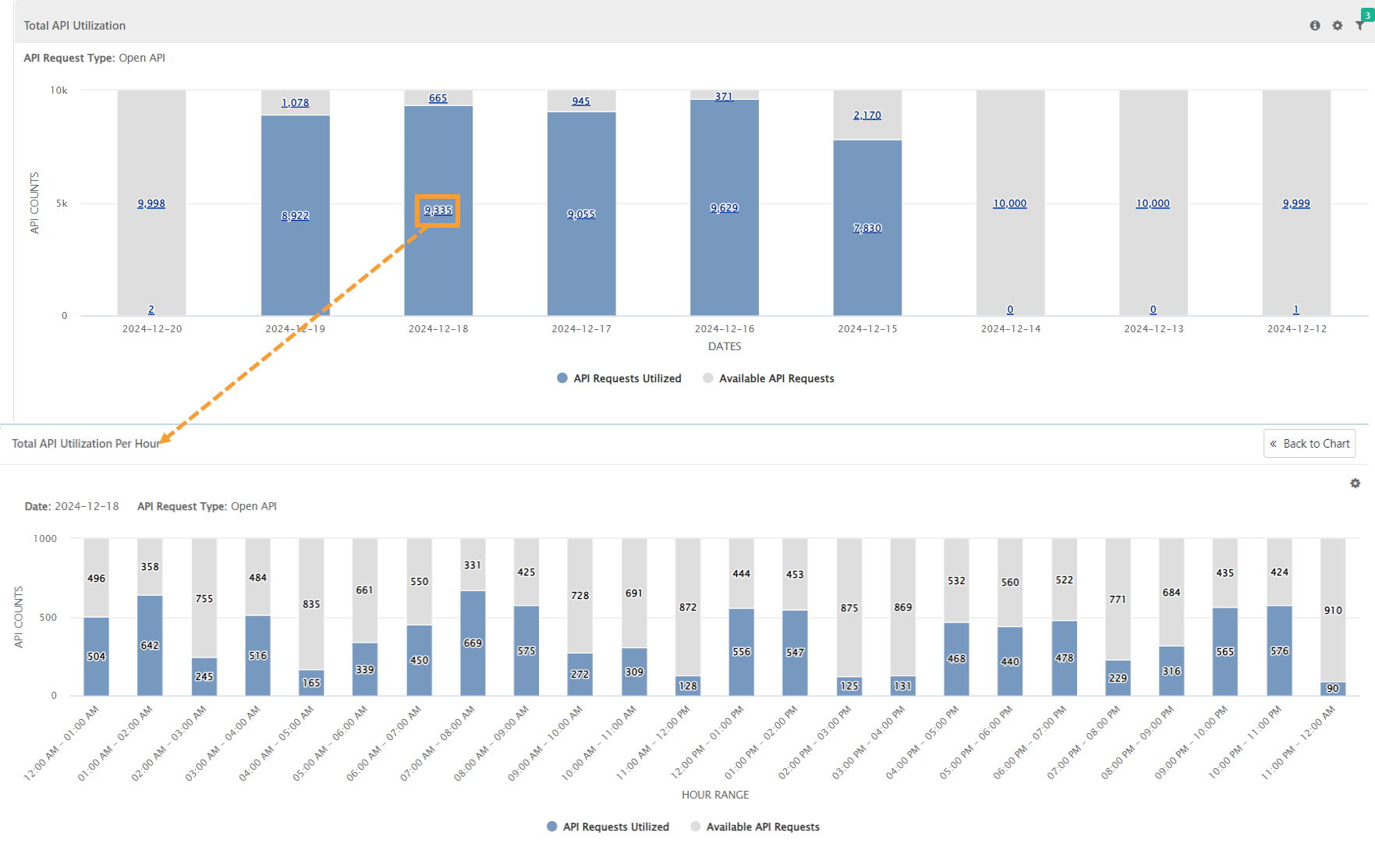
The Total API Utilization report provides a comprehensive summary of API usage, including:
Total API Requests Allocated
Total API Requests Utilized
Available API Requests
The data is categorized by API Type, offering clear insights into API consumption.
Maximum 60 days data can be viewed at a time.
 |
Filters
You can generate customized API utilization reports using the available filters:
API Request Type: Open API or Automation API.
Start Date: Select a date within the last 180 days.
End Date: Ensure the end date is within 60 days from the selected start date.
Viewing Chart Data
To view the data in tabular format:
Click the cog icon and select Show Chart Data.
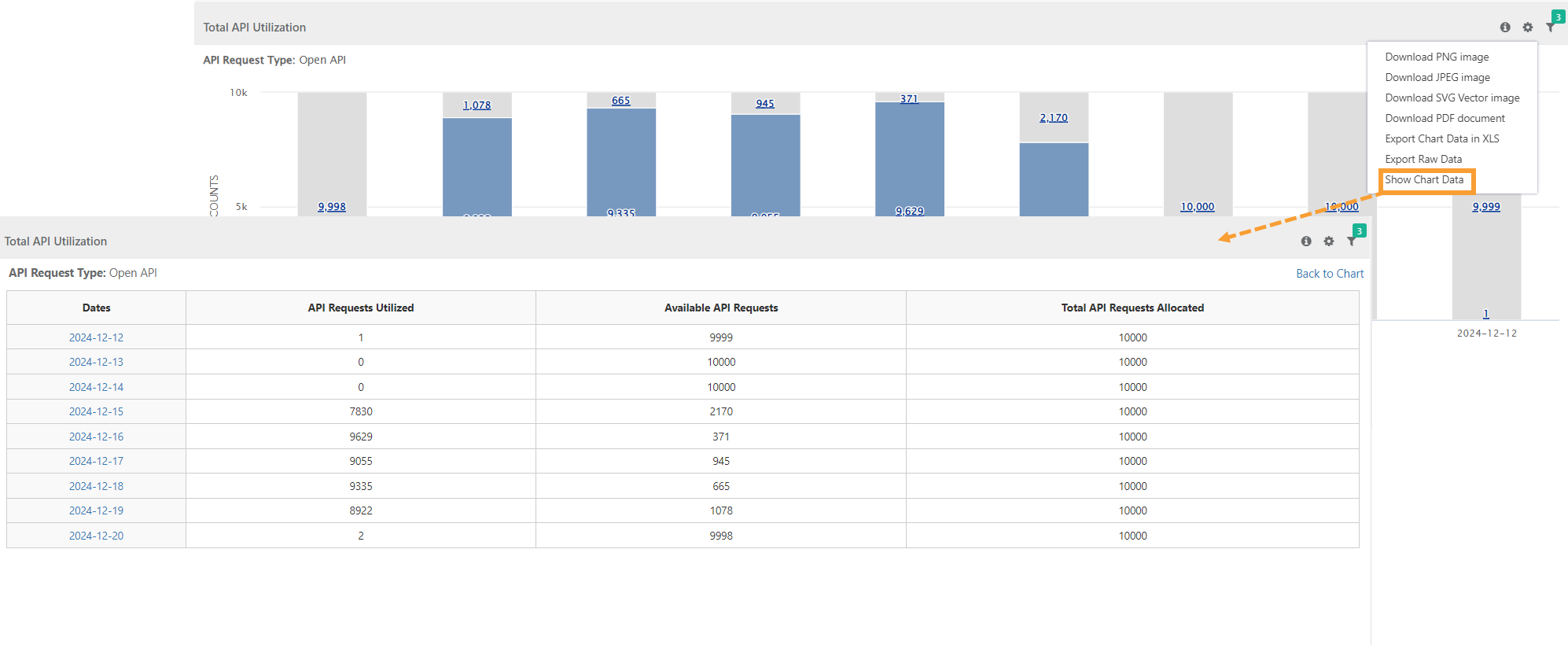
Click on a specific date within the table to navigate to the Total API Utilization Per Hour screen.
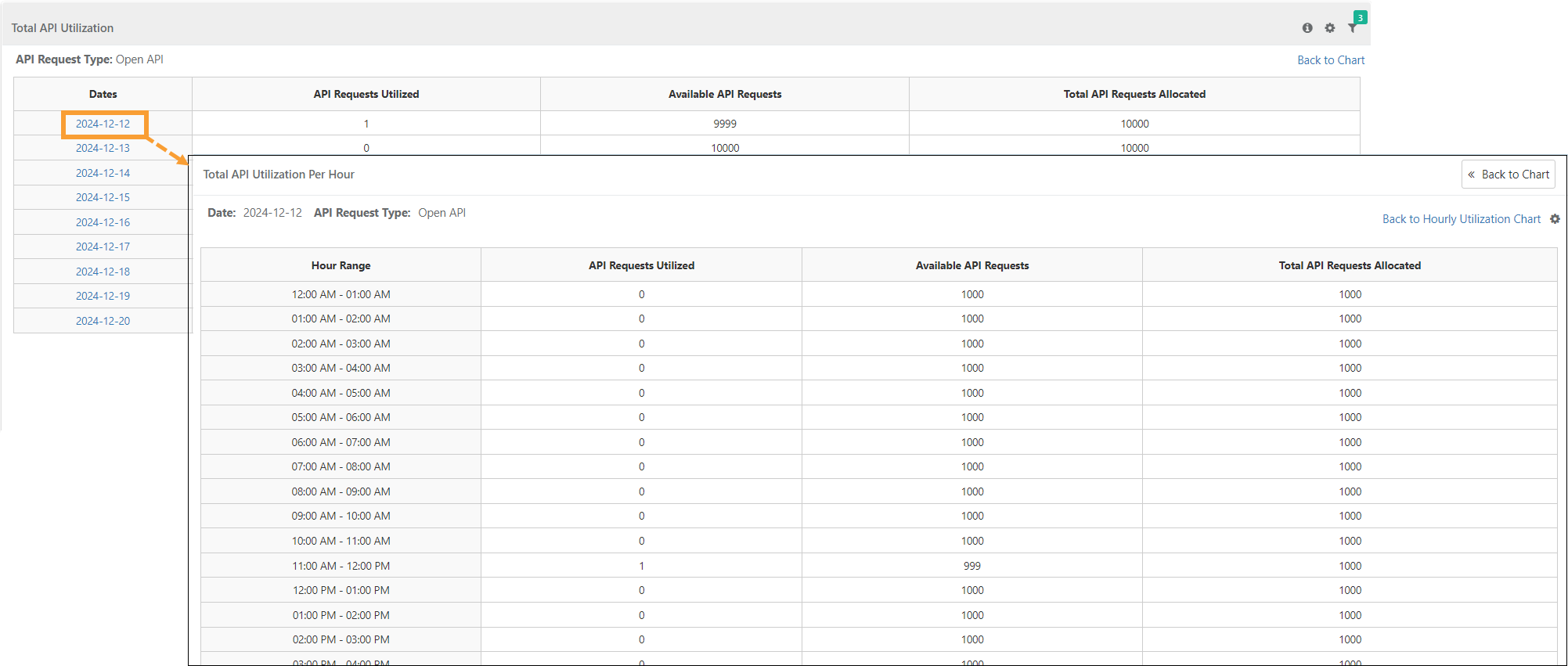
Click Back to Hourly Utilization Chart to return to the detailed hourly utilization chart.
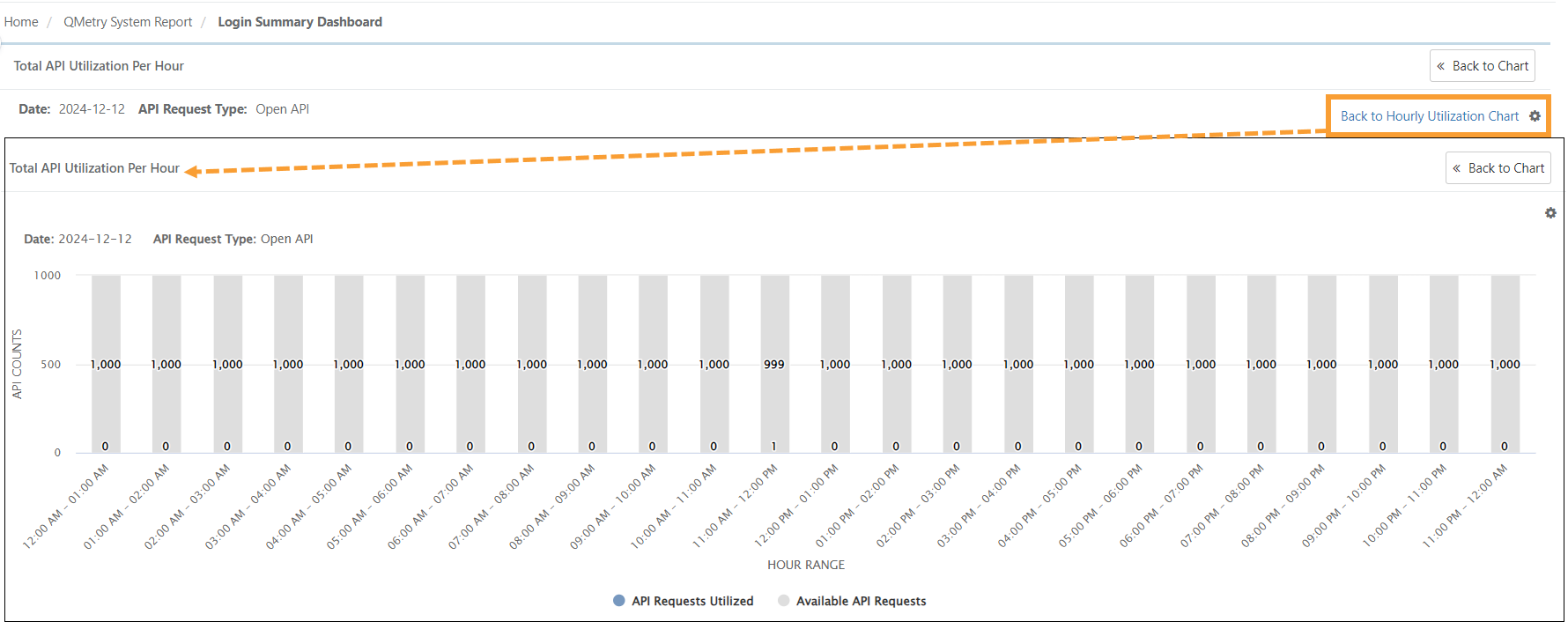
Alternatively, click on numerical data points within the chart to access the drill-down screen directly. This gives a more detailed view of the per hour usage.
Count Of API Requests by User
The report shows the number of Open API or Automation API calls made by each user in the selected time period. It helps admins track API usage on a daily or hourly basis.
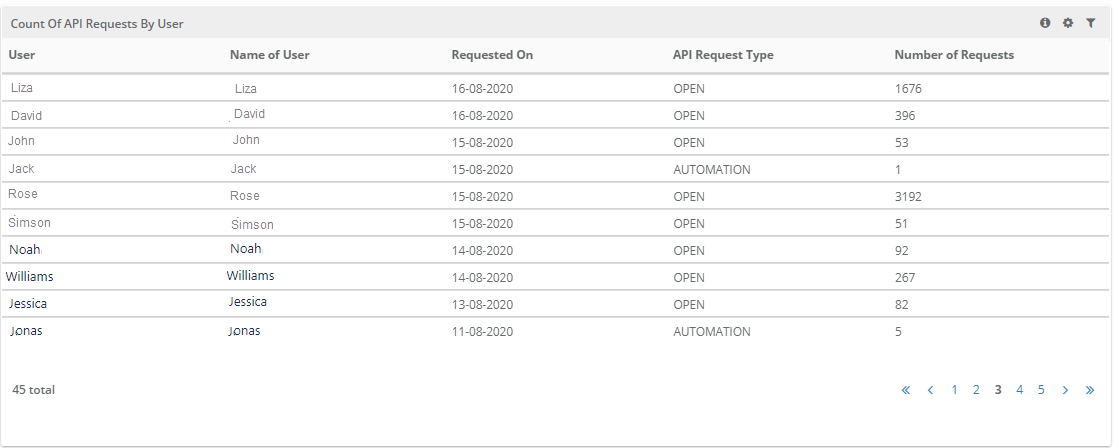 |
The report can be filtered on -
Start Date and End Date (the date range is limited to a maximum of one month.)
Hour Duration
API Request Type
User (multi-select field)
User Login Count By Date
The report gives login count of a particular user on any date for the chosen date range.
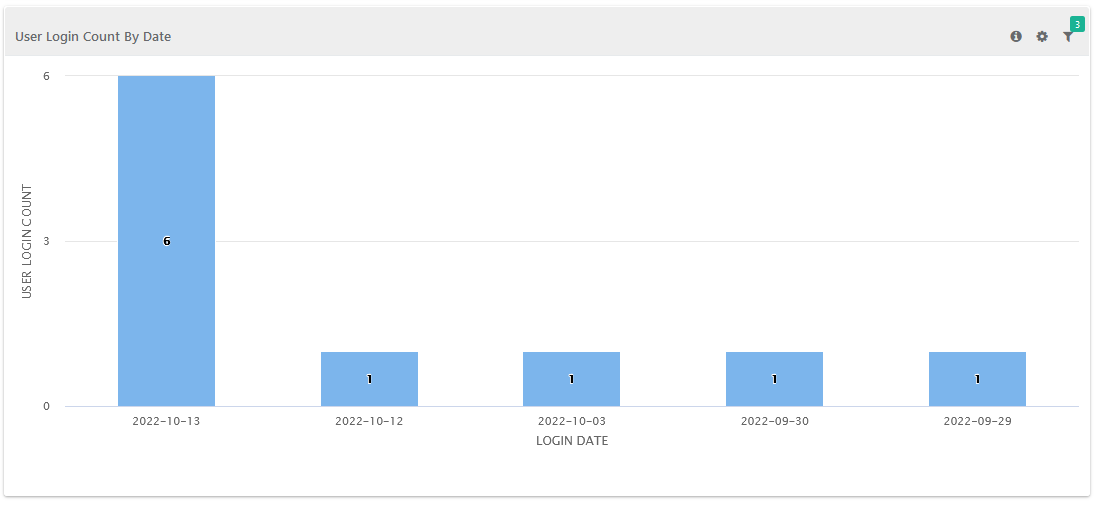
Filters:
User
Start Date - Default 30 days before
End Date - Default current date
Browser
IP Address
User Project Role Summary
The report lists users assigned to different projects with their roles and active or inactive status. Admin users can see all projects, while other users can only see projects assigned to them.
The report is useful to admin to identify the impact of role change to the users.
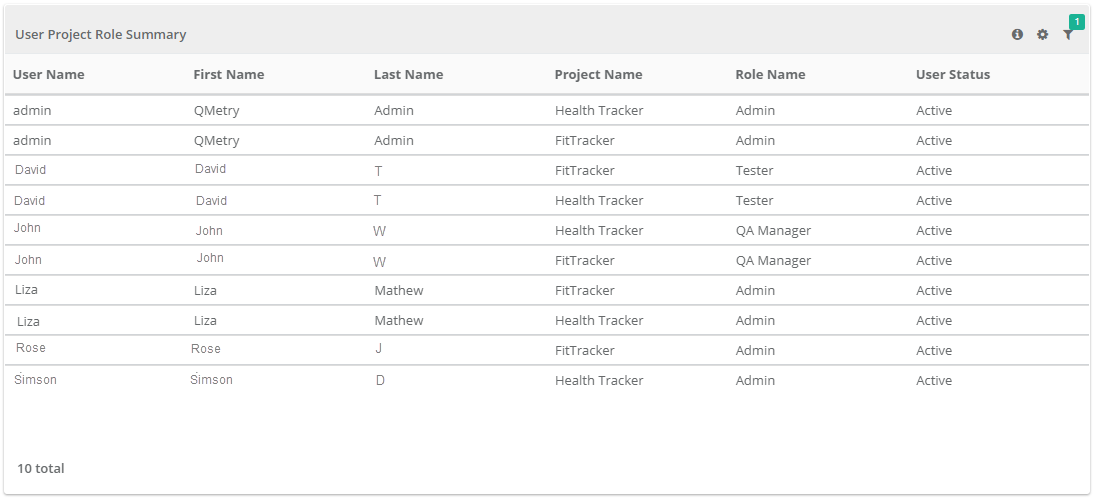 |
The report can be filtered on -
Project
User
Role
Usertype
Active