My Dashboard
This is a personalized dashboard for testers. The system generates reports for users selected in the User drop-down menu. You can create reports and charts for a specific duration or set a custom time period. This page is the default landing page.
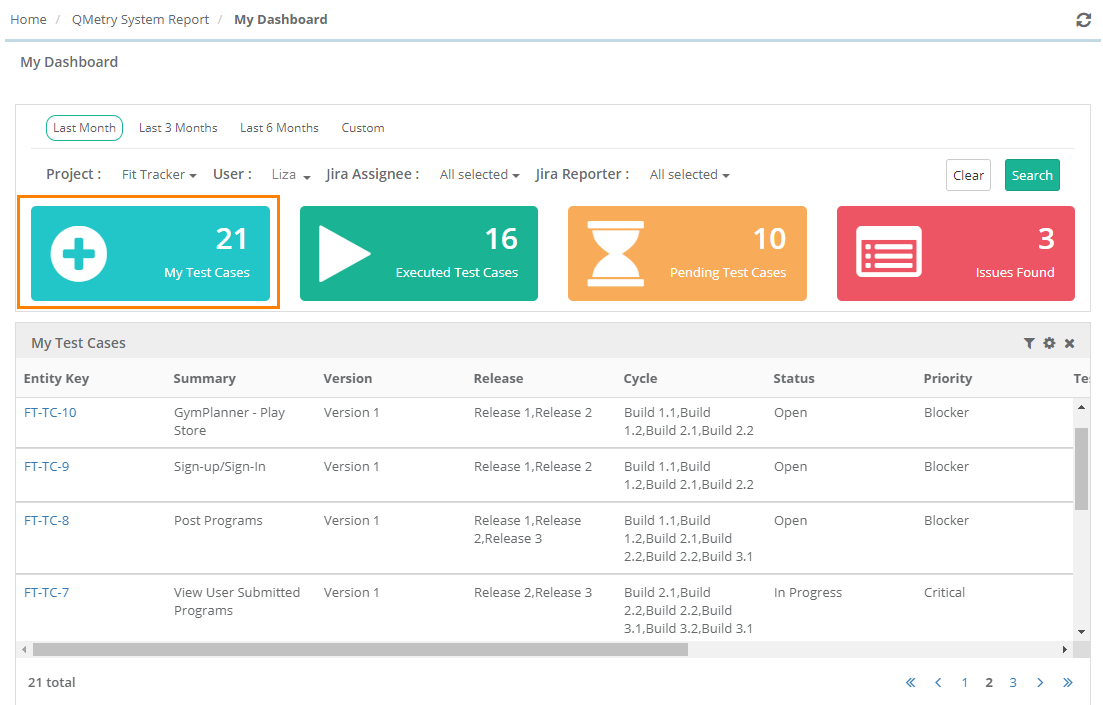
Filters
You can apply the following filters to the dashboard:
Project
User
External Assignee
External Reporter
Note
The system displays the fields External Assignee and External Reporter filters only when you have integrated Jira with QMetry project.
Statistics
My Test Cases: It shows count of test cases created by the users selected on the drop-down.
Executed Test Cases: It shows count of test cases which are executed by the selected users. It excludes test cases with "Not Run" status.
Pending Test Cases: It shows count of test cases which are assigned to the selected users but are yet to be executed and having the Execution Status as "Not Run".
Issues Found: It shows count of Issues logged by the selected users.
My Dashboard (Default Landing Page)
My Test Execution
It shows the number of test cases assigned to users that are yet to be executed. These are the test cases the user needs to run.
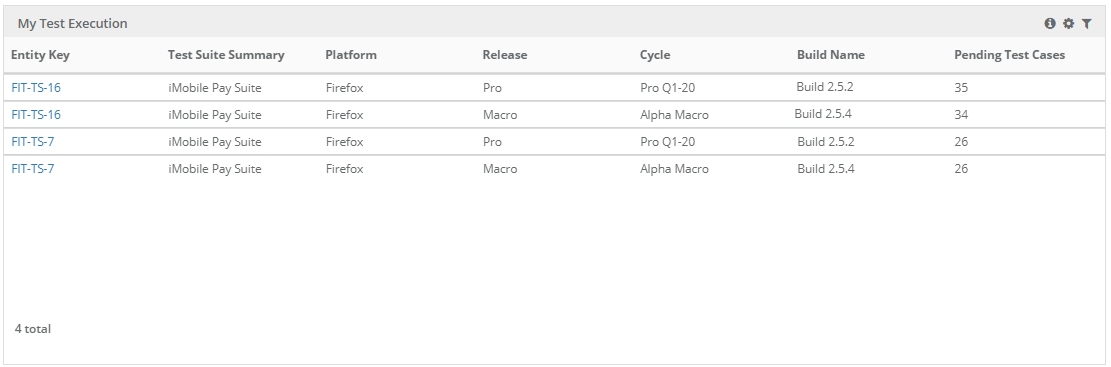 |
Click the Filter icon to apply multiple filters.
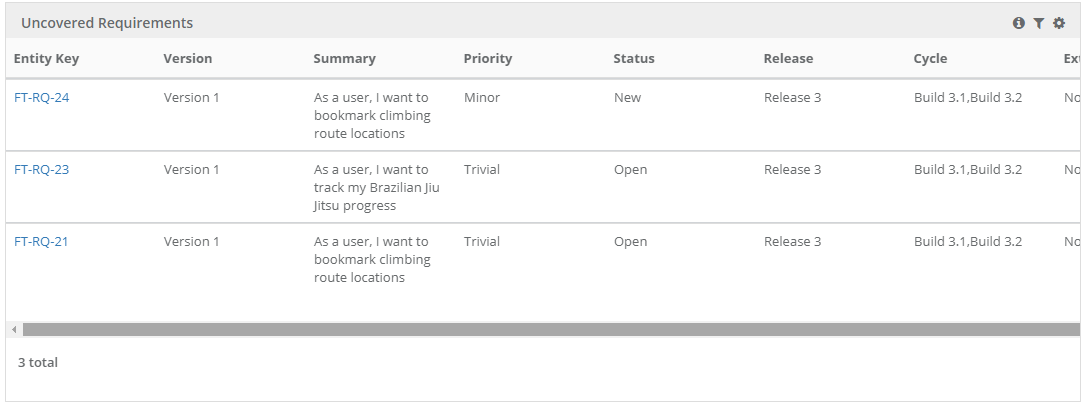
Uncovered Requirements
The report displays all requirements created by any user but are not linked to any test case yet.
Test Execution Assignments
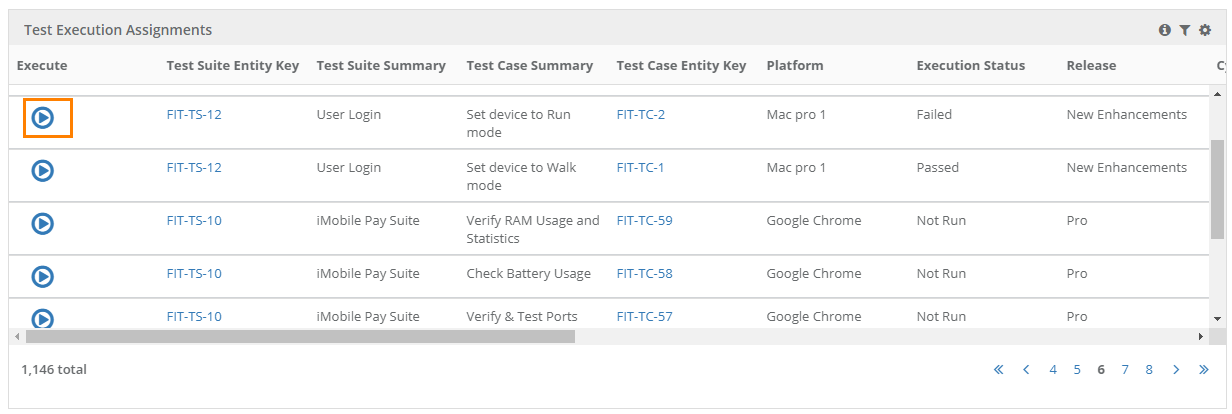
The Test Execution Assignments gadget lists test executions assigned to the selected users based on the combination of test suite, test case, platform, executed version, release, and cycle.
The gadget shows the following details:
Test Suite Entity Key, Test Suite Summary, Test Case Summary, Test Case Entity Key, Platform, Execution Status, Release, Cycle, Build Name, Test Case Priority, Test Case Status, Assigned User, Executed By, Executed Version, Testing Type, Test Category, Created By.
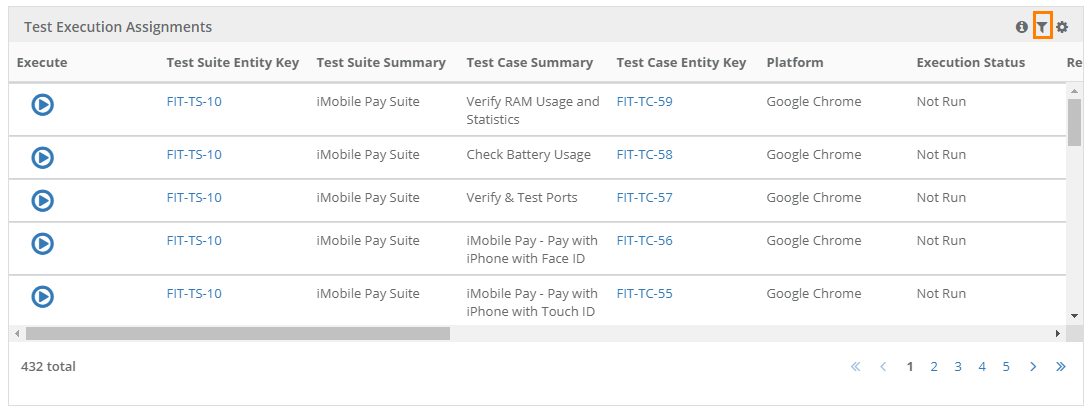 |
You can apply Filters on - Project, Release, Cycle, User, Assignment Start date, Assignment End date, Test Case Entity Key, Platform, Execution Status and Build.
To execute a test case directly from the dashboard, click Execute for the test case.
You can change the Execution Status on the execution screen. This screen opens only from this report and is used to execute a specific test case.
 |
To go back to the regular test execution screen, click Test Run.
Then clear the filter on the screen. You can see all the test runs under the test suite.
Export Test Execution Assignments
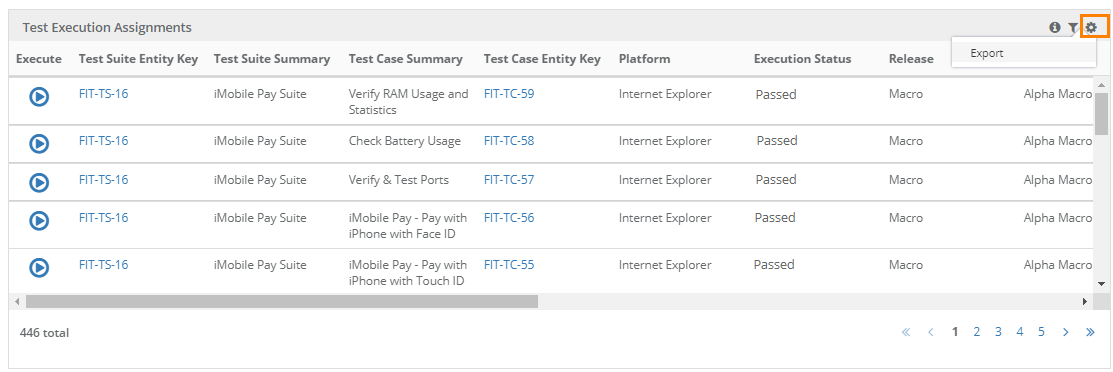
On the Test Execution Assignments, click the cog icon and select Export.
If you need multiple gadgets for Test Execution Assignments, you can add them on QMetry Custom Dashboard by creating a new Dashboard and adding Test Execution Assignments gadgets in it. You can add as many Test Execution Assignments gadgets to apply and preserve them with different filters.
If you need multiple Test Execution Assignments gadgets, create a new dashboard in QMetry Custom Dashboard and add them there. You can add multiple gadgets with different filters.
Note
Limitation: The system does not display filters on hover for My Dashboard as the tables are generated dynamically.
Change Landing Page
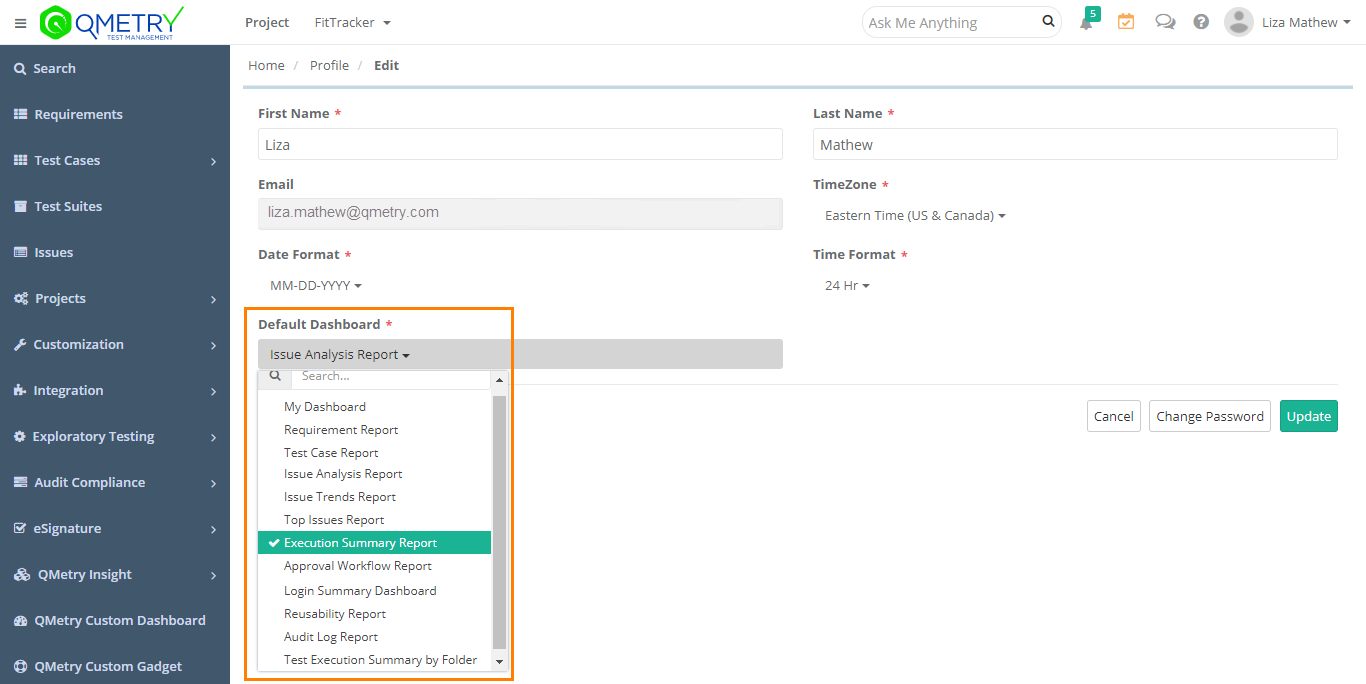
My Dashboard is the default landing page when you log into QMetry. You can also set a different landing page from system dashboards, custom dashboards and shared dashboards (i.e. shared by other users).
To change the landing page, perform the following steps:
Log into QMetry.
Go to Profile.
Click Edit.
Set your preferred Default Dashboard from the available options.
Note
If you delete a custom dashboard, or lose access to it, the system sets My Dashboard as the default landing page again.