Changes in SSO URL in QMetry Onpremise for v8.27.x
If you are upgrading to QMetry v8.27.x you need to update the Single Sign On (SSO) login URL. Refer to the corresponding Identity Provider section below to know the URL changes.
Okta
Follow the steps mentioned below for Okta.
Log into your Okta with an Admin Account.
Go to Applications and select your application.
Go to the General tab and click SAML settings.
Move to the Configure SAML step.
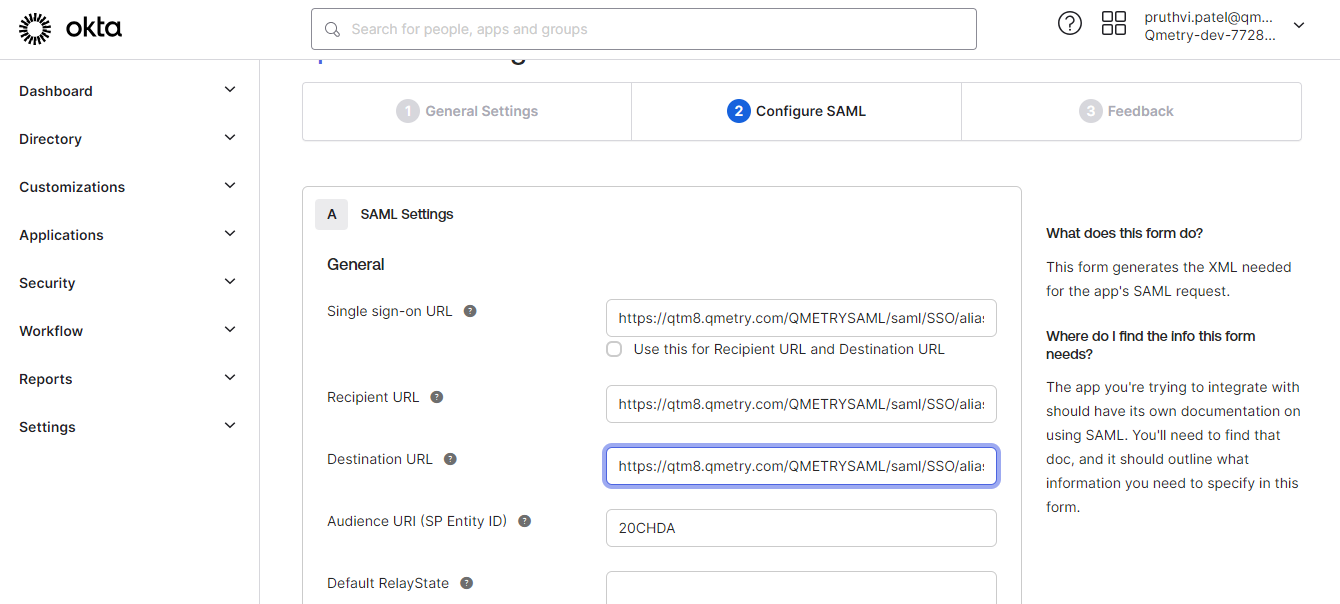
Change in URLs of "Single sign-on URL" ("Recipient URL" & "Destination URL" if the checkbox of "Use this for Recipient URL and Destination URL" is not checked).
Old URL Format: https://<clientdomain>/saml/SSO/alias/<orgcode>;
New URL Format: https://<clientdomain>/QMETRYSAML/saml/SSO/alias/<orgcode>
Attributes Name should be "FirstName","LastName","Email" on the left side.
Move to the next screen and Click Finish.
Azure AD
Follow the steps mentioned below for Azure AD.
Log in to Microsoft Azure with an admin account.
Go to Enterprise Applications and select your application.
Click on the Set up single sign-on section.
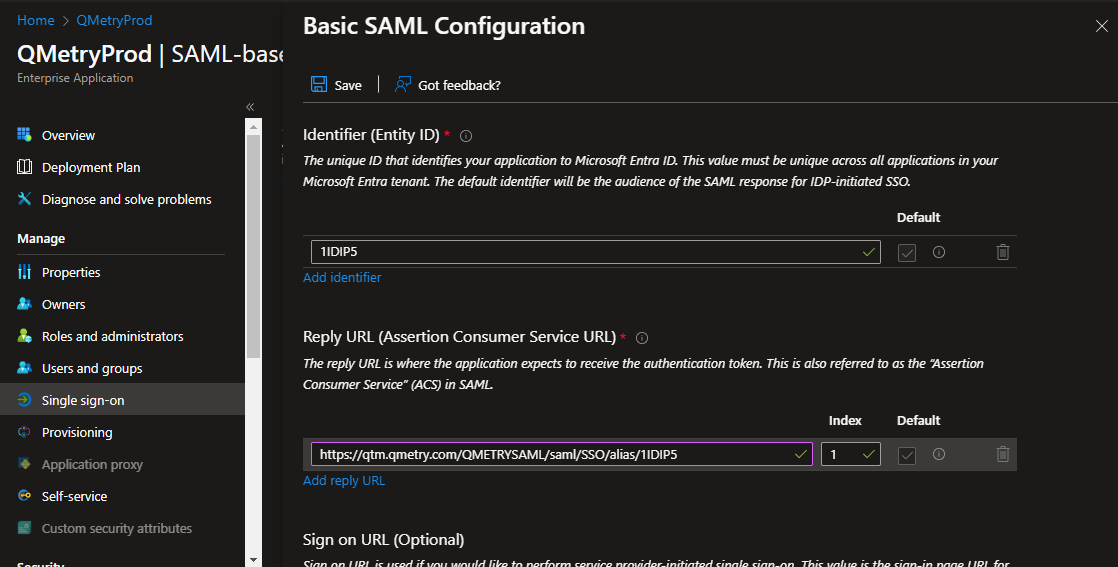
Edit "Basic SAML Configuration".
Change in URL Reply URL (Assertion Consumer Service URL).
Old URL Format: https://<clientdomain>/saml/SSO/alias/<orgcode>
New URL Format: https:<clientdomain>/QMETRYSAML/saml/SSO/alias/<orgcode>
Click Save.
Attributes Name should be "FirstName","LastName","Email" in the left side of "Attributes and Claims".