Download and Restore Container Images of QMetry Products
Download Container Images of QMetry Products
Follow these steps on a machine where the internet is accessible so that the container images can be downloaded on it.
Steps to download the container image of QMetry Database:
1. Execute the following command. Next, it will ask for container repository credentials. Enter the required credentials. If you do not have the credentials, please contact QMetry Support.
podman login docker.io

2. Execute the following commands to download and save QMetry Database container image.
podman pull docker.io/qmetry/qmetry:appdb848
podman images
podman save -o qmetrydb.tar docker.io/qmetry/qmetry:appdb848
ls
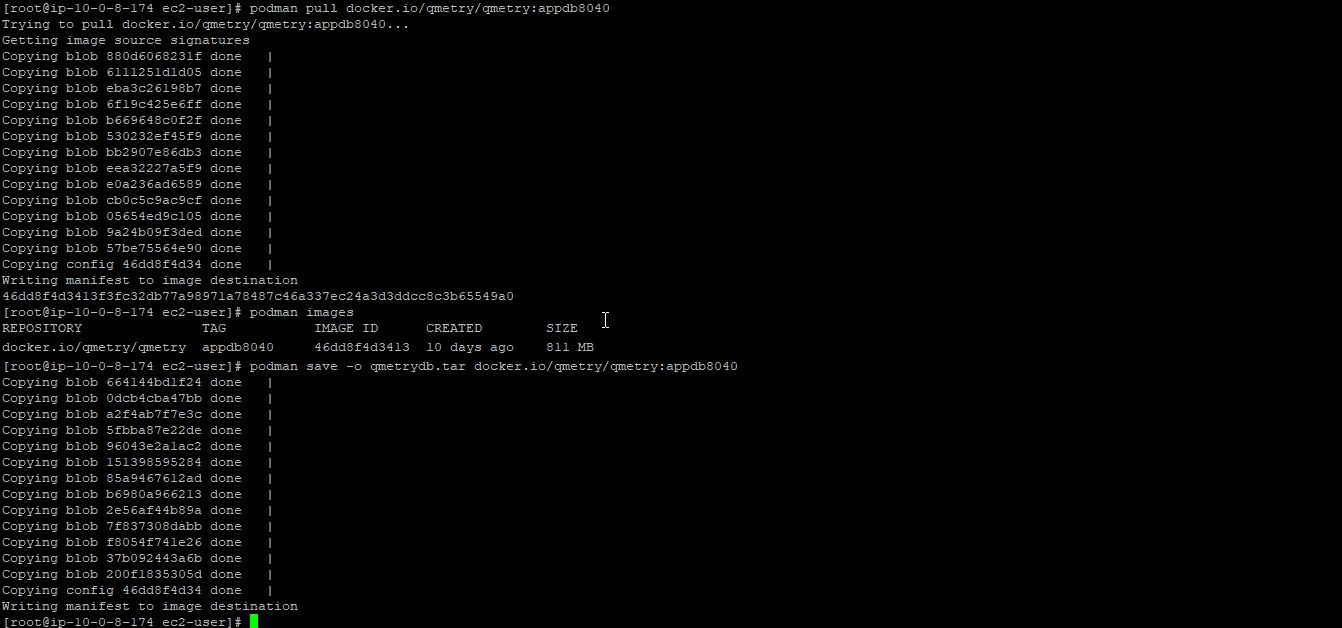
3. Transfer the qmetrydb.tar file to the host server.
Steps to download the container image of QMetry Application:
1. Execute the following command. Next, it will ask for container repository credentials. Enter the required credentials. If you do not have the credentials, please contact QMetry Support.
podman login docker.io
 |
2. Execute the following commands to download and save QMetry Application container image.
podman pull docker.io/qmetry/qmetry:latest
podman images
podman save -o qmetryapp.tar docker.io/qmetry/qmetry:latest
ls
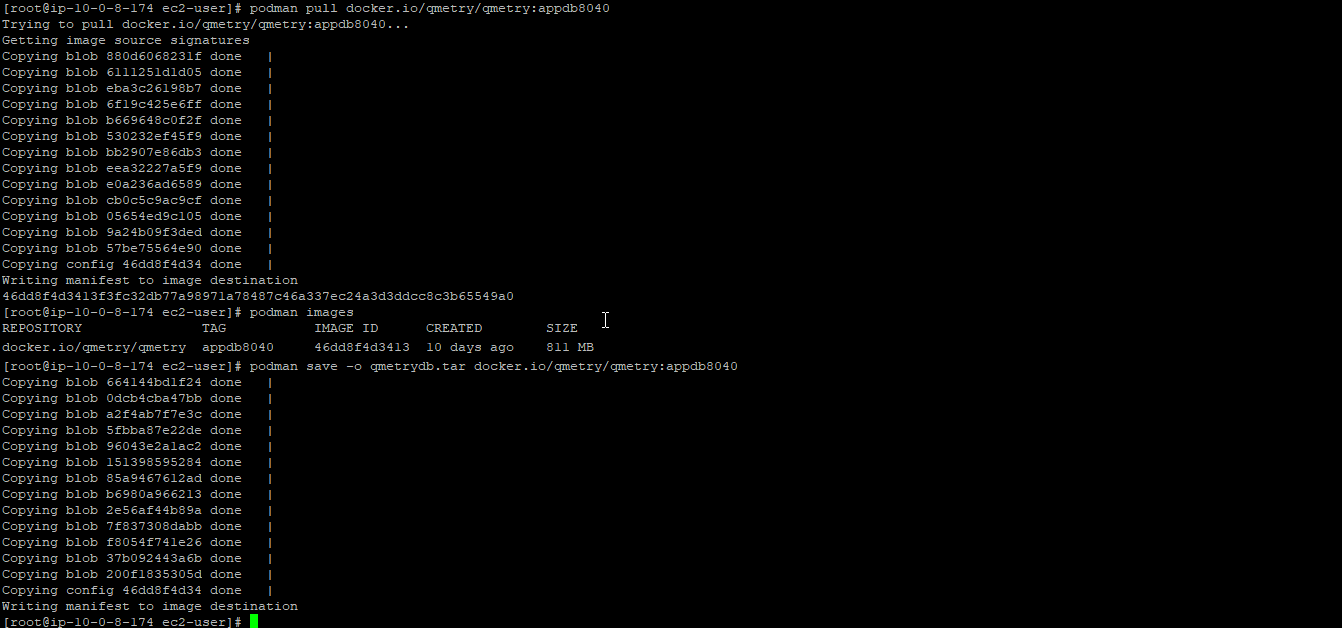
3. Transfer the qmetryapp.tar file to the host server.
Steps to download the container image of QMetry Report:
1. Execute the following command. Next, it will ask for container repository credentials. Enter the required credentials. If you do not have the credentials, please contact QMetry Support.
podman login docker.io
2. Execute the following commands to download and save Report Database docker image.
podman pull docker.io/qmetry/qmetry:reportdb848
podman images
podman save -o qmetryreportdb.tar docker.io/qmetry/qmetry:reportdb848
ls
3. Execute the following commands to download and save the Report container image.
podman pull docker.io/qmetry/qmetry:cdc_latest
podman save -o /opt/qmetrycdc.tar qmetry/qmetry:cdc_latest

podman pull docker.io/qmetry/qmetry:sync_latest
podman save -o /opt/qmetrysync.tar qmetry/qmetry:sync_latest

podman images
ls
4. Transfer the qmetrycdc.tar, qmetrysync.tar and qmetryreportdb.tar files to the host server.
Steps to download the container image of QMetry Redis:
Execute the following command. Next, it will ask for container repository credentials. Enter the required credentials. If you do not have the credentials, please contact QMetry Support.
podman login docker.io
Execute the following commands to download and save QMetry Application container image.
podman pull docker.io/qmetry/qmetry:redis840
podman images
podman save -o /opt/redis.tar qmetry/qmetry:redis840
ls
Transfer the redis.tar file to the host server.
Steps to download the container image of QMetry ActiveMQ:
1. Execute the following command. Next, it will ask for container repository credentials. Enter the required credentials. If you do not have the credentials, please contact QMetry Support.
podman login docker.io
2. Execute the following commands to download and save QMetry ActiveMQ container image.
podman pull docker.io/qmetry/qmetry:activemq_latest
podman images
podman save -o qmetryactivemq.tar docker.io/qmetry/qmetry:activemq_latest
ls
3. Transfer the qmetryactivemq.tar file to the host server.
Steps to download the container image of QMetry Automation API:
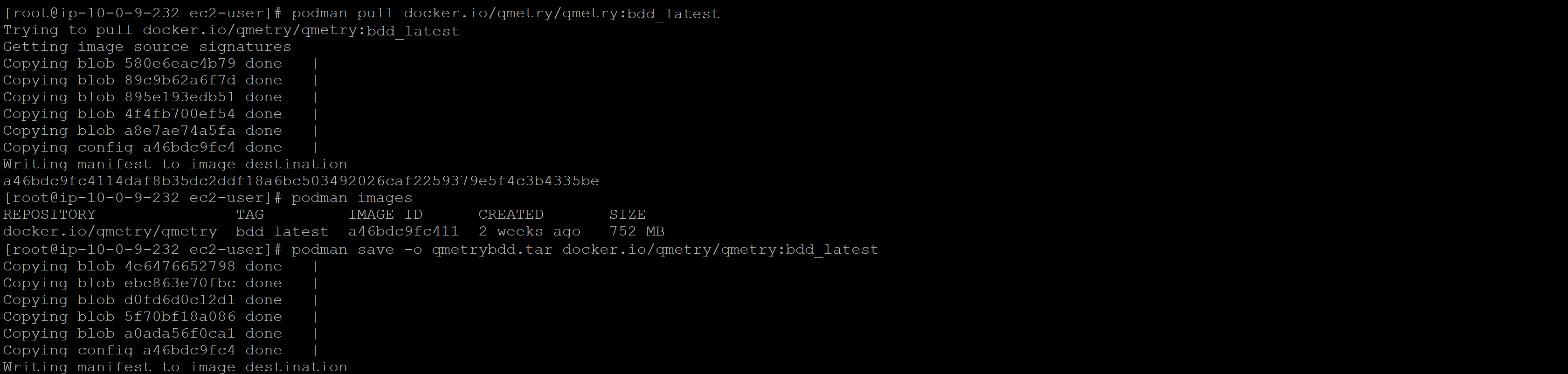
Execute the following command. Next, it will ask for container repository credentials. Enter the required credentials. If you do not have the credentials, please contact QMetry Support.
podman login docker.io
Execute the following commands to download and save QMetry Automation API container image.
podman pull docker.io/qmetry/qmetry:automation_latest
podman images
podman save -o qmetryautomation.tar docker.io/qmetry/qmetry:automation_latest
ls
Transfer the
qmetryautomation.tarfile to the host server
Steps to download the container image of QMetry BDD
Execute the following command. Next, it will ask for container repository credentials. Enter the required credentials. If you do not have the credentials, please contact QMetry Support.
podman login docker.io
Execute the following commands to download and save QMetry BDD container image.
podman pull docker.io/qmetry/qmetry:bdd_latest
podman images
podman save -o qmetrybdd.tar docker.io/qmetry/qmetry:bdd_latest
ls
Transfer the
qmetrybdd.tarfile to the host server
Transfer the Container Images and Run Install/Upgrade
Transfer the required .tar files to the respective servers before starting the installation or upgrade process.
When running install.sh or upgrade.sh, you will be prompted with the following question:
Options | Allowed Values | Default Value | Recommended Value |
|---|---|---|---|
Do you want to make an online installation (Y/N)? | Y, y, N, n | Y | N |
Enter N to proceed with an offline installation/upgrade using the locally available Docker/Podman image files.
The installer will then prompt you to provide the location of the corresponding .tar image file for the selected component.
For example, if you are performing a fresh installation/upgrade of the QMetry App DB component, you will see a prompt similar to the following:
Please enter directory path of qmetrydb.tar file for docker image: /opt
If the image file has been downloaded and placed at: /opt/qmetrydb.tar
then enter: /opt
The installer will automatically locate the qmetrydb.tar file in the specified directory and continue with the installation.
Similarly, provide the directory path containing the respective .tar file for any other component being installed or upgraded.