Installing QMetry along with Redis Caching Server for Linux
In this guide, we'll run you through installing QMetry along with Redis Caching Server.
Pre-requisites
All the servers should have the support of these commands: unzip, curl and vim.
Internet access should be enabled on all the servers to install using docker.
Ensure Proxy Servers are not blocking downloads from the Internet.
Docker installation requires root user access.
Get the
QMetry_Linux_Installer.zipfile from QMetry Support.Following Ports should be open:
Installation
Ports that need to be enabled
Redis Caching Server
6379
Installing QMetry along with Redis Caching Server
Hardware Requirements
Small Teams < 50 Users | Medium Teams < 500 Users | Large Teams 500+ Users | ||||
Min | Recommended | Min | Recommended | Min | Recommended | |
Memory | 4 Gb | 8 Gb | 8 Gb | 16 Gb | 16 Gb | 32 Gb |
CPUs | 2 Core | 4 Core | 4 Core | 12 Core | 12 Core | 24 Core |
Copy the
QMetry_Linux_Installer.zipinstallation file received from QMetry Support to your server and unzip it. Navigate to the directory where these files are saved.unzip QMetry_Linux_Installer.zip cd QMetry_Linux_Installer sudo su
Run the following commands.
chmod +x install.sh
./install.sh
The installer then displays the QMetry Installation Menu. Enter 4 to install the QMetry Redis.
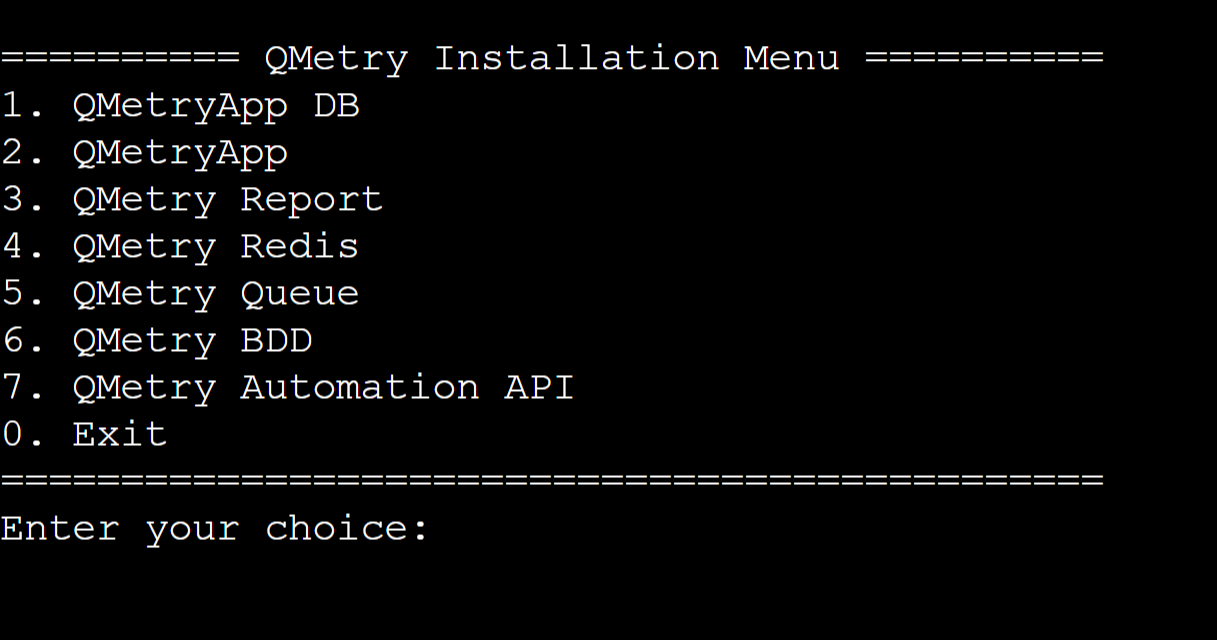
You will be asked for credentials. Enter docker credentials provided by the support team.
The installation may take a while.
After the successful installation Redis Caching Server, you will see the message "QMetry Redis Installation is complete".
Once the installation is complete, run the following command
docker ps
After the above steps are completed, log into the QMetry application.
Go to "Admin" Profile and Edit the Profile.
Update QMetry Redis URL/IP along with the port 6379 eg.127.0.0.1:6379
Configure the Redis with QMetry Application as mentioned in Step 3. If you are facing any issues from the QMetry Application side after Step 3 , then you may be required to restart the QMetry Application docker container after Step 3 .
If you are facing any issues during the installation process, kindly generate a support ticket on the Support Portal for assistance.